Delivery Settings - Setting Default Delivery Methods and Overriding at the Event Level
This article explains how to:
Set default delivery methods (eTicket, Will Call, Mail) across all sales channels
Adjust delivery methods for individual events
Using the "Hide Delivery Options" setting
Setting Global Default Delivery Methods
Default delivery methods determine the preferred options for:
Online/Phone sales
Box Office sales
Exchanges
To update default delivery settings:
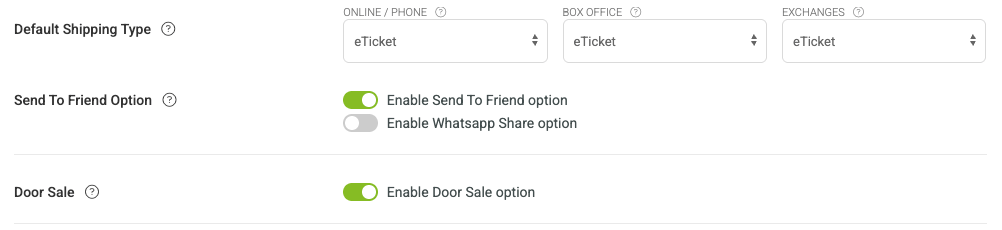
Navigate to EVENTS > EVENT SETTINGS > DELIVERY SETTINGS.
Use the Default Shipping Type dropdown menu at the top of the page to select the preferred delivery method for each sales channel.
(Optional) To disable Door Sale as a delivery type, toggle it Off.
Click SAVE.
Important
Updating global delivery preferences does not affect existing orders.
These changes also do not automatically update active events that already have delivery settings configured.
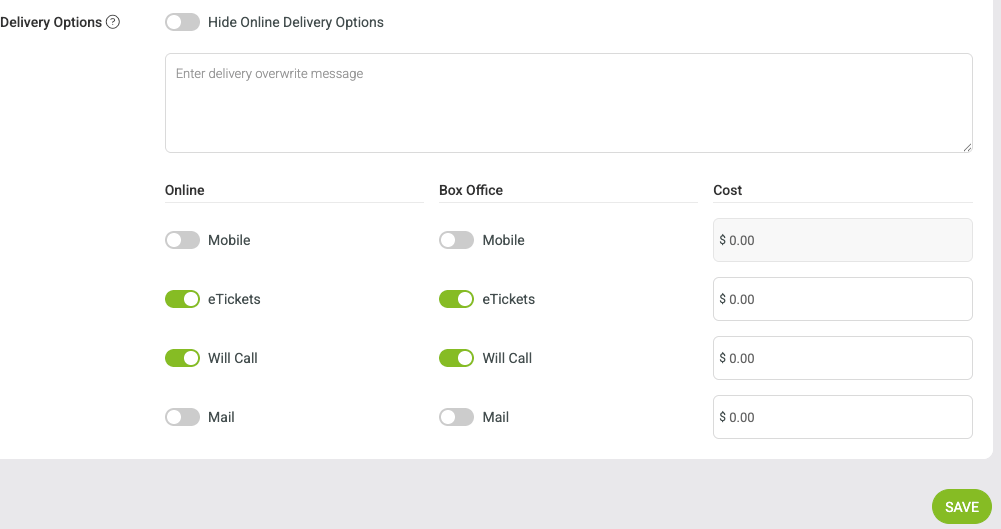
On this page, you can also enable delivery methods you use (E-Ticket, Will Call, Mail) and set fees.
Be sure to review active events individually if changes are needed.
Editing Delivery Methods for a Specific Event
If an individual event needs different delivery options than your global defaults, you can update it at the event level.
To edit delivery settings for a specific event:
Go to EVENTS > MANAGE EVENTS.
Locate the event and click Select Action menu
Choose FEES.
Adjust the available delivery methods as needed.
Save your changes.
At least one delivery method must remain enabled for each event.
Hide Online Delivery Options Setting
The Hide Online Delivery Options setting removes delivery choices from the online checkout experience. This is useful when you want to require a single delivery method for all online orders.
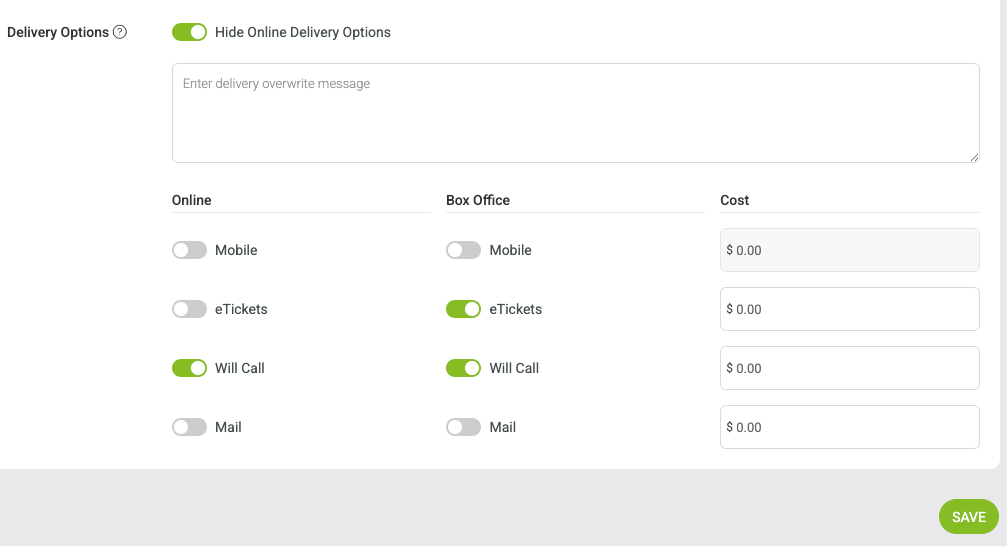
Example: Forcing Will Call
Enable Will Call as the only delivery method.
Turn on Hide Online Delivery Options.
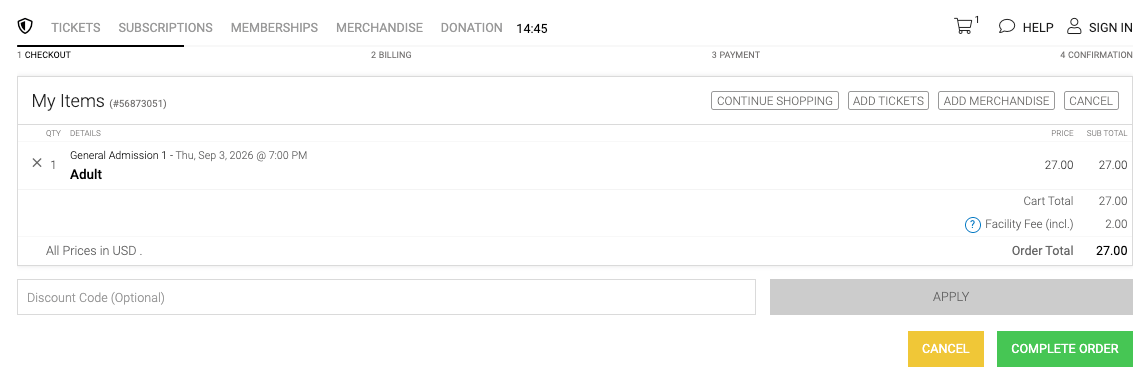
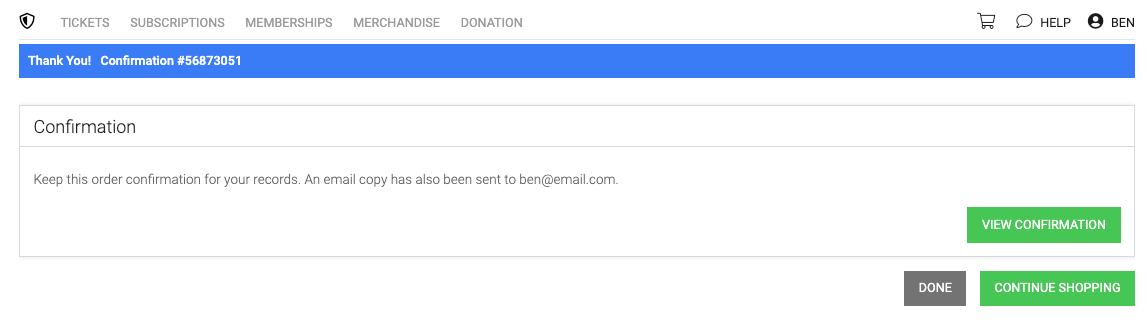
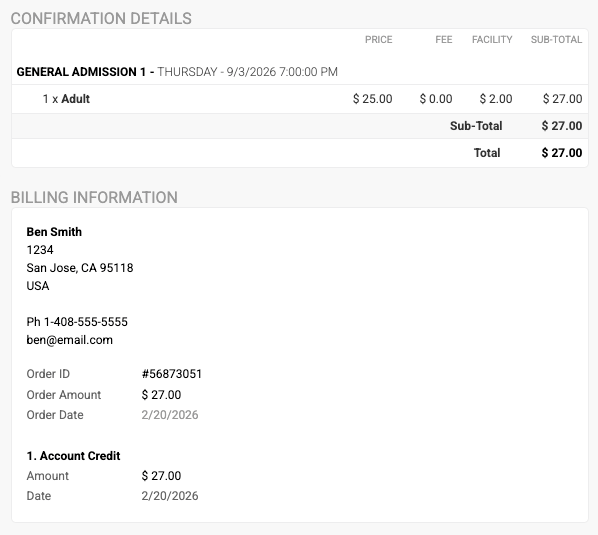
Customers will not see any delivery selection during checkout.
Example Screenshots
Backend Configuration
Online Checkout Display
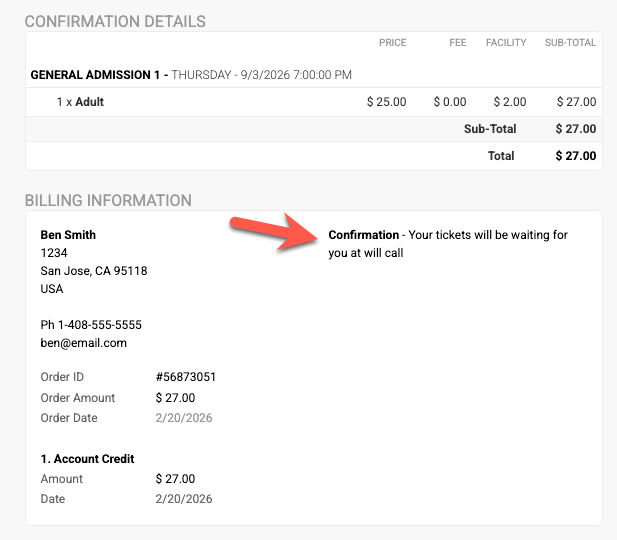
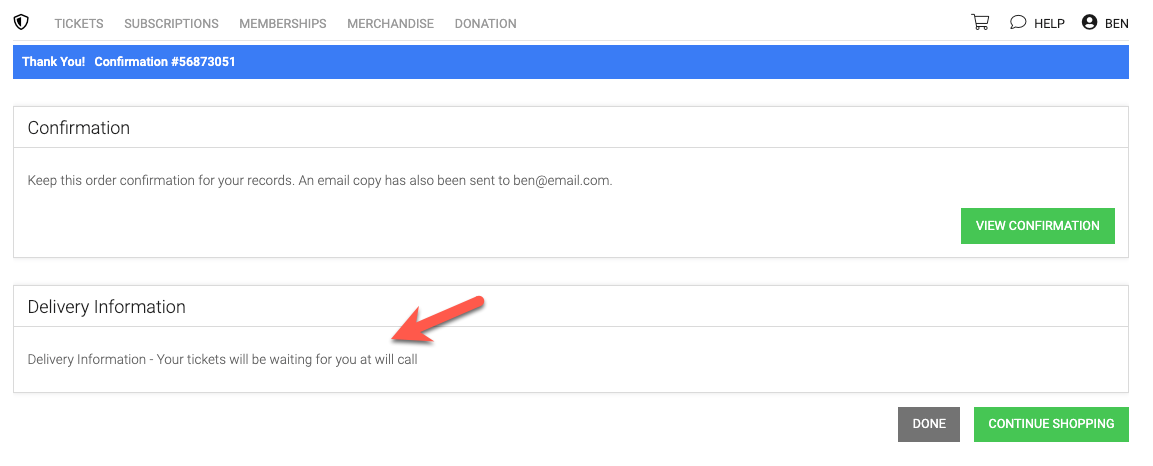
Confirmation Page After Purchase
Order Confirmation Email
Using a Custom Message
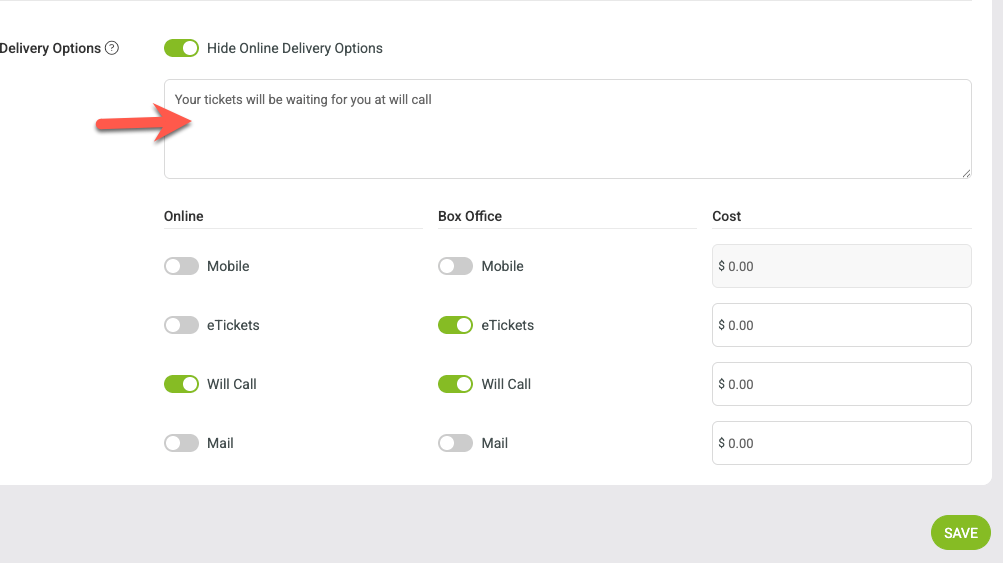
Instead of showing delivery options, you can provide customers with special delivery instructions.
For example, you may include messaging such as:
“All tickets will be available at Will Call beginning one hour prior to showtime.”
Backend Configuration
Confirmation Page After Purchase
Order Confirmation Email