Tracking codes / Google analytics
Tracking codes (pixels) can be added on a global level or per event level.
Global Level
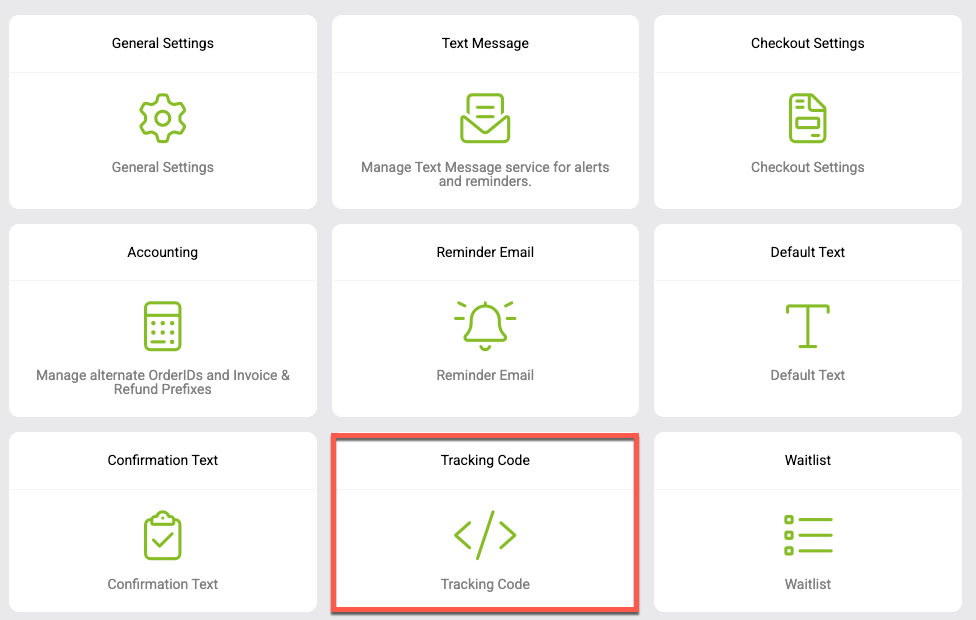
Navigate to EVENTS > EVENT SETTINGS > EVENT SETTINGS and click on the Tracking Code option
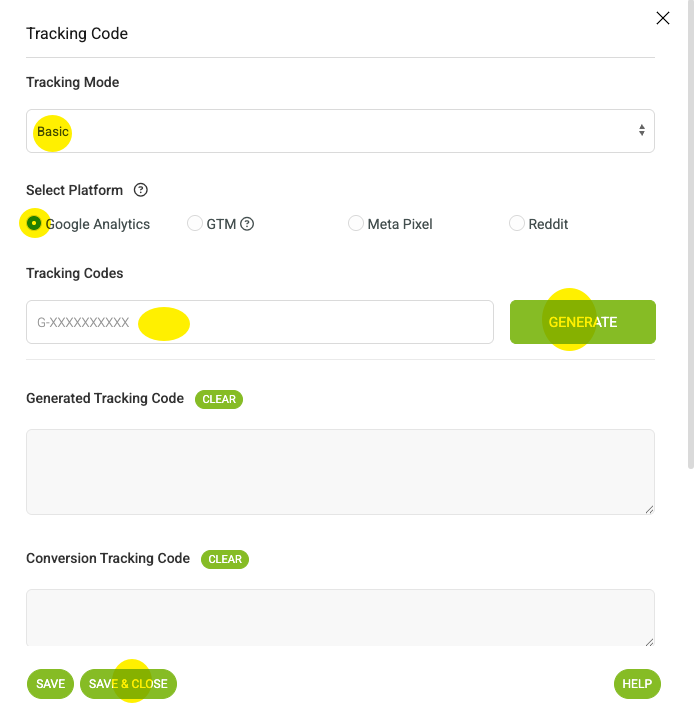
Basic Tracking Setup
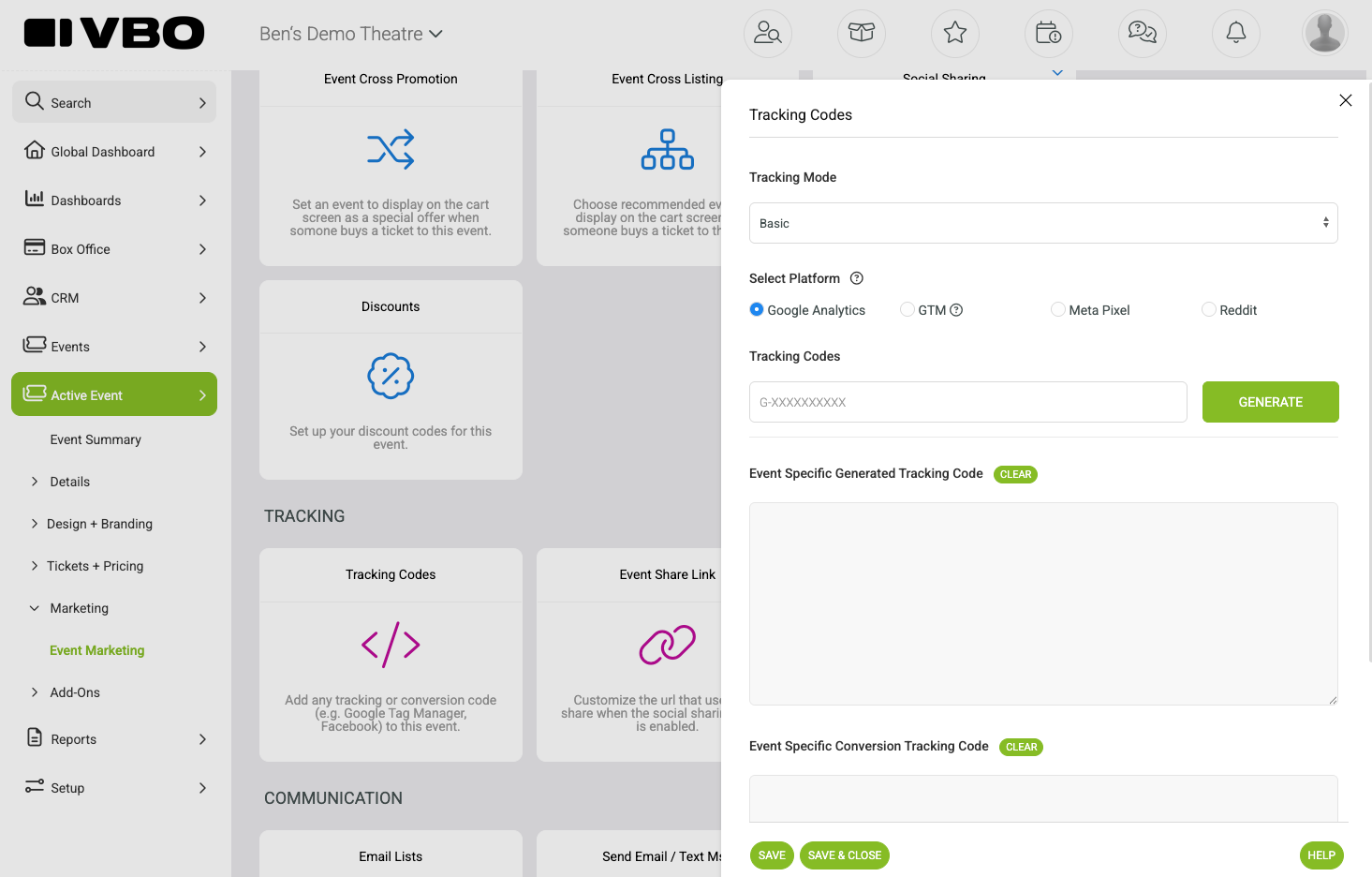
If you only have the unique codes generated by the tracking platform you can use the basic setup option.
Choose the platform you're using
Paste your code
Click GENERATE
Your tracking codes will be generated for you
Click SAVE or SAVE & CLOSE
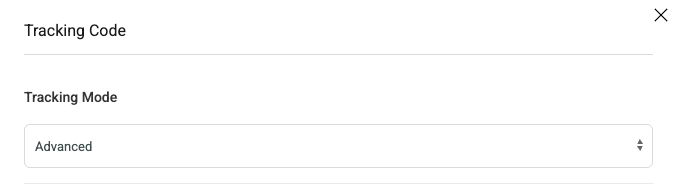
If you want to customize your tracking code use the drop down menu at the top of the page to switch from basic to advanced mode. From here you can write and save your own tracking codes.
Event Specific
The event specific setup is meant to be used when you want to override the global tracking code setup for a specific event.
Navigate to EVENTS > MANAGE EVENTS and select "Marketing" from the select action dropdown.
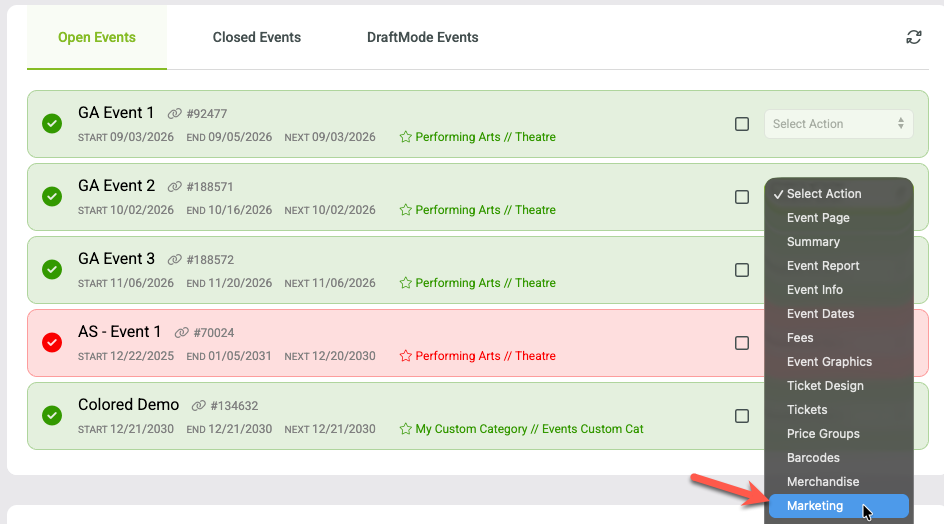
Click the Tracking Codes button
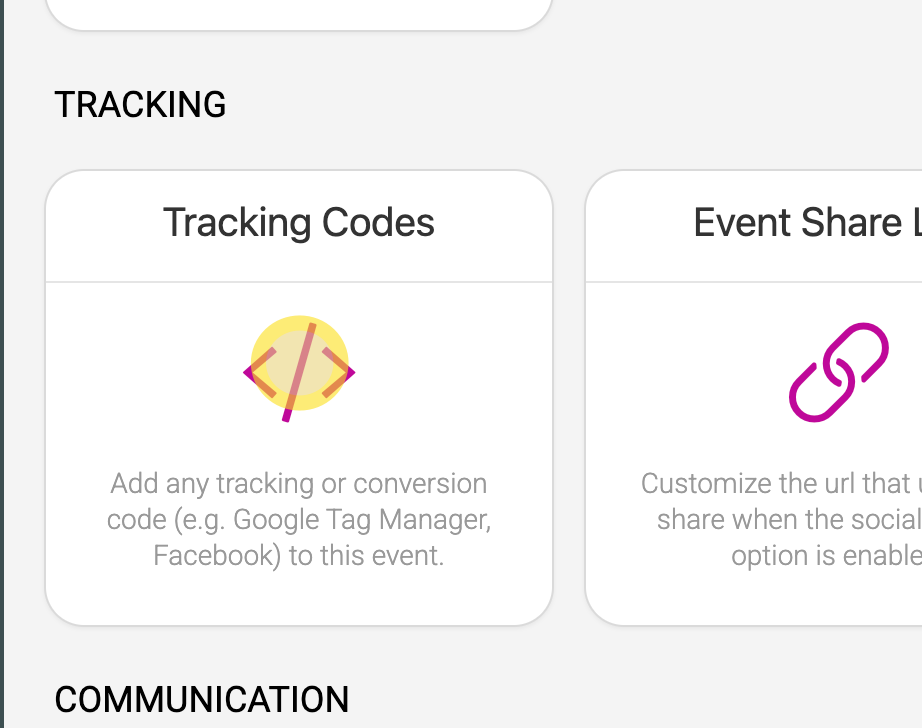
Set up the tracking codes for you event using the same method described for the global setup. Use basic mode if you only have the tracking code and VBO will generate the code for you. Advanced mode allows you to write your own custom tracking codes.
Definitions
Standard Tracking will load on all pages except the order confirmation. Use the large main field for all your standard Google Analytics, Google Tag Manager, Facebook, or other codes that should load on all pages.
Conversion Tracking will load only on the order confirmation page. Be sure to add ALL the codes you require for tracking on this page, since the order confirmation page will not load any of the Standard Tracking codes.
If you need to track the order confirmation URL in your analytics tool, all order confirmations use the same url with the session ID appended to it.
You can also track items in the cart by targeting this url with your tracking code: https://www.vbotickets.com/v5.0/checkout.asp
If you do not know when or where to use the order confirmation URL, you likely do not need to take this step.