Import Orders
Orders can be imported to an event through a .CSV file.
Orders can only be imported for general admission events. Assigned seating event orders cannot be imported via a file.
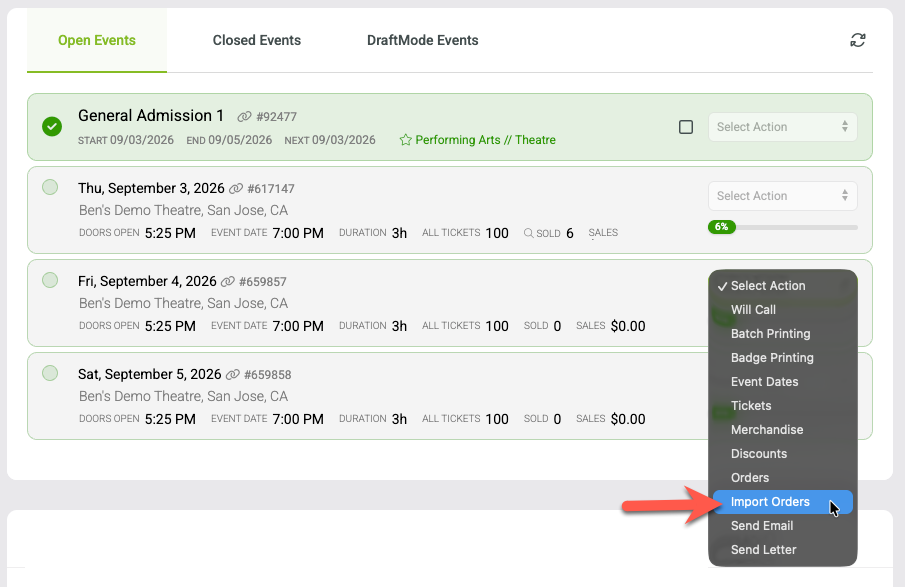
To access the import orders area, go to EVENTS > MANAGE EVENTS and then in the OPEN EVENTS area click to expand the event dates on the event. Click Import Orders on the specific event date.
Step 1
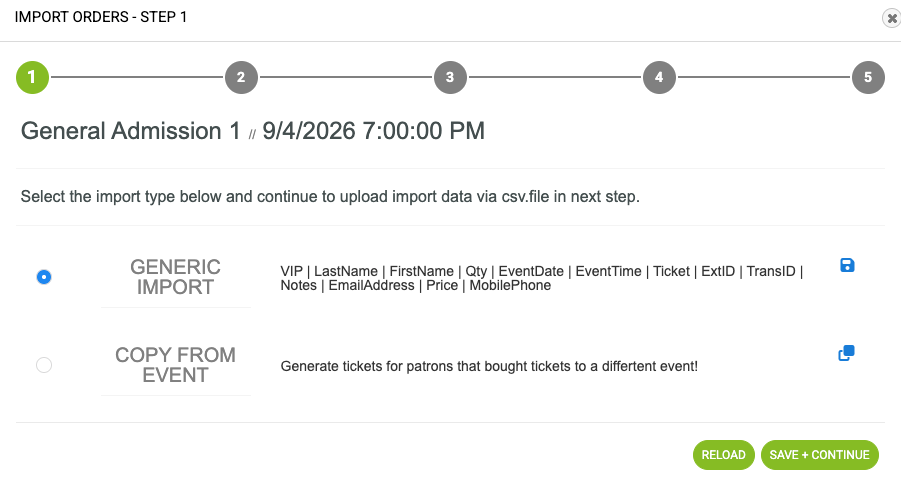
Choose the import source. In this example, the source will be from a file. A file structure example is available for download on the Generic Import source. After you have selected your option, click Save + Continue.
Step 2
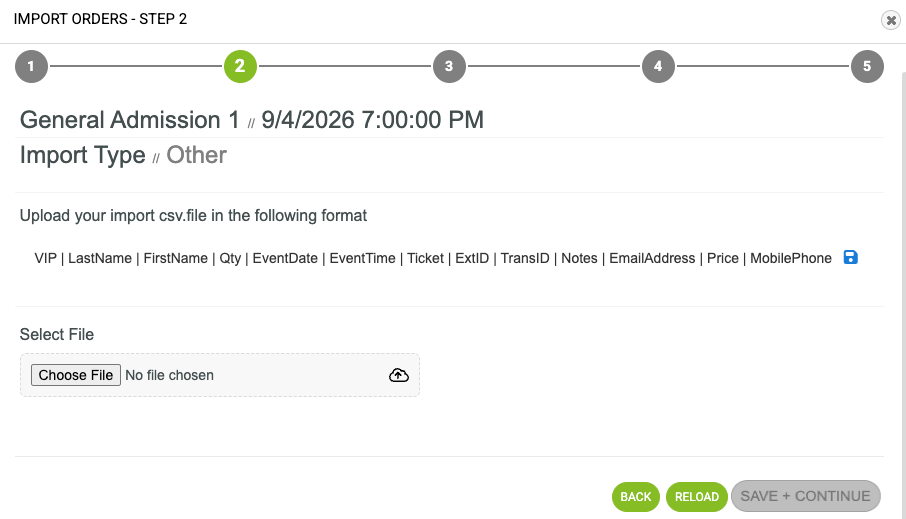
Click Choose File and upload the orders file and press Save and Continue.
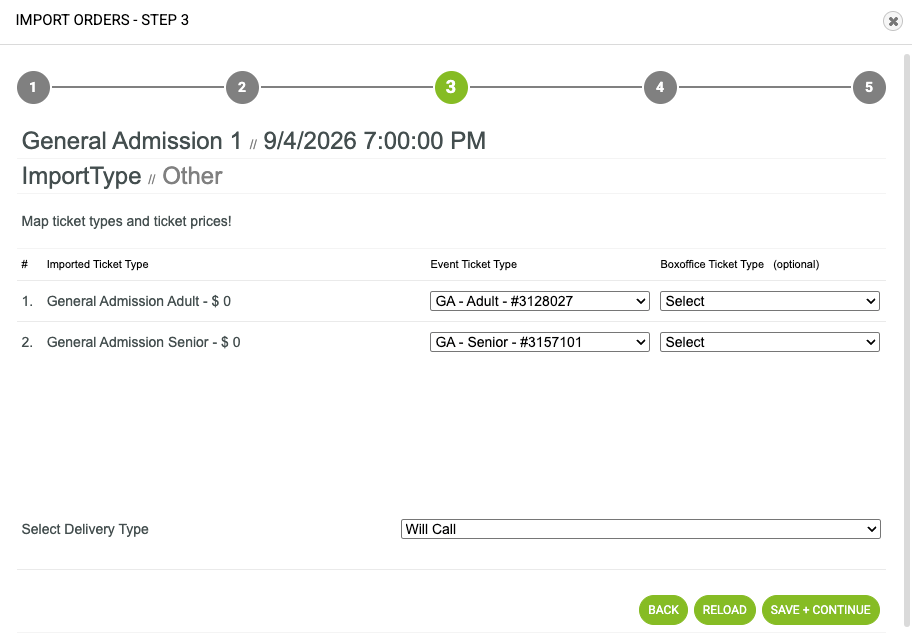
Step 3
On this screen, map the imported ticket type to the ticket types set up on the event or set up through special box office ticket types and press Save and Continue.
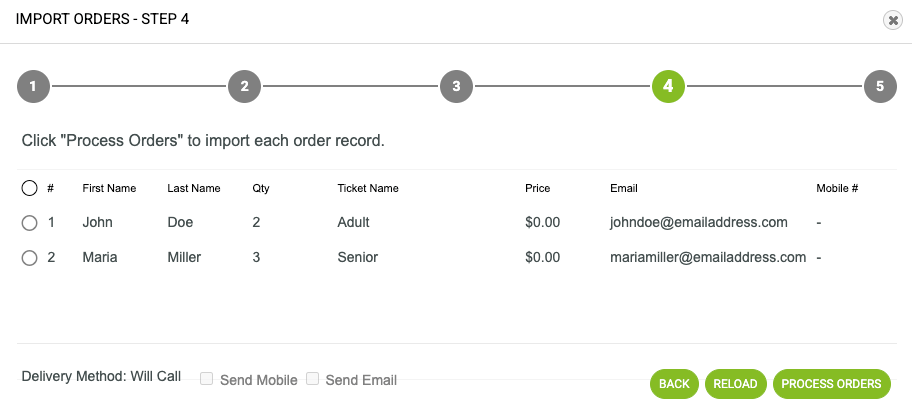
Step 4
A preview of the orders will display. Click Process Orders.
Step 5
Orders Imported Screen - press View Orders to navigate to the orders tab to review the imported orders.
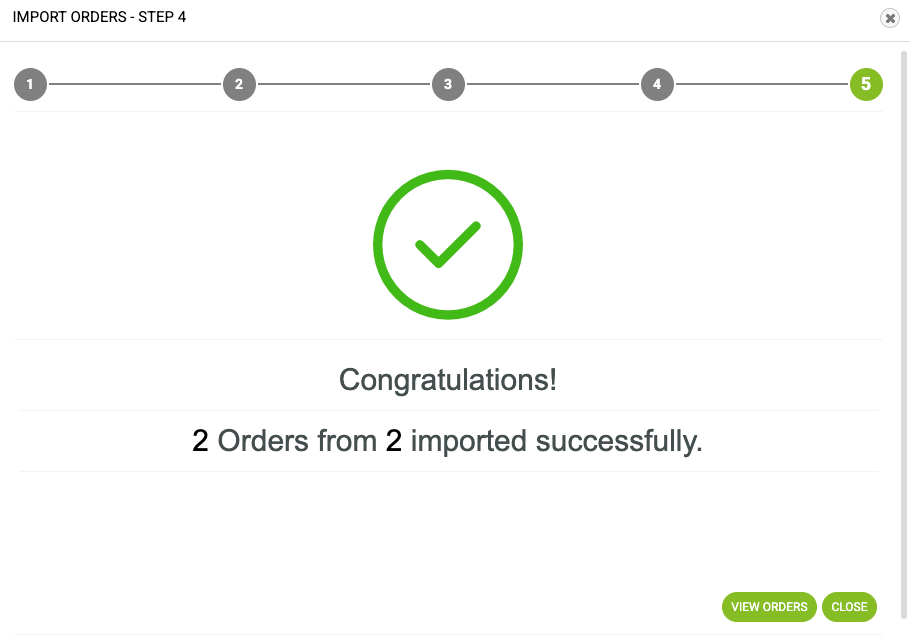
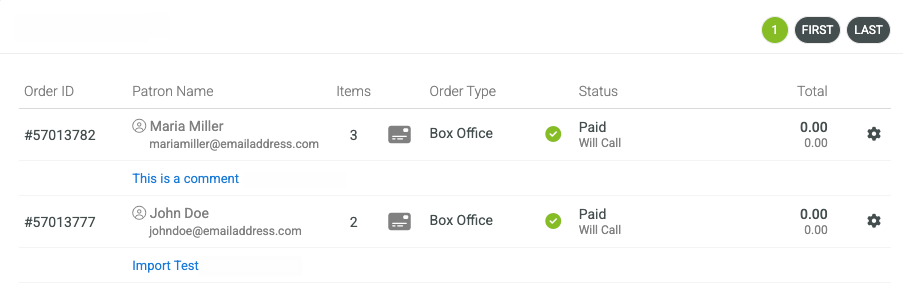
Orders are imported. From the orders screen, review and confirm the orders.