Mail Orders
This help document walks through the setup and management of mail delivery within the system. It explains how to configure mail-related settings globally and at the event level, as well as how to handle and fulfill orders that require mailing.
Editing the mail cut off time setting
Setting up mail fees in the global settings
Enabling mail delivery on a per event level
How to manage and fulfill orders that need to be mailed and mark them as shipped
Mail Cut-Off Time Setting and Setting up Mail Fees Globally
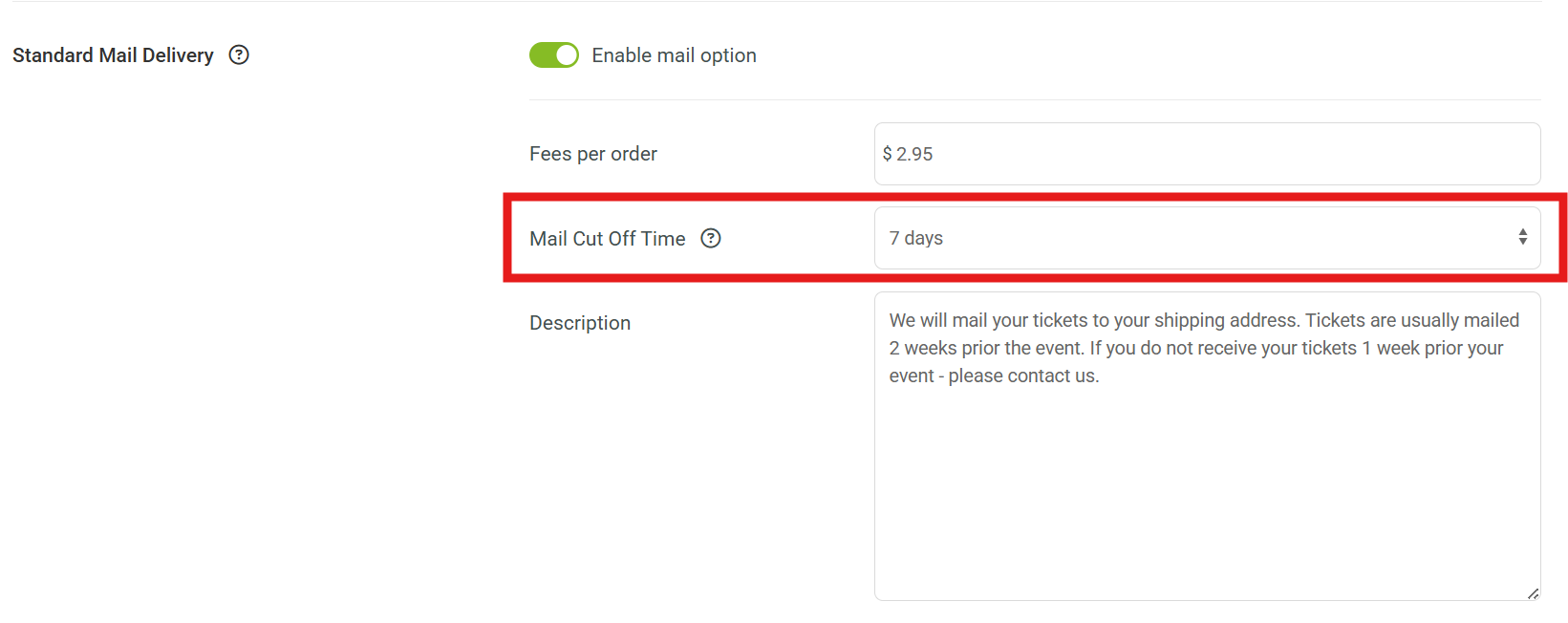
Under Events > Event Settings > Delivery Settings, you’ll find the Mail Cut-Off Time and Mail Fees Per Order setting.
This allows promoters to specify how many days before an events start time mail delivery should be disabled for online sales.
By default, the Mail Cut-Off Time is set to 7 days prior to the event start time, but promoters can adjust this setting anywhere from 0 to 60 days, based on their requirements.
Notes on mail delivery fees
This fee will apply as a fee per order, not a fee per ticket.
Only users with admin permissions at your organization can set the mail delivery fee.
Enabling mail delivery on a per event level
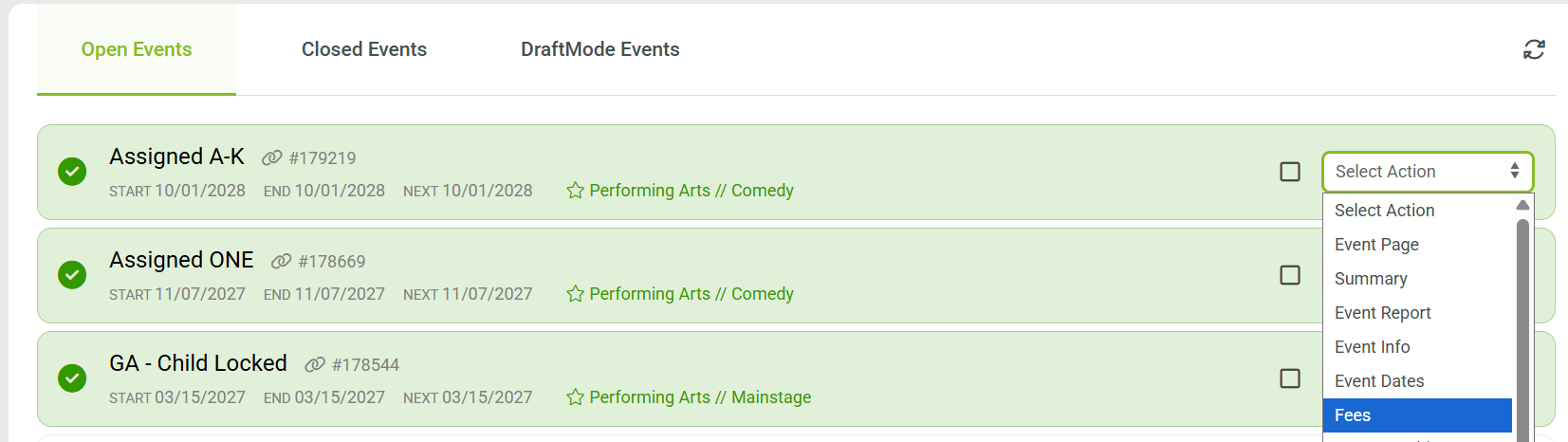
Navigate to Events > Manage Events, then click the Select Action menu on the event and select Fees
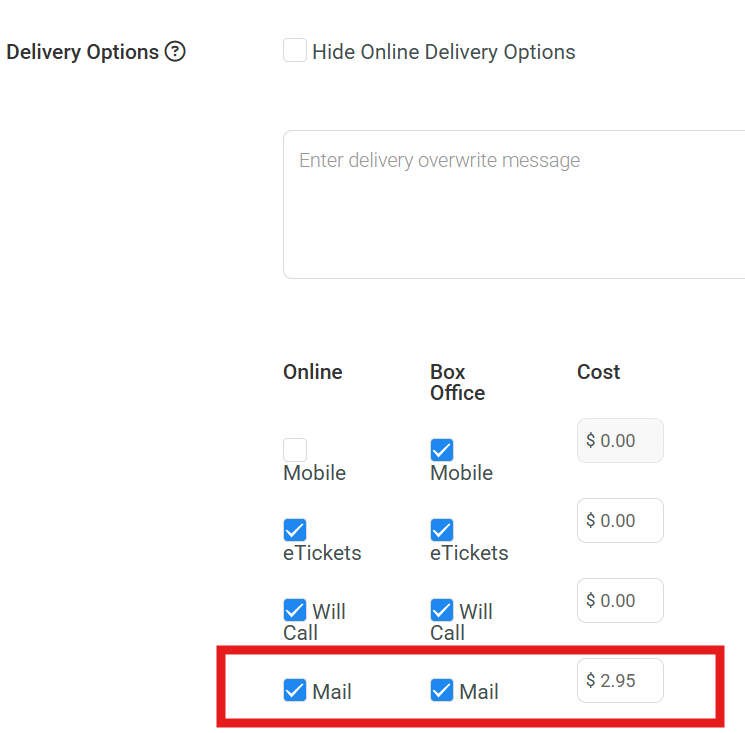
In the Fees section, review and enable the MAIL setting, and review that the fee is what you need it to be for your event.
Where to view orders that need to be mailed (multiple options)
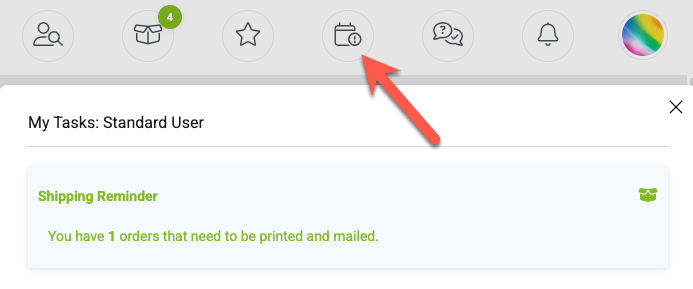
1. Task Area
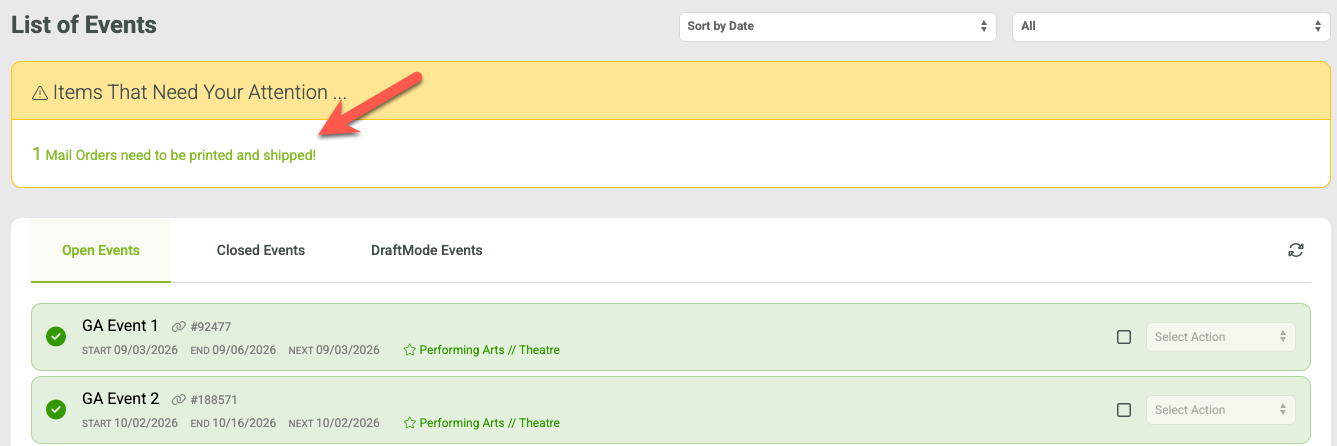
2. Under Events
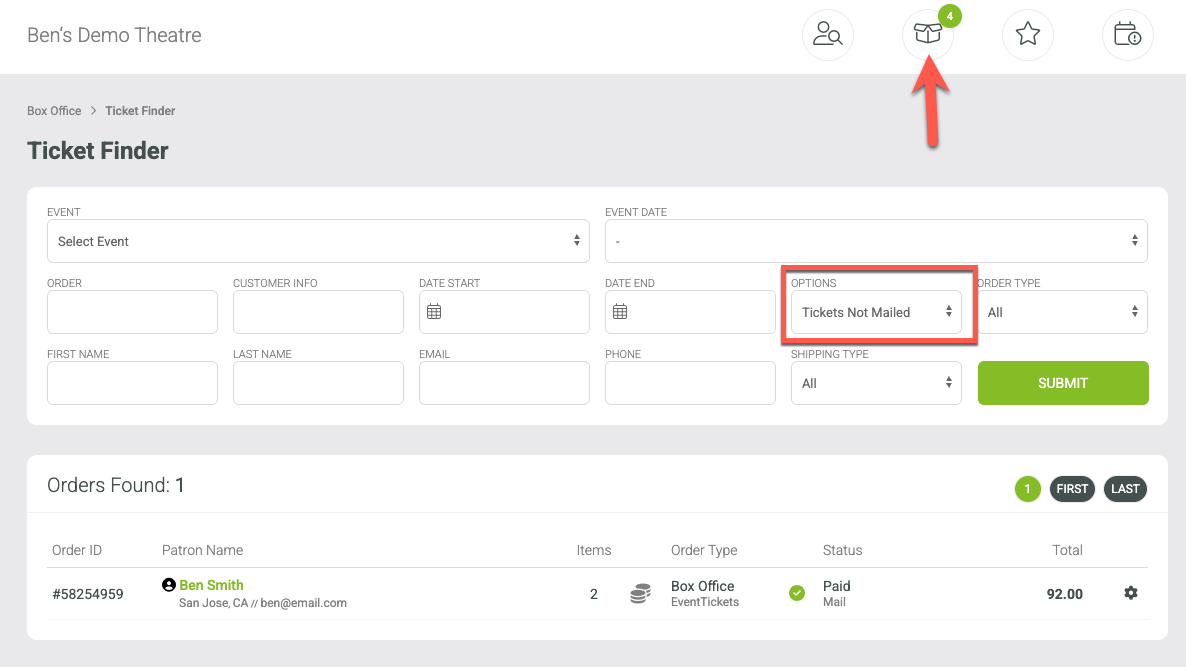
3. Under the Orders Tab under Tickets Not Mailed
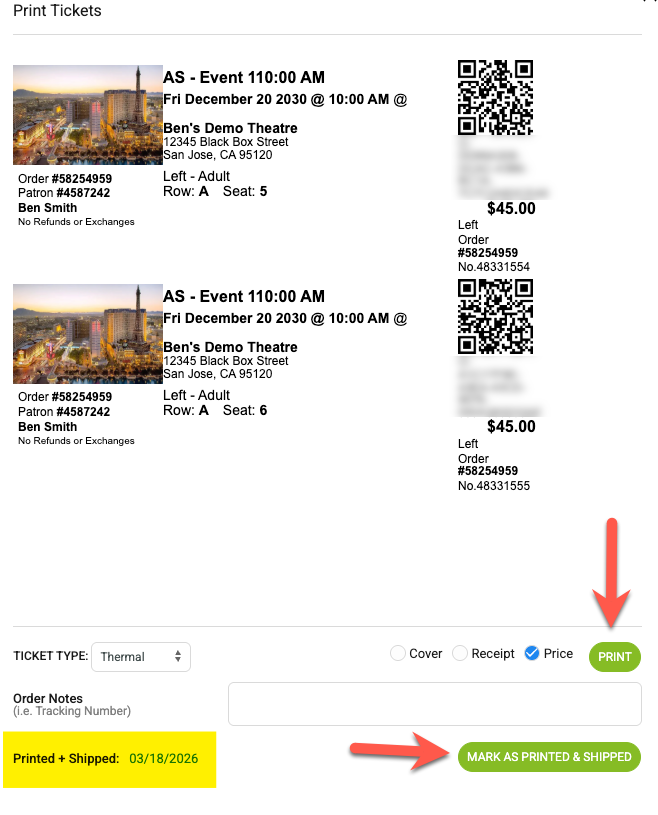
How to mark orders as printed
Click the gear on the order and select Print Tickets
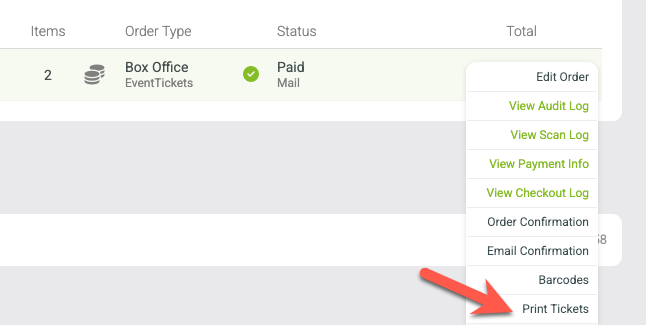
Print the tickets, when finished, click Mark As Printed & Shipped