Sending Renewal Letters
Overview
The Renewal Letter workflow allows organizations to generate printable renewal letters for subscribers.
This workflow is commonly used when organizations:
- Mail renewal notices to patrons
- Want physical renewal communications
- Prefer subscribers renew offline or through mailed instructions
- Need printed communications for patrons who may not regularly use email
Renewal letters use Renewal Letter templates and support renewal placeholders.
Before You Begin
Before creating a Renewal Letter campaign, make sure you have:
- Created a Renewal Letter template
- Determined which subscription type you want to renew
If your organization uses multiple subscription types, create a separate renewal campaign for each type.
Accessing the Renewal Workflow
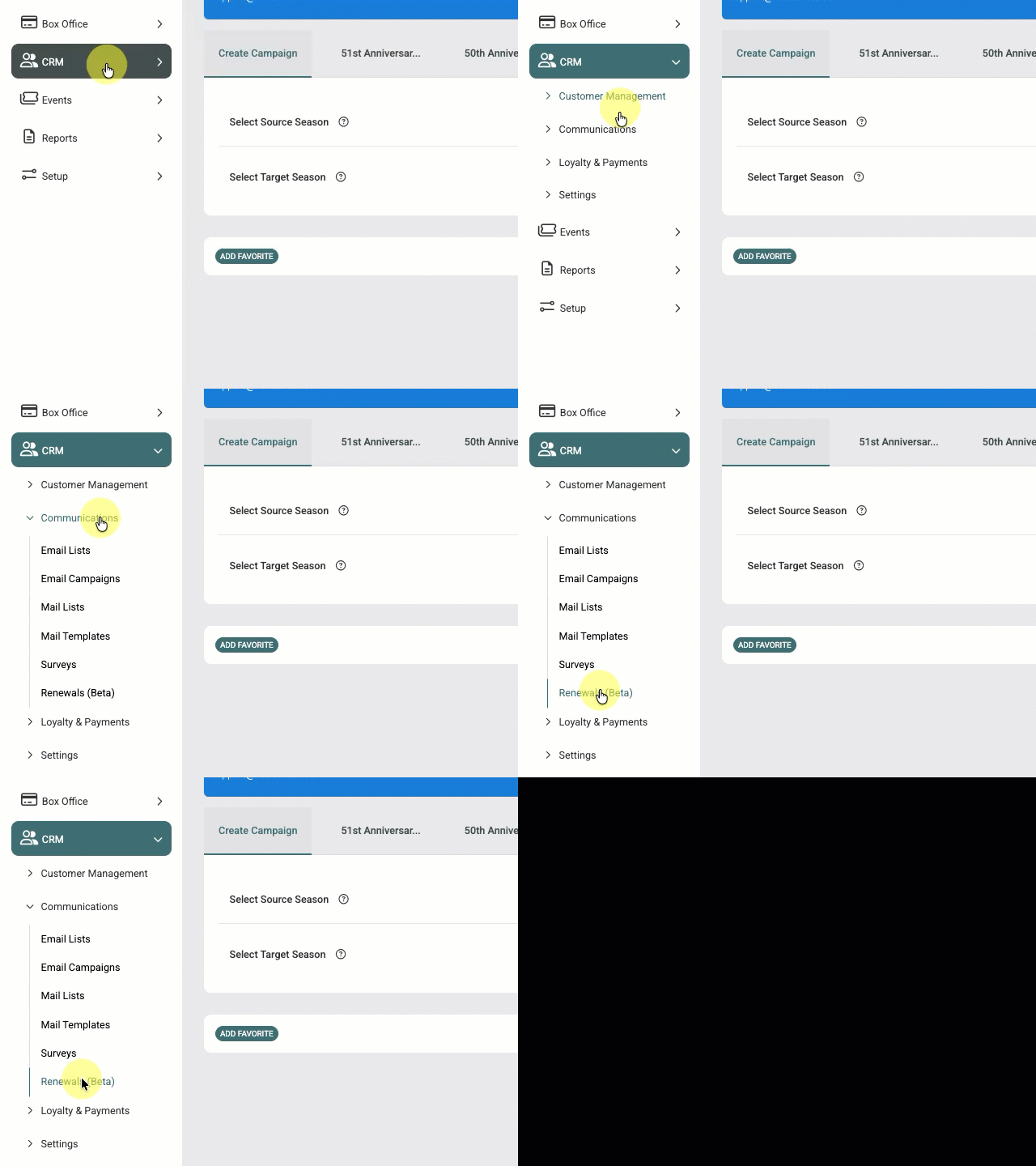
Navigate to: CRM > Communications > Renewals
Step 1 – Select the Source Season
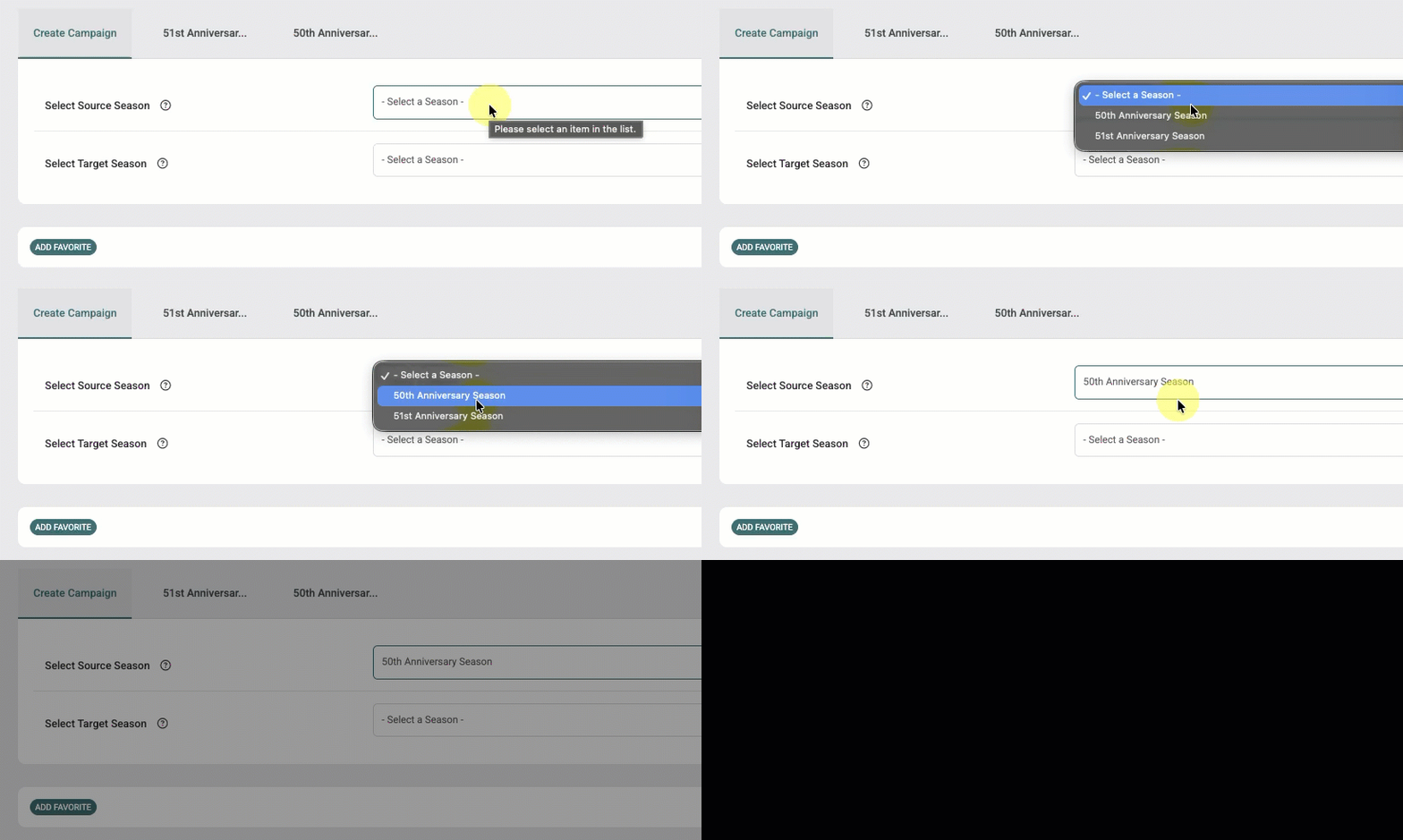
The Source Season contains the subscribers you want to renew.
Examples:
- 2025–2026 Season
- Spring 2026 Theatre Season
The system uses this season to identify eligible subscribers.
Step 2 – Select the Target Season
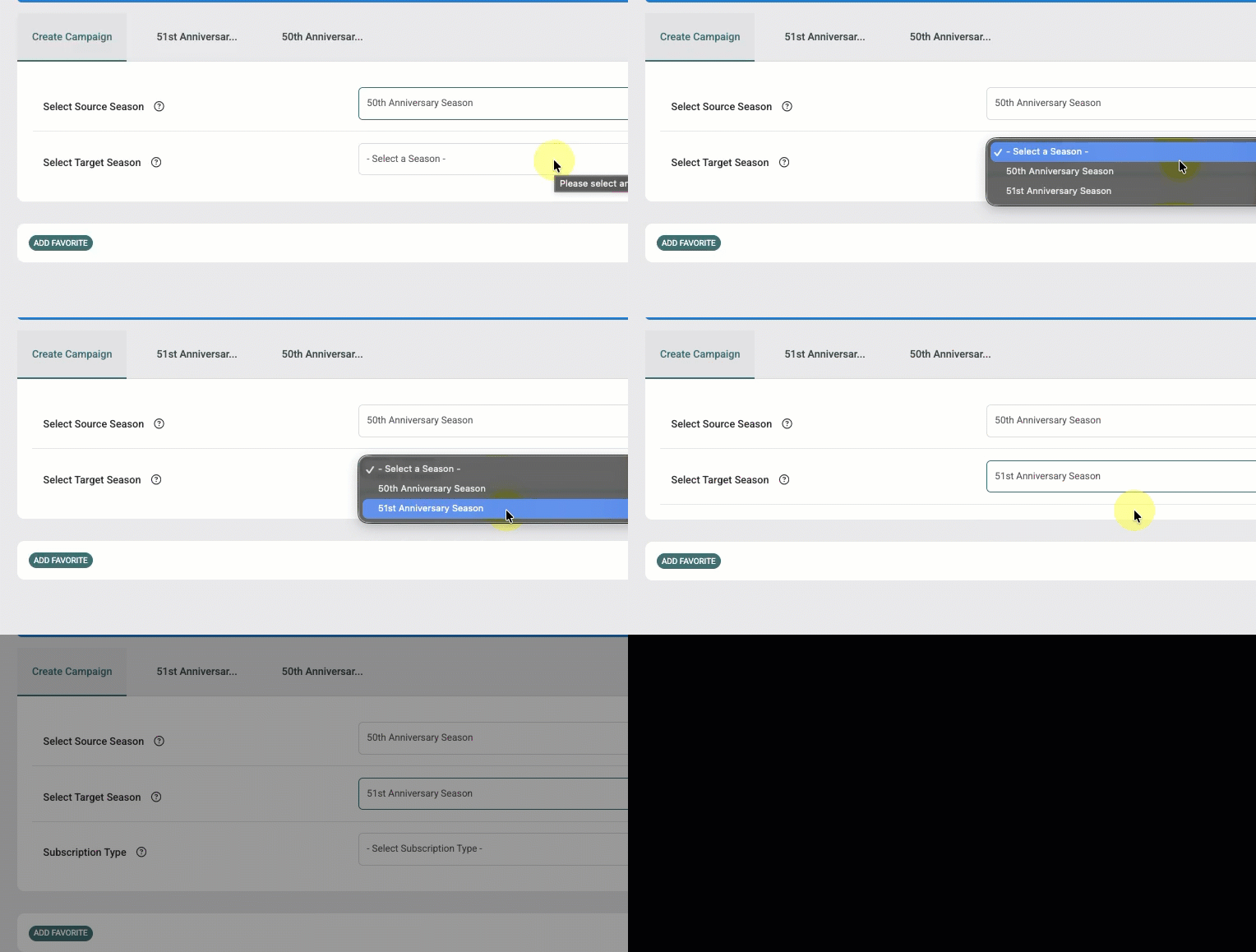
The Target Season contains the subscriptions patrons will renew into.
Examples:
- 2026–2027 Season
- Fall 2026 Theatre Season
The system uses this season to load available subscription options for mapping.
Step 3 – Select the Subscription Type
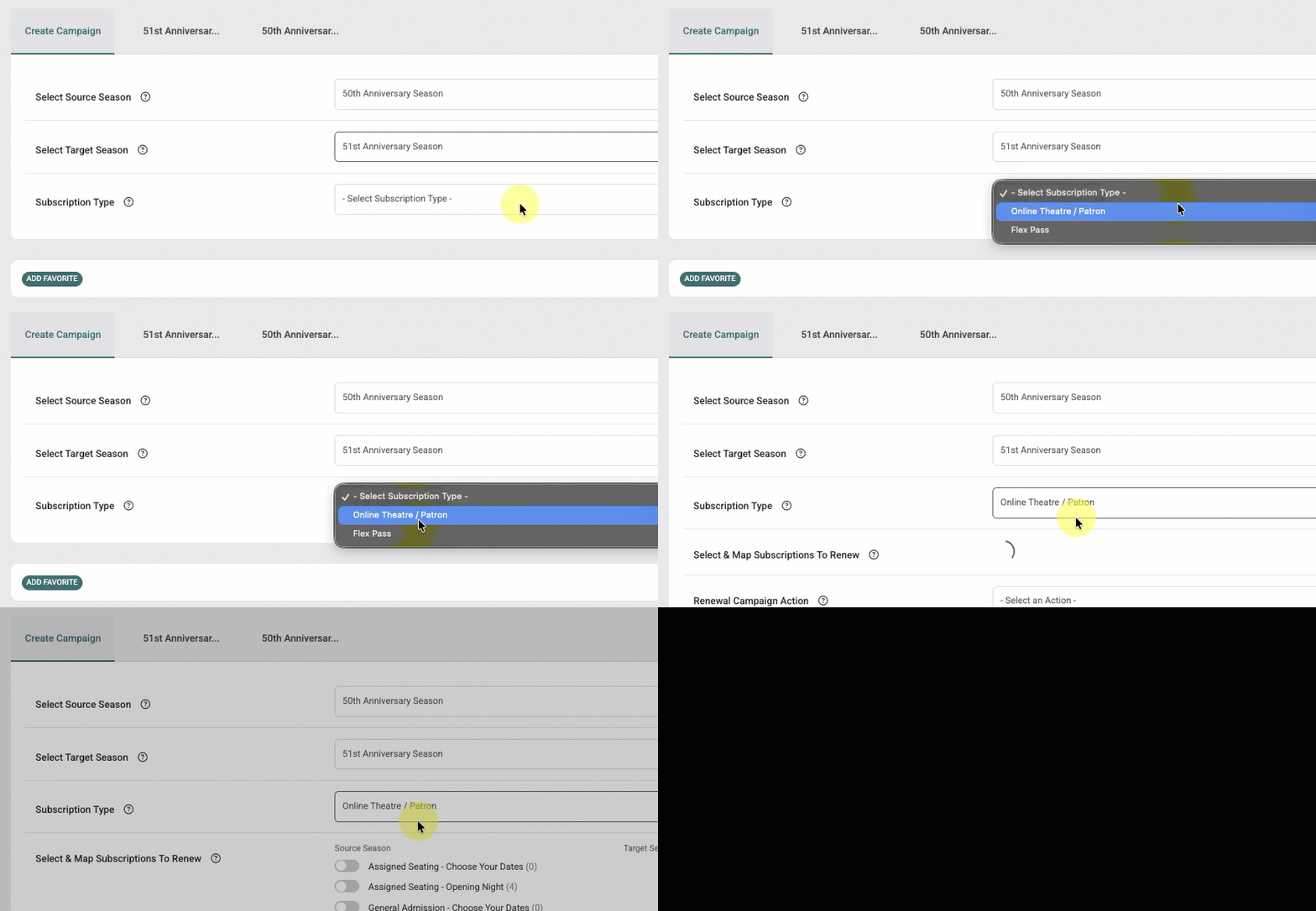
If more than one supported subscription type exists in both seasons, a Subscription Type dropdown will appear.
Supported subscription types include:
- Online Theatre / Patron
- Regular Theatre
- Flex Pass
- Standard Subscription
- Pick-a-Show
Select the subscription type you want to renew in this campaign. If your organization uses multiple subscription types, create a separate renewal campaign for each.
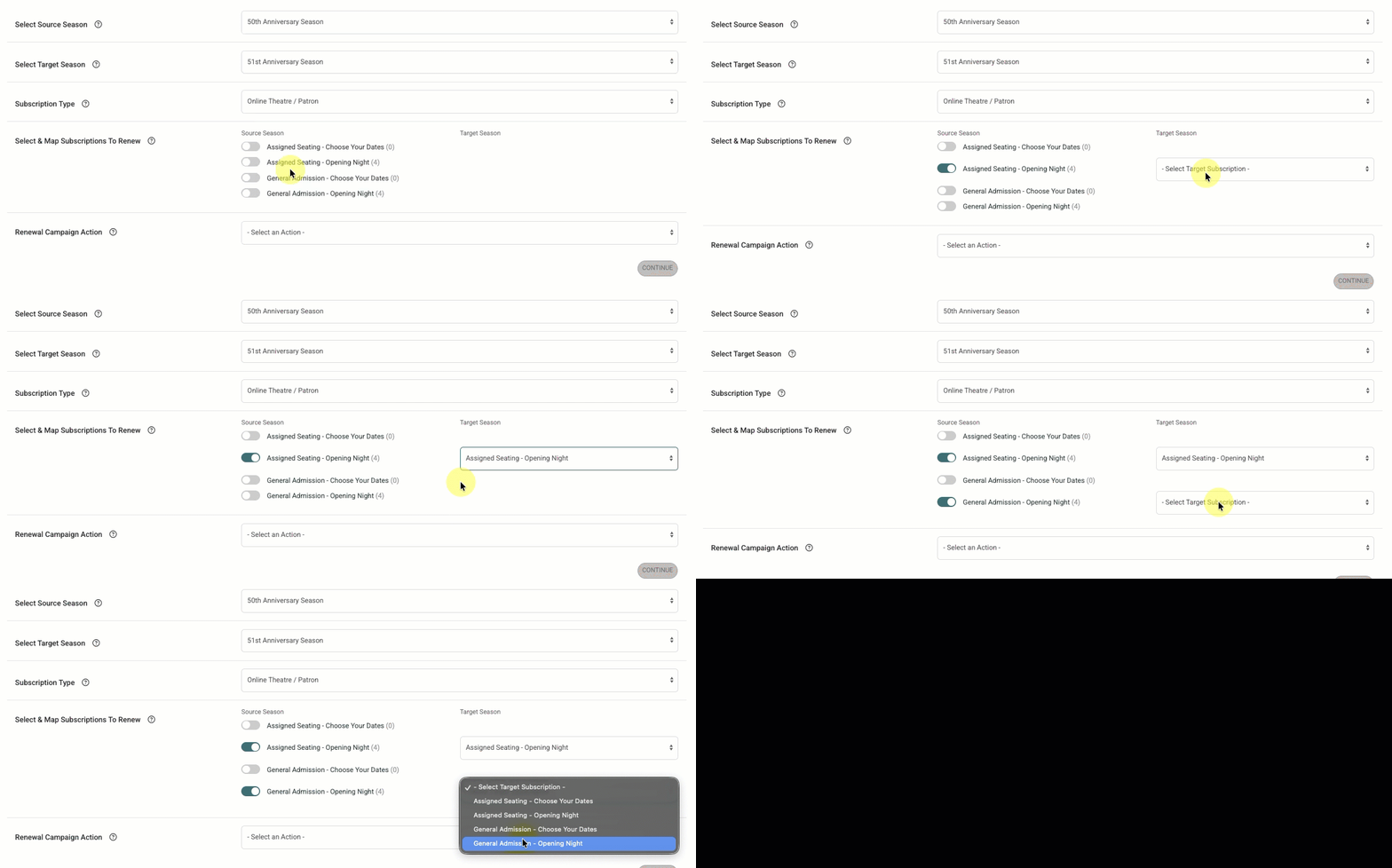
Step 4 – Map Subscriptions
The workflow displays subscriptions from the Source Season.
For each subscription you want to renew:
- Select the source subscription
- Choose the matching subscription from the Target Season
This mapping determines:
- Which subscribers are included in the campaign
- Which subscription is recommended during renewal
Multiple source subscriptions may map to the same target subscription.
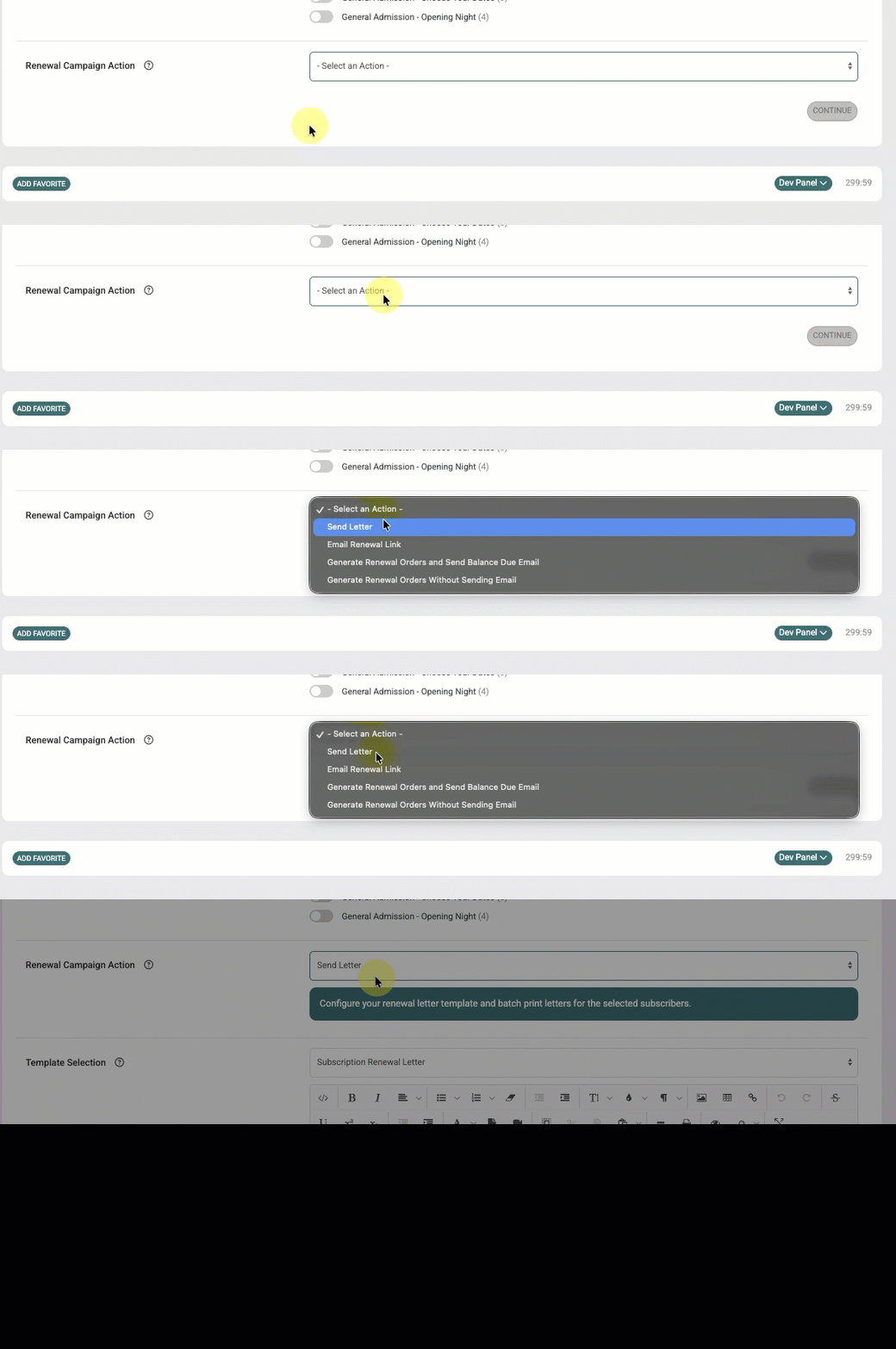
Step 5 – Select Renewal Action
Choose: Send Letter
This workflow generates printable renewal letters using the selected Renewal Letter template.
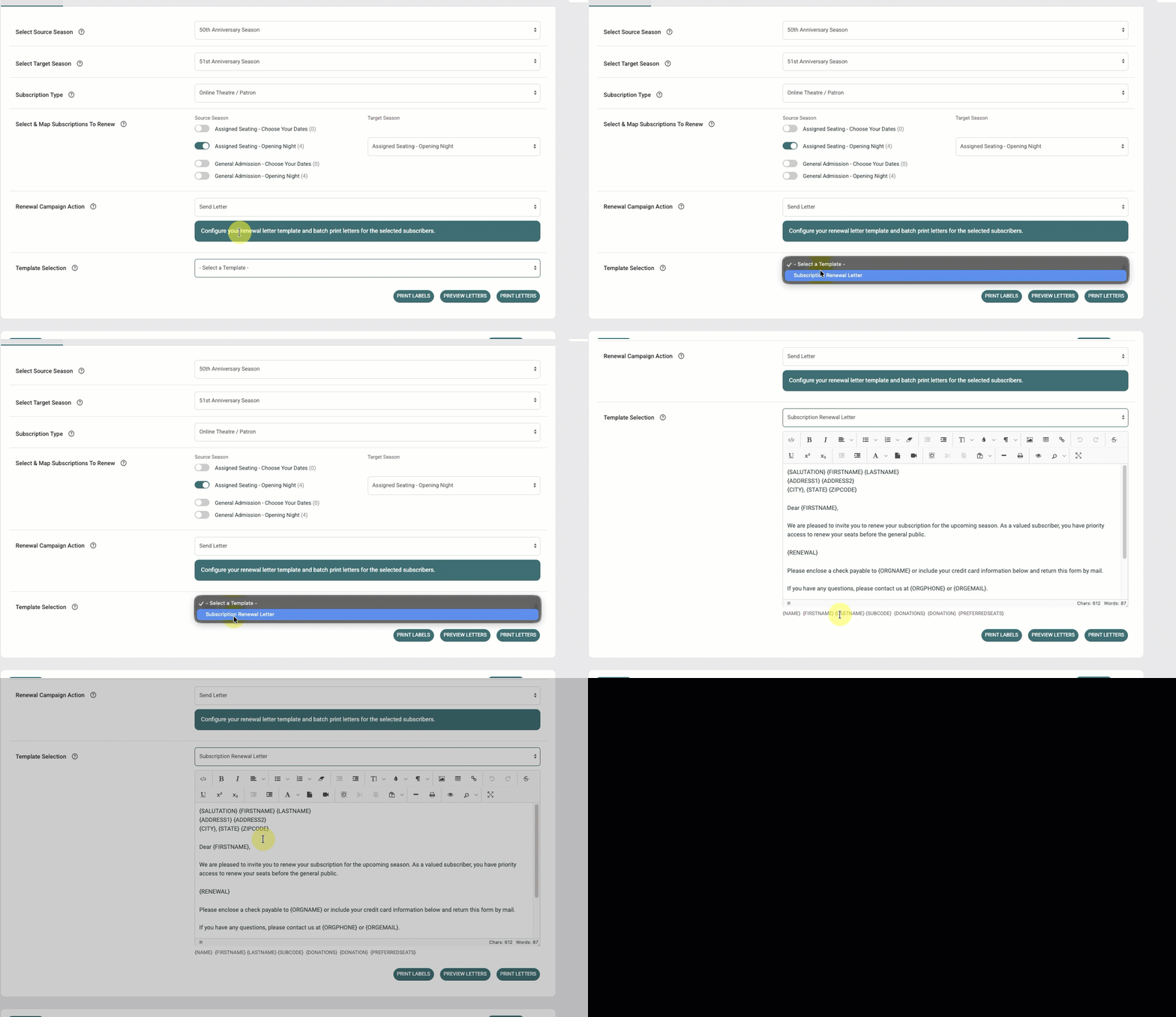
Step 6 – Select a Renewal Letter Template
Choose the Renewal Email template you want to use for the campaign.
The selected template controls:
- Letter content
- Renewal placeholders
- Renewal link behavior
After selecting the template you can make changes directly in the WYSIWYG editor. These changes will not update your template.
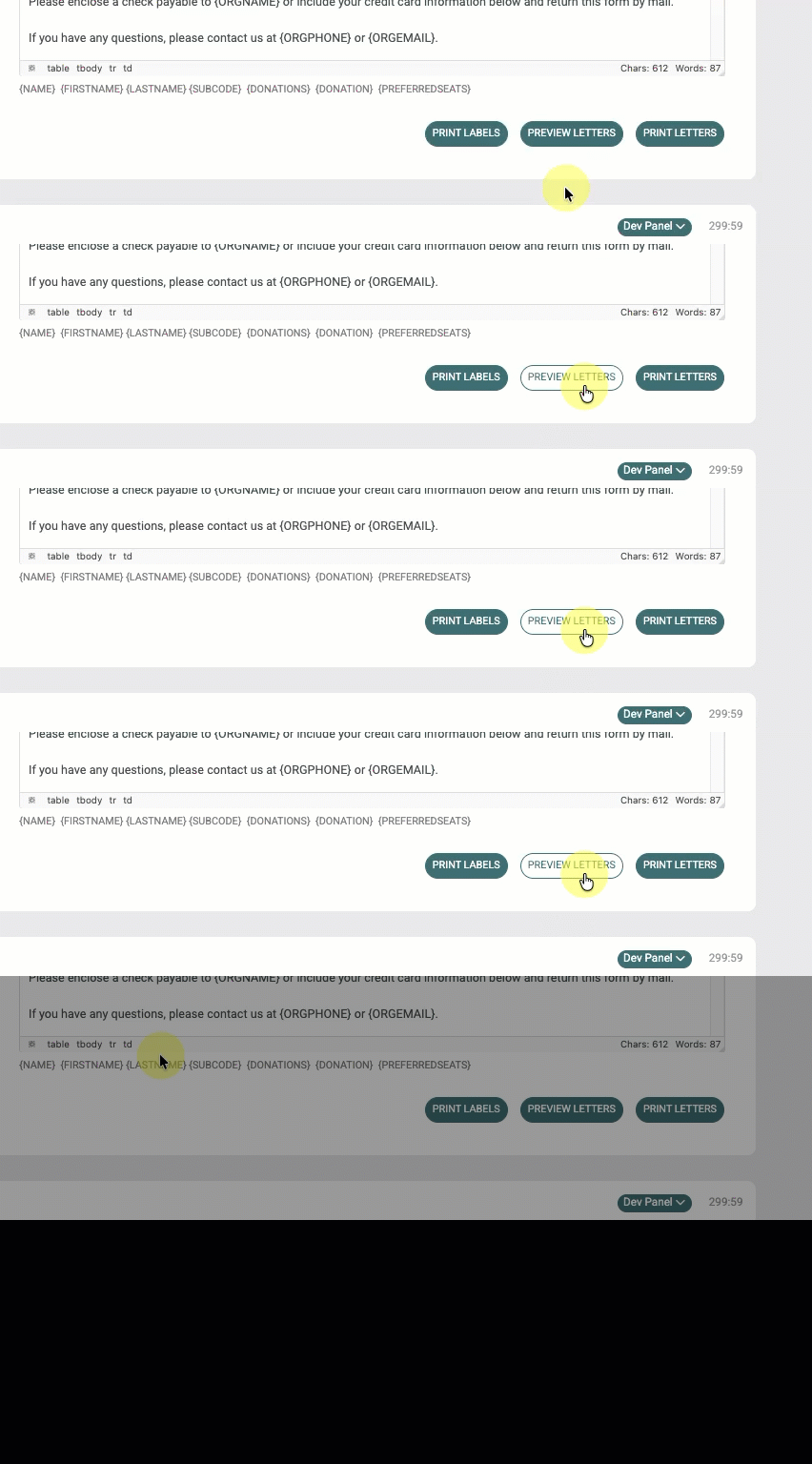
Step 7 – Preview Renewal Letters (Recommended)
Click: Preview Letters
The preview displays all generated letters for the campaign and loads renewal placeholders using real subscriber data.
This allows organizations to:
- Verify formatting
- Review placeholder content
- Confirm renewal messaging
- Review mailing content before printing
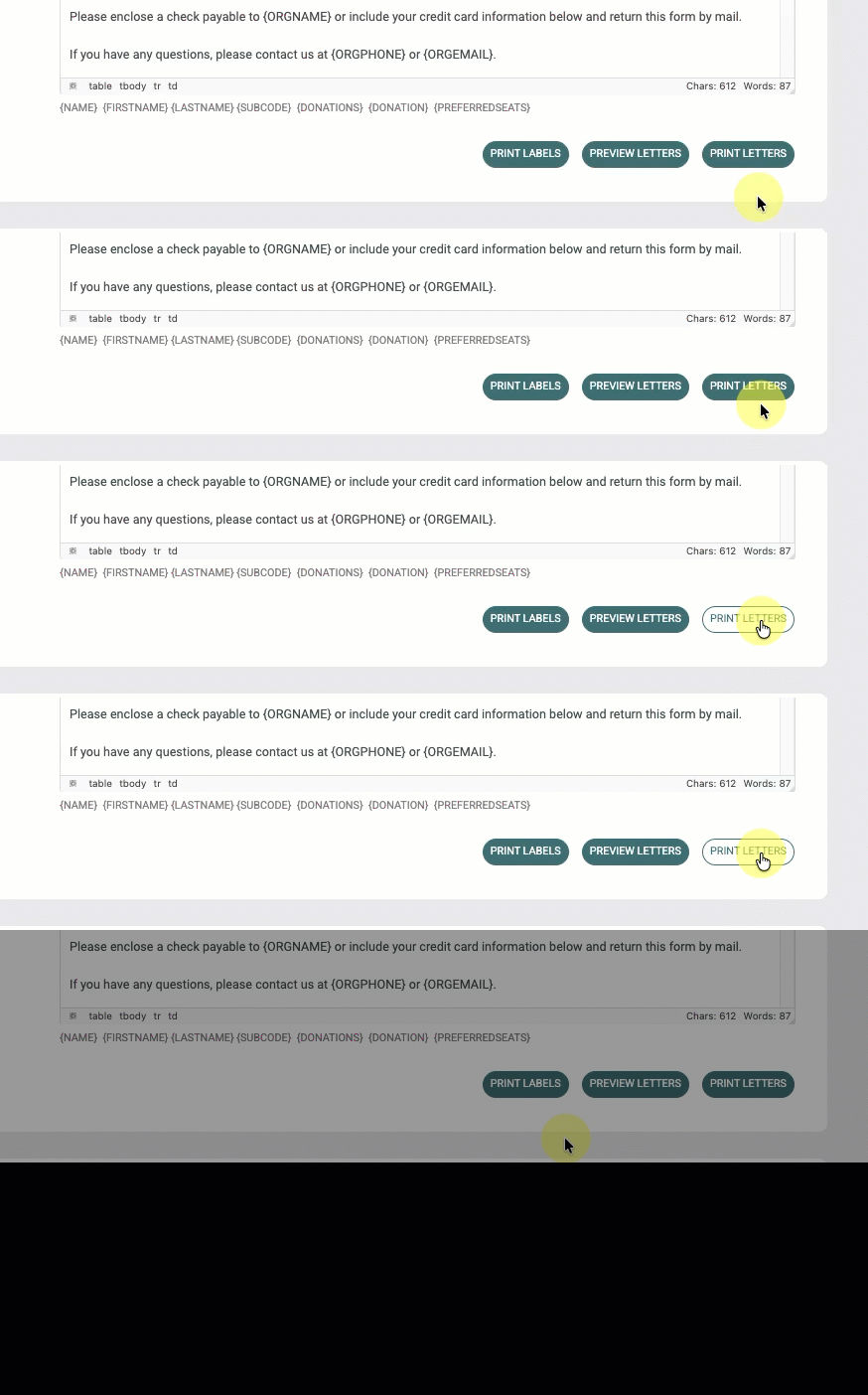
Step 8 – Print Renewal Letters
When ready, click: Print Letters
The system generates printable renewal letters for eligible subscribers.
After letters are generated:
- Subscriber status is updated to Contacted
- A communication log is added to the patron CRM profile indicating that a renewal letter was generated
Printing Mailing Labels
Renewal campaigns also support printable mailing labels for envelope preparation.
Click: Print Labels
The system generates printable mailing labels using subscriber mailing addresses from the CRM profile.
Additional Help Articles
Subscription Renewal Workflow Overview
Learn about supported subscription types and available renewal workflows.
Subscription Renewal Letter & Email
Learn how to create Renewal Email and Renewal Letter templates.
Running a Renewal Email Campaign
Learn how to configure and send Renewal Email campaigns.
Renewal Orders & Sending Balance Due Emails
Learn how to generate renewal orders and send balance due payment links.