Sending Renewal Emails
Overview
The Renewal Email workflow allows organizations to send subscribers a personalized renewal link so they can renew their subscriptions online.
This workflow is best used when patrons should:
- Select their own subscription type or pricing option
- Choose their own seats or event dates
- Complete checkout online themselves
Renewal Email campaigns are the most flexible renewal option and are supported for all subscription types.
Before You Begin
Before creating a Renewal Email campaign, make sure you have:
- Created a Renewal Email template
- Know which subscription type you want to renew (Patron/Online Theatre, Flex Pass, etc.)
- Ensure preferred seats are setup up correctly if using the Patron/Online Theatre subscription
If you use multiple subscription types, you must create a separate renewal campaign for each type.
Accessing the Renewal Workflow
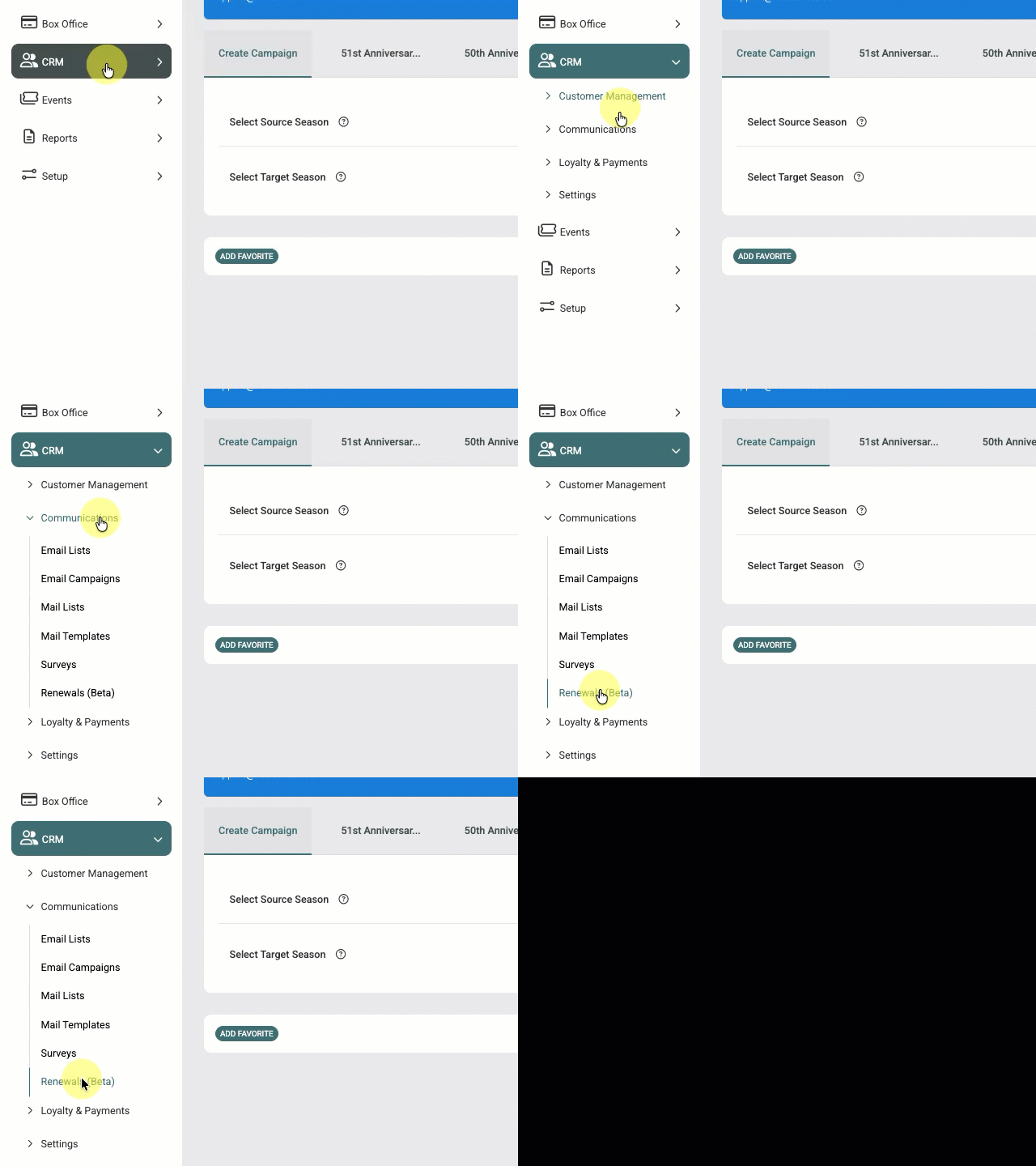
Navigate to: CRM > Communications > Renewals
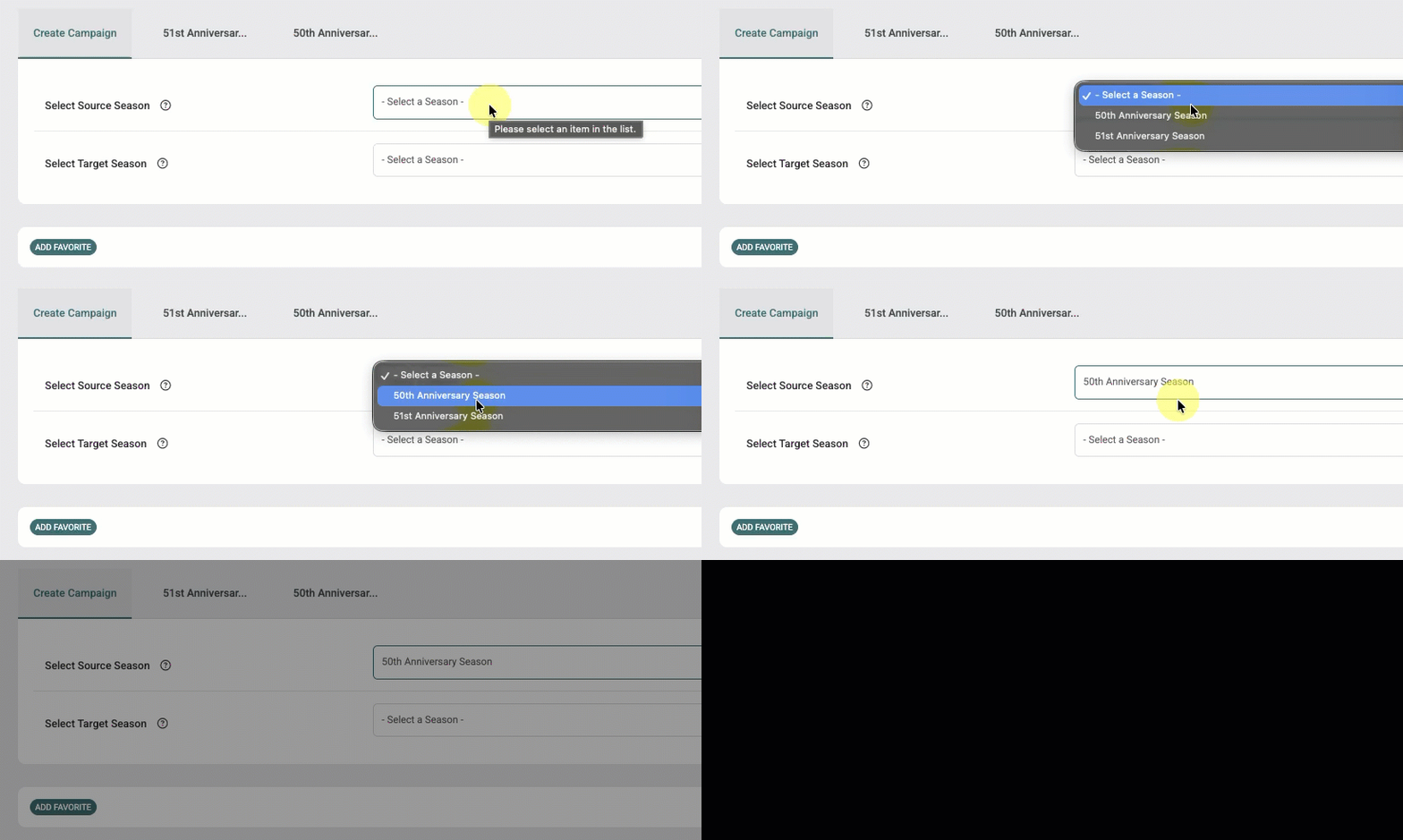
Step 1 – Select the Source Season
The Source Season contains the subscribers you want to renew.
Examples:
- 2025–2026 Season
- Spring 2026 Theatre Season
The system uses this season to identify eligible subscribers.
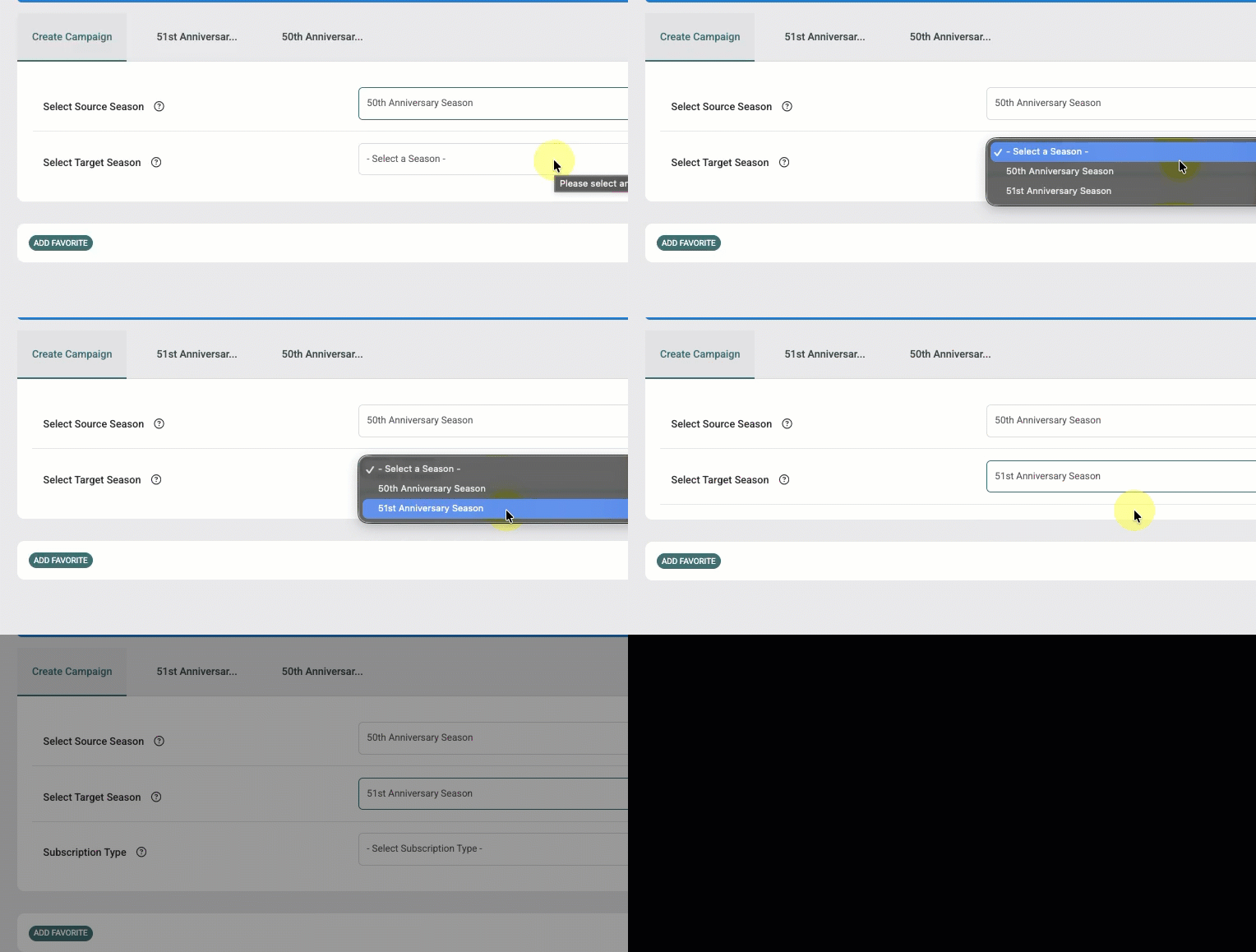
Step 2 – Select the Target Season
The Target Season contains the subscriptions patrons will renew into.
Examples:
- 2026–2027 Season
- Fall 2026 Theatre Season
The system uses this season to load available subscription options for mapping.
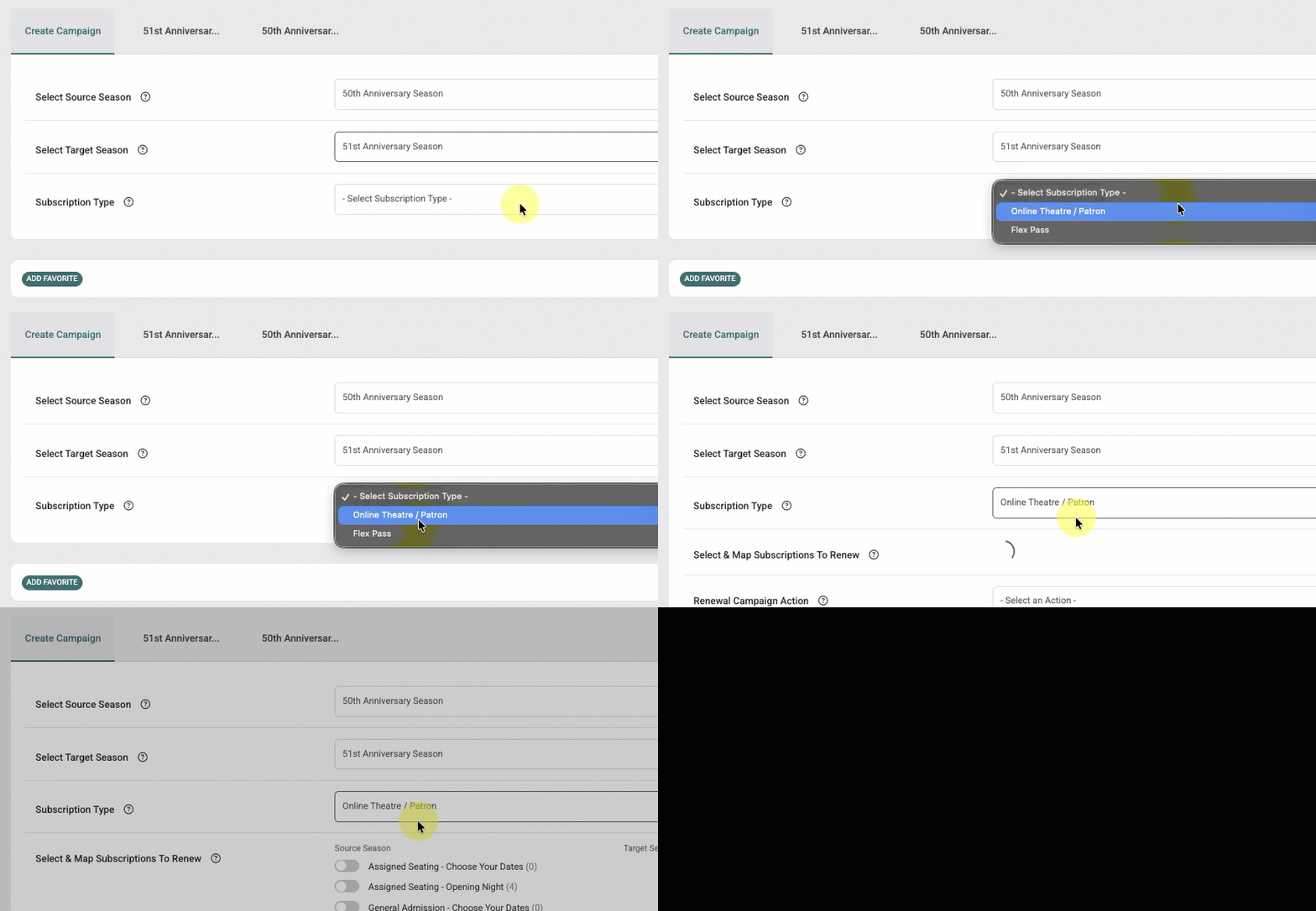
Step 3 – Select the Subscription Type
If more than one supported subscription type exists in both seasons, a Subscription Type dropdown will appear.
Supported subscription types include:
- Online Theatre / Patron
- Regular Theatre
- Flex Pass
- Standard Subscription
- Pick-a-Show
Select the subscription type you want to renew in this campaign. If your organization uses multiple subscription types, create a separate renewal campaign for each.
Step 4 – Map Subscriptions
The workflow displays subscriptions from the Source Season.
For each subscription you want to renew:
- Select the source subscription
- Choose the matching subscription from the Target Season
This mapping determines:
- Which subscribers are included in the campaign
- Which subscription is recommended during online renewal
Multiple source subscriptions may map to the same target subscription.
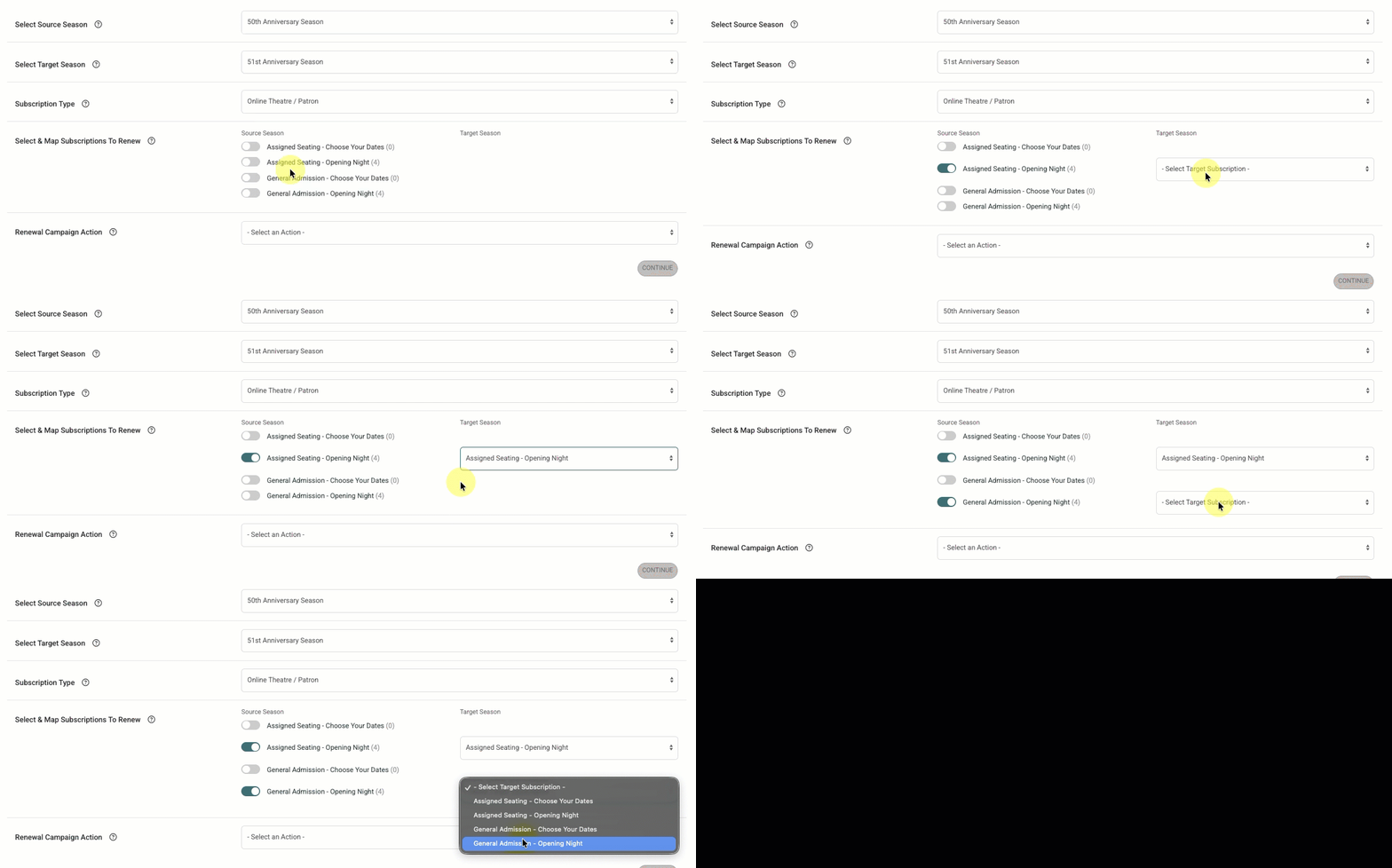
Step 5 – Select Renewal Action
Choose: Send Renewal Email
This workflow sends subscribers an email containing a personalized renewal link.
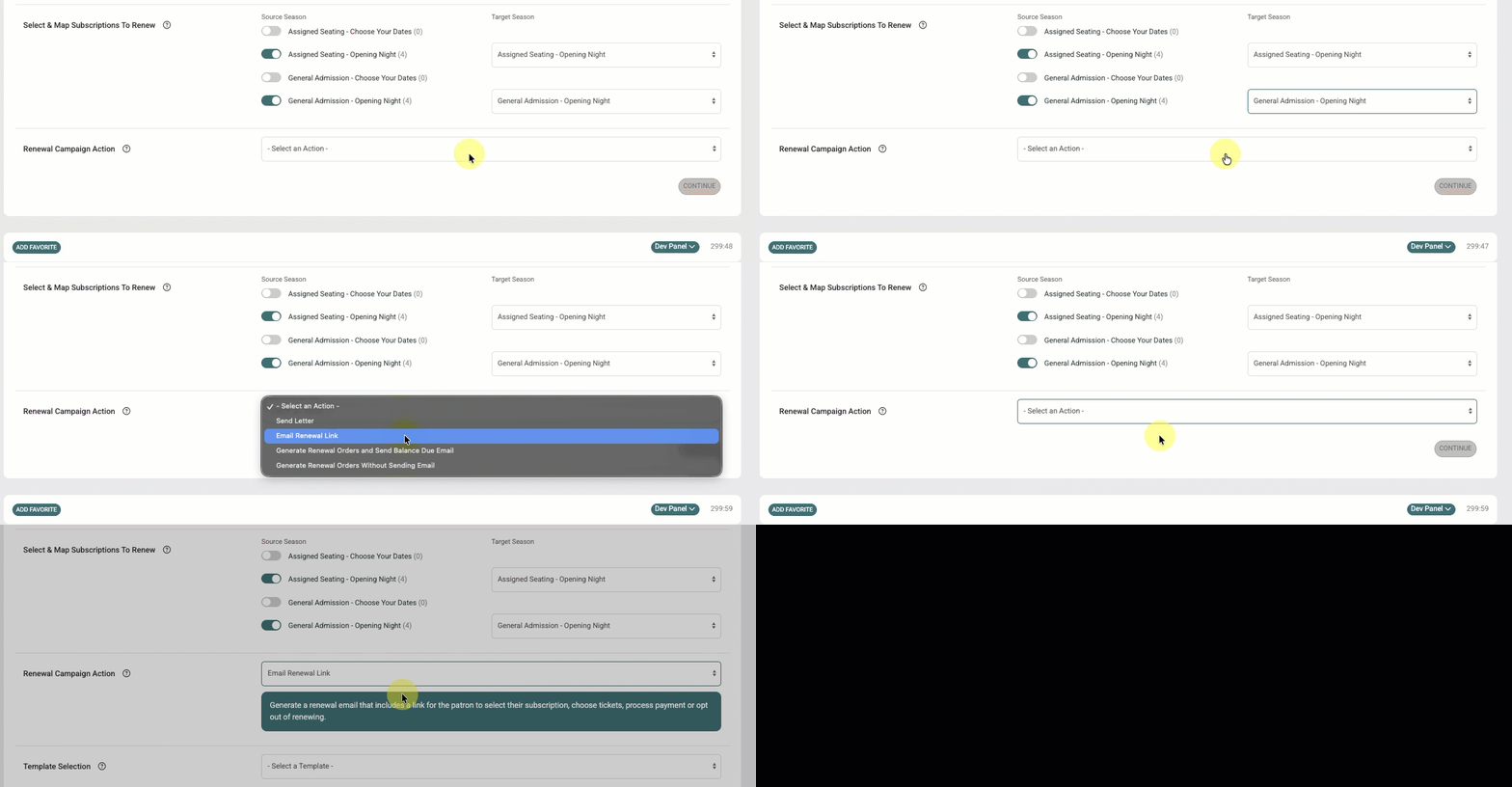
Step 6 – Select a Renewal Email Template
Choose the Renewal Email template you want to use for the campaign.
The selected template controls:
- Email content
- Renewal placeholders
- Renewal link behavior
After selecting the template you can make changes directly in the WYSIWYG editor. These changes will not update your template.
Note: The {RENEWALLINK} placeholder is required when sending renewal emails. This placeholder generates the personalized renewal link used to access and submit the renewal order.
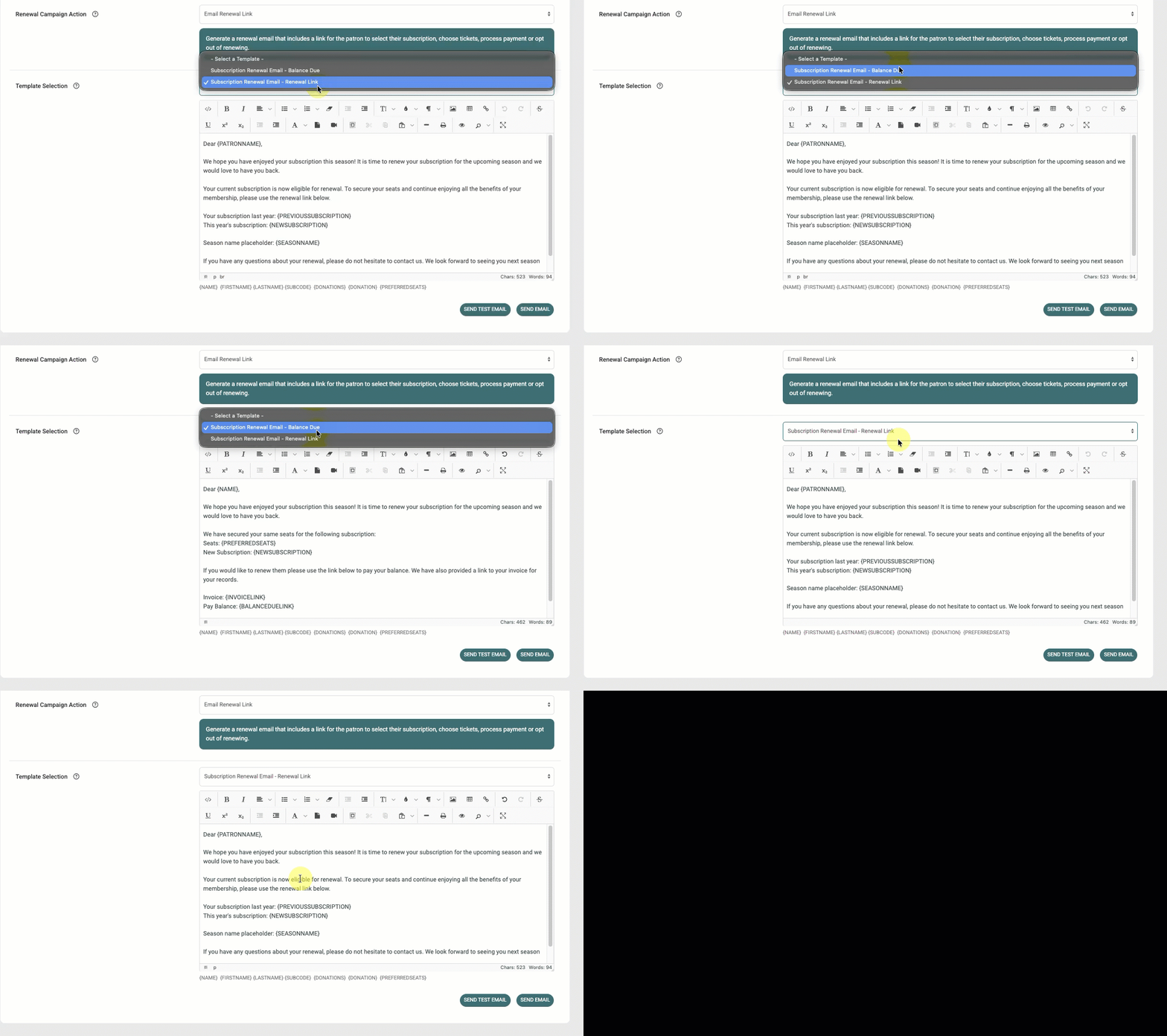
Step 7 – Send a Test Email (Recommended)
Before sending live emails, it is recommended to send a test email.
The test workflow allows you to:
- Review email formatting
- Verify renewal placeholders
- Confirm renewal links
- Review branding and messaging
To send a test email:
- Enter a subject line
- Enter the email address that should receive the test
- Select a subscriber from the campaign
- Click Send Test Email
Test emails do not update subscriber statuses or create communication logs.
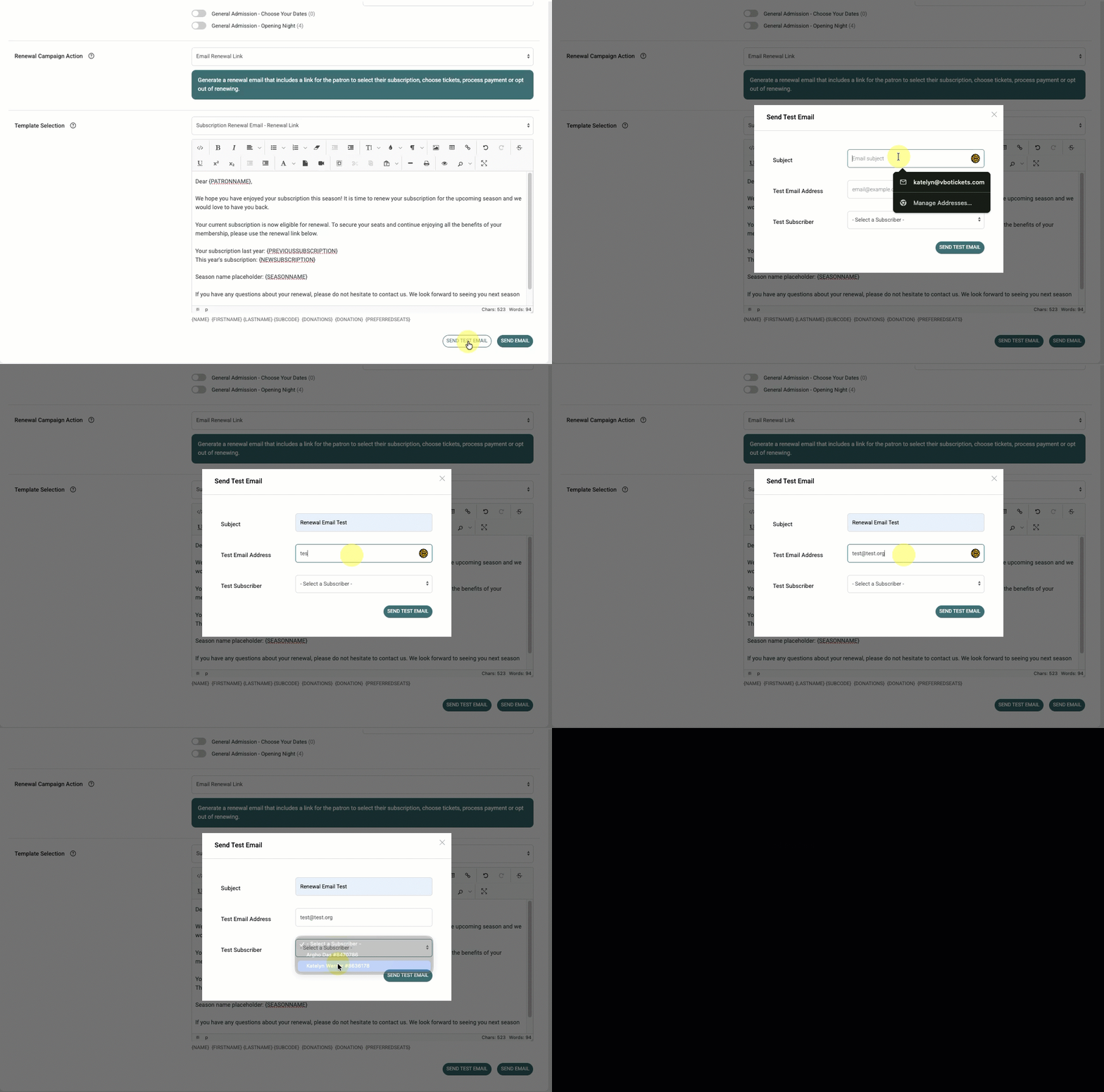
Step 8 – Send Renewal Emails
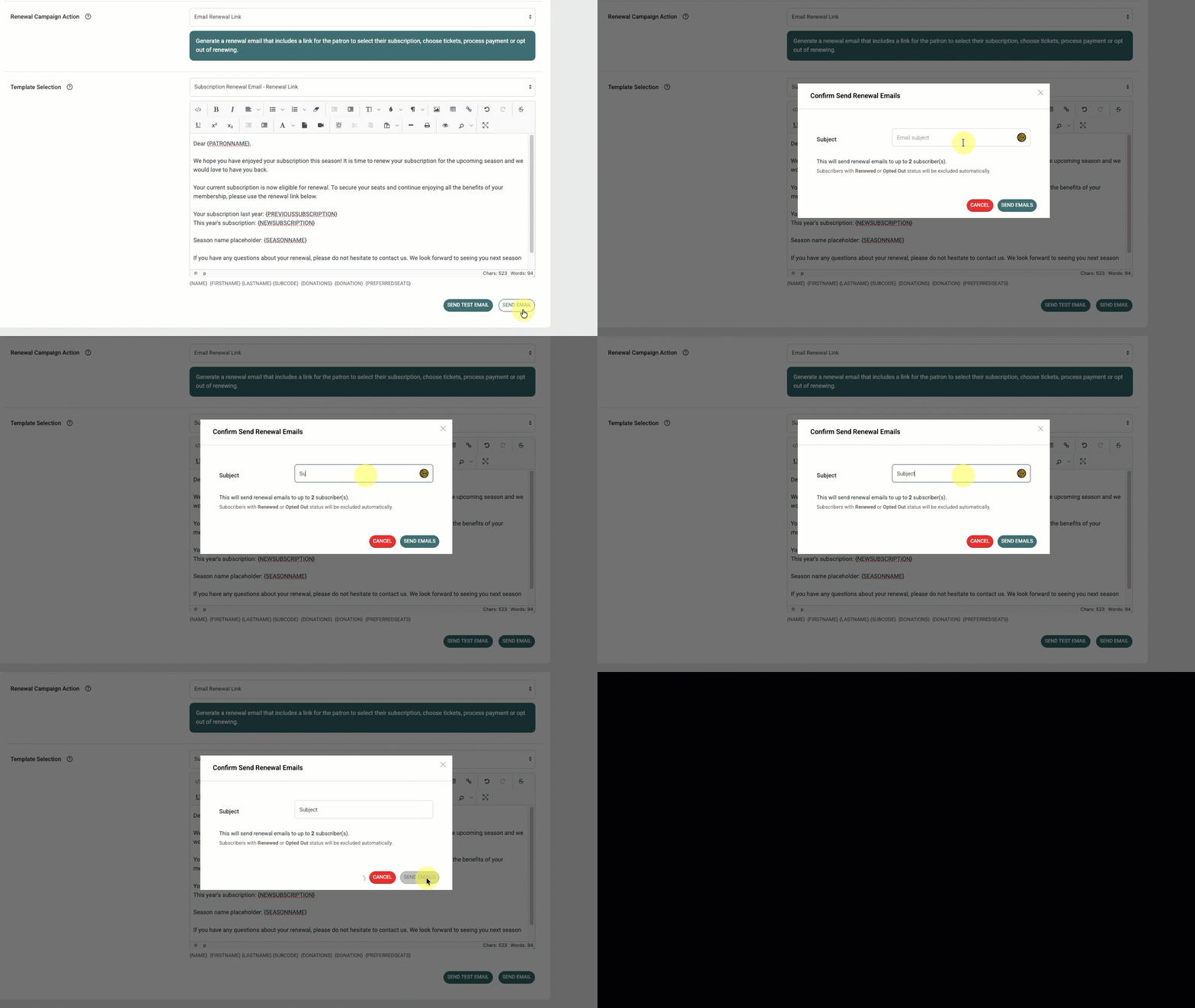
When ready, click Send Email and enter a subject line
The system sends renewal emails to eligible subscribers in the campaign with a personalized renewal link directing them to the subscription page.
Patron Renewal Experience
When patrons click the renewal link, they are directed to the subscription page.
The renewal page:
- Highlights the recommended subscription based on campaign mapping
- Lists preferred seats (if applicable)
- Allows patrons to renew the recommended subscription
- Allows patrons to select a different subscription if desired
Depending on the subscription type, patrons may also:
- Choose seats
- Select event dates
- Choose subscription price types
- Complete checkout online
Subscriber Status Updates
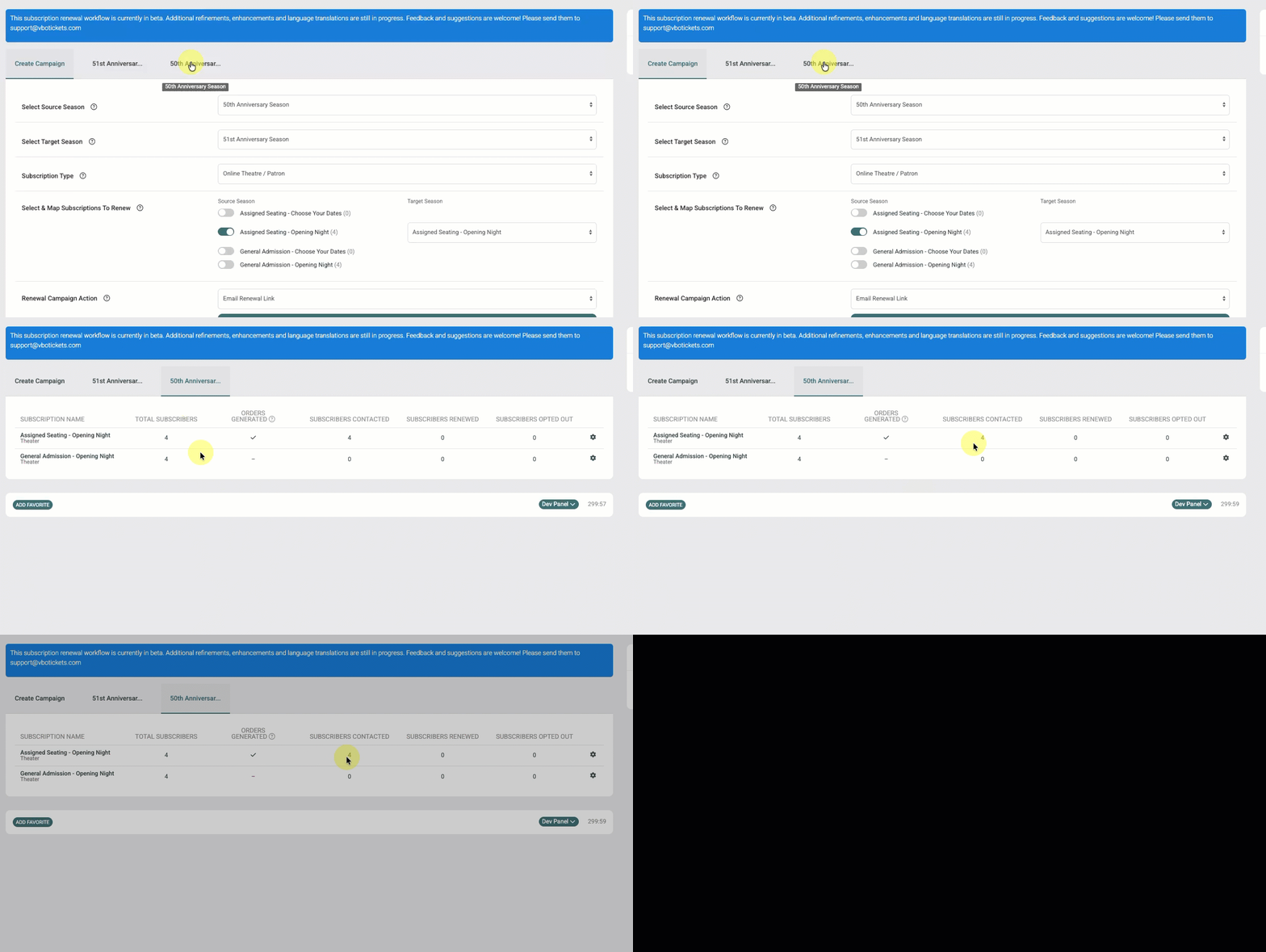
When a live renewal email is successfully sent:
- Subscriber status is updated to Contacted
- A communication log is added to the patron CRM profile
Additional Help Articles
Subscription Renewal Workflow Overview
Learn about supported subscription types and available renewal workflows.
Subscription Renewal Letter & Email
Learn how to create Renewal Email and Renewal Letter templates.
Sending Renewal Letters
Learn how to generate printable renewal letters and mailing labels.
Generating Renewal Orders & Sending Balance Due Emails
Learn how to generate renewal orders and send balance due payment links.