Tasks
How to Use CRM Tasks
Create customer follow-up reminders, assign them to staff, and manage due or overdue tasks.
CRM tasks are reminders connected to a specific customer record. Use them for follow-up actions such as calling a patron, checking on a renewal, or assigning a customer-related item to another user.
IMPORTANT
CRM tasks only appear in the Tasks notification area on the date they are due or after they become overdue. Future-dated tasks remain available on the customer's Tasks tab until the due date arrives.
Step 1: Open the customer's Tasks tab
Open the customer in CRM and scroll to the account tabs. Click Tasks to view existing tasks or create a new one.

Step 2: Create a new task
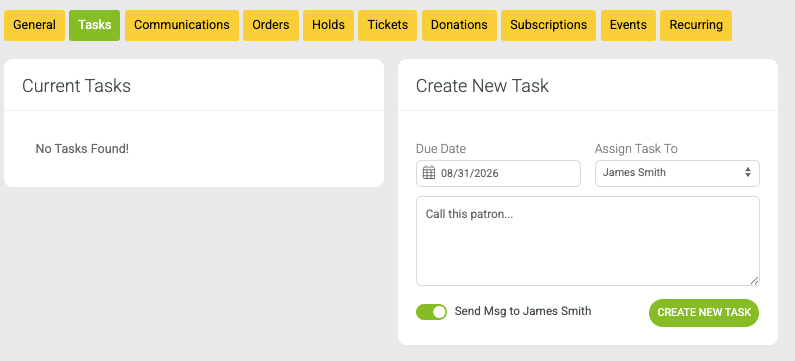
Use the Create New Task panel on the right side of the Tasks tab:
Select the Due Date.
Choose the user under Assign Task To.
Enter the task instructions or reminder.
Optional: select Send Msg to [user] if you also want to send a message to the assigned user.
Click Create New Task.
Step 3: Review and edit a task from the customer record
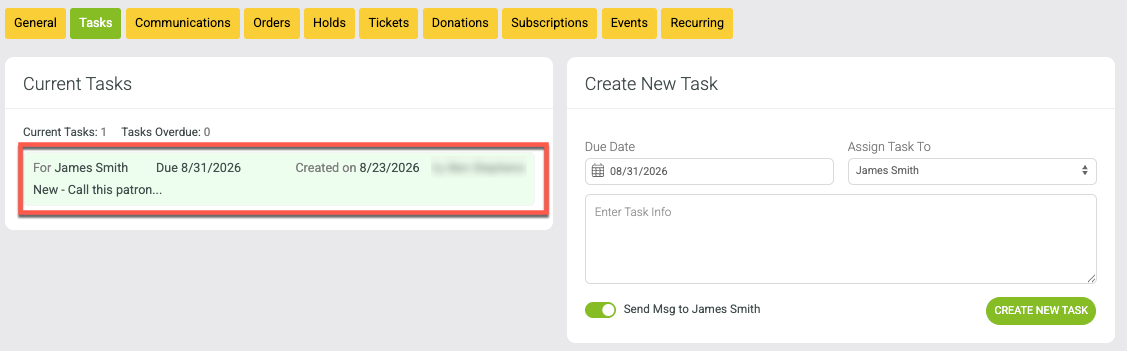
After the task is created, it appears under Current Tasks. The task shows the assigned user, due date, status, and task description. Click the task when you need to edit it.
Step 4: View due and overdue task notifications
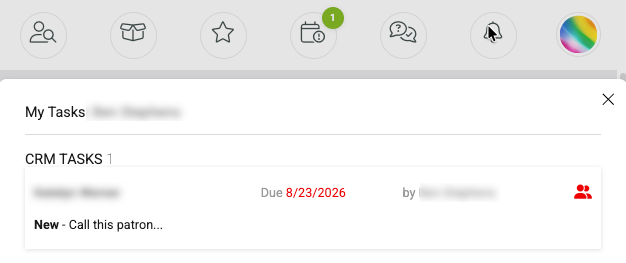
When a task reaches its due date, the Tasks area in the top navigation displays a notification count. Click Tasks to open your active task list.

The notification badge shows how many active tasks need attention.
The View Active Tasks window lists the customer account, due date, task status, and task instructions. Click a task to open the customer record and work the item.
Step 5: Update or complete the task
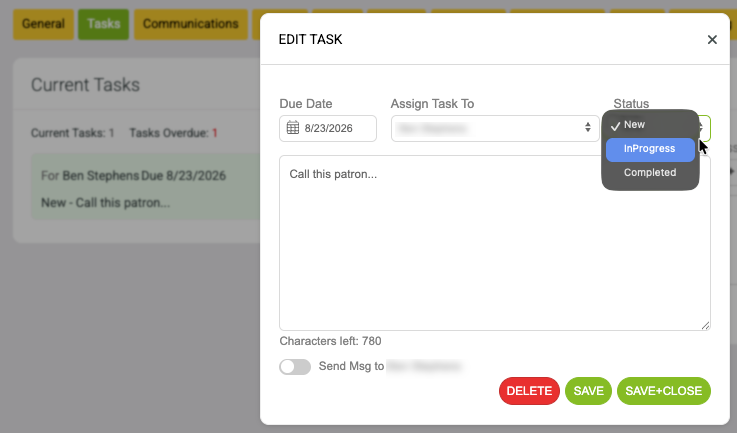
Click the task from the customer's Tasks tab to open Edit Task. From here you can update the due date, change the assigned user, edit the task notes, or change the status.
Task statuses shown in the task window are:
New
InProgress
Completed
When the work is finished, change Status to Completed and click Save + Close. You can also delete the task if it should be removed entirely.
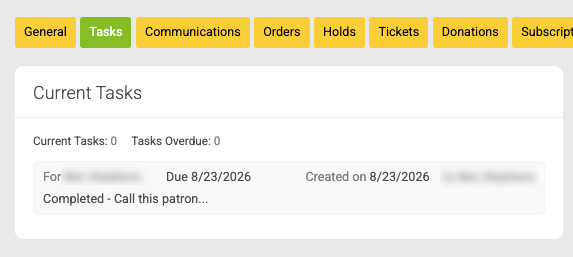
Completed tasks remain visible on the customer's Tasks tab for reference, but they are removed from the active task notification count.