Separate merged accounts
How to Separate Merged Accounts
Use this process when transactions for more than one patron have been combined under the same CRM account. The goal is to return each patron and their orders to the correct individual account.
Before you begin: Before moving orders, identify which patron should own each transaction. When reassigning an order, use the destination patron's CRM account number carefully.
Identify the patrons and orders to separate
Open the merged CRM account.
Select the Orders tab.
Review the Patron Name column and identify which orders belong to each individual patron.
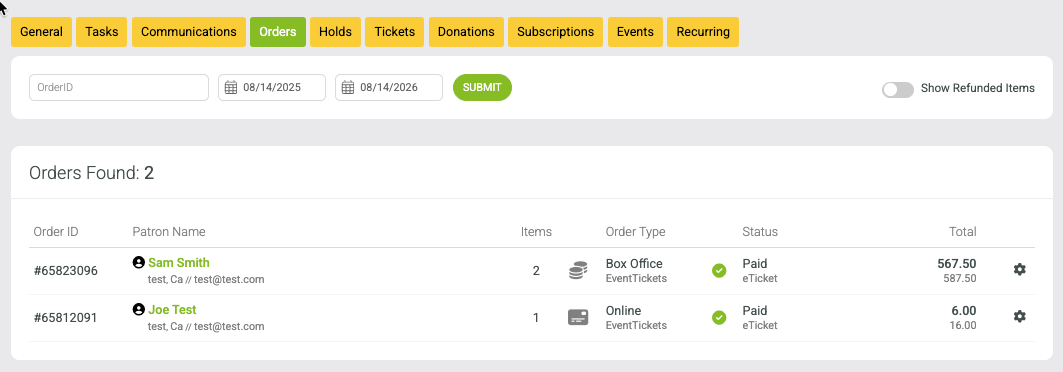
A merged account can show orders belonging to several different patrons.
From here, use the appropriate method below depending on whether the patron already has an individual CRM record.
Separate a patron who already has a CRM record
If the patron name in the merged order list opens an existing customer record, you can separate that patron using the existing record.
From the Orders tab, select the patron name for the person you want to separate.
Open the customer record for editing.
Review the patron information and make any needed corrections.
Select Save + Close.
Return to the Orders tab and verify that the patron's orders now appear with the correct individual account.
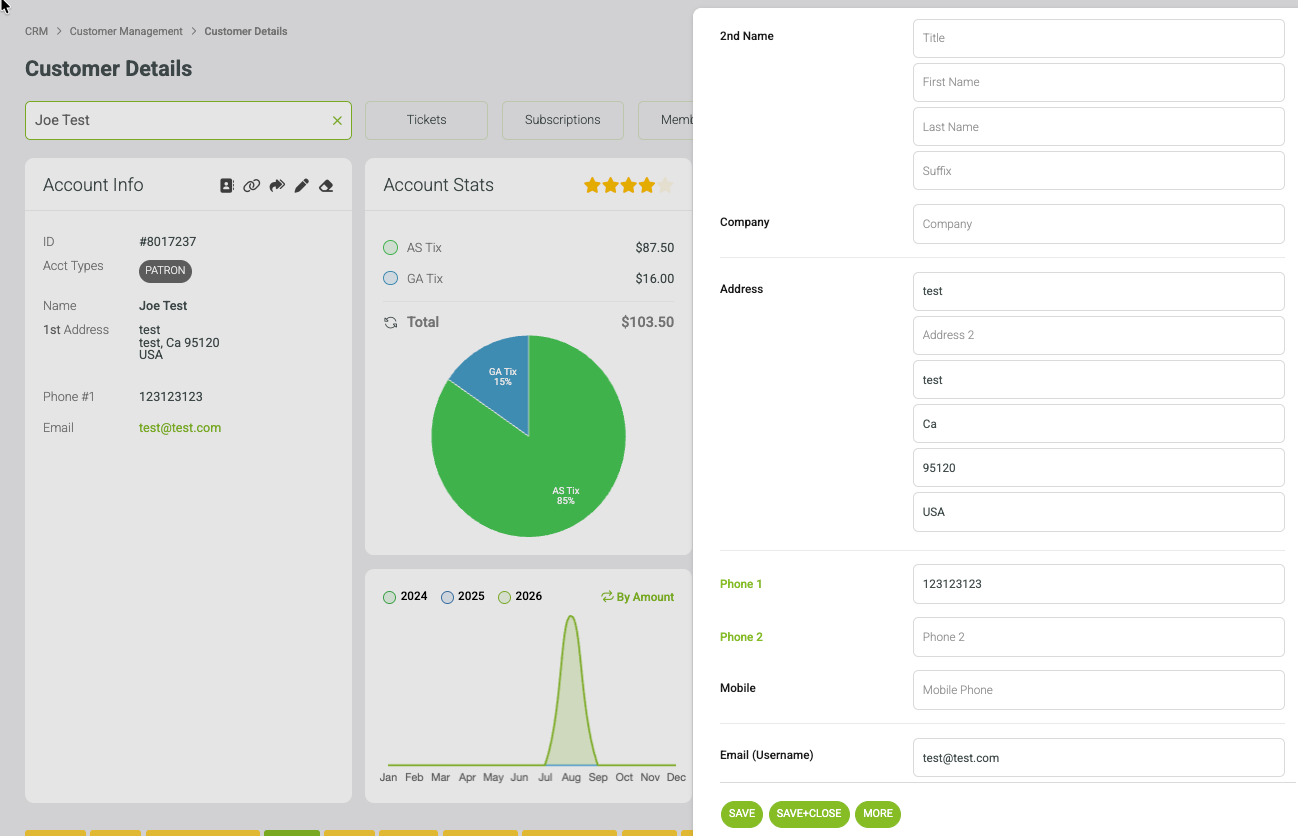
Open the existing patron record and select Save + Close after reviewing the customer information.
Create a new account when the patron does not have one
If the patron needs a separate CRM account, create the customer first and then move their order or orders to the new account number.
From CRM, select Add to create a new customer.
Enter the patron's name and available contact information.
Select Create Account.
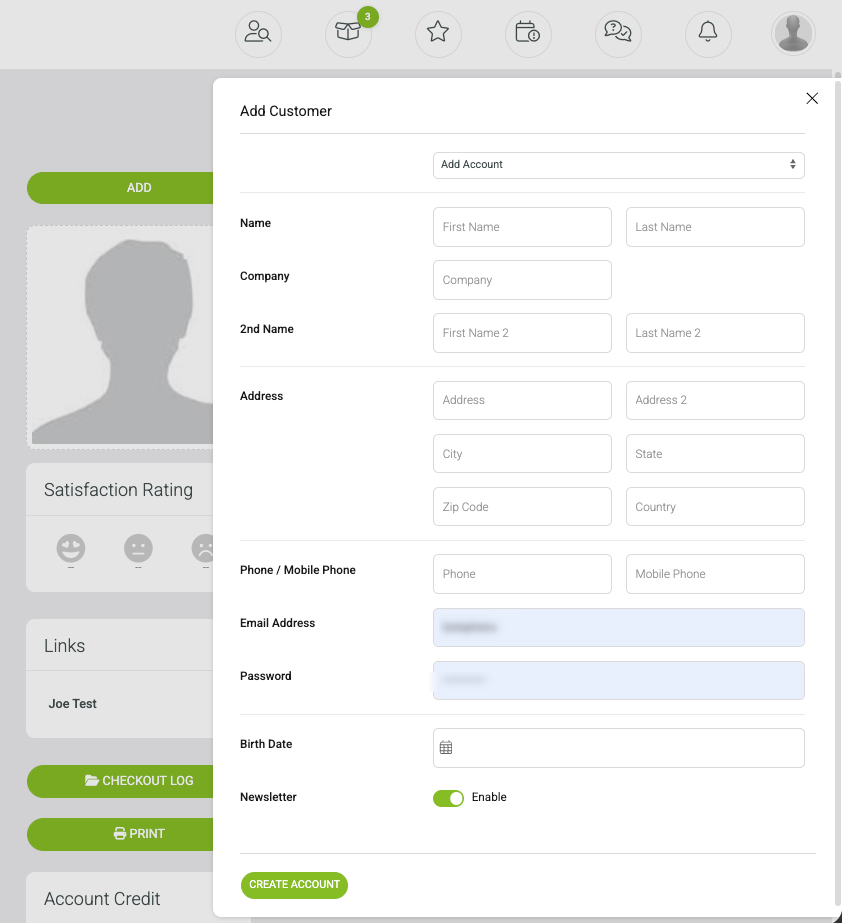
Create a separate customer record for the patron who needs their own CRM account.
After the account is created, note the new CRM account ID shown in Account Info. You will use this number to reassign the patron's order.
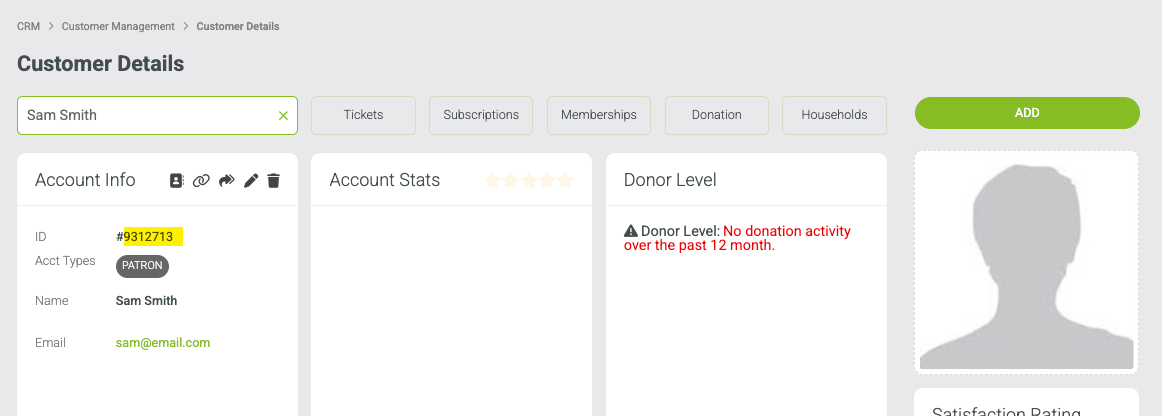
The newly created customer record has its own CRM account ID.
Reassign an order to the new account
Return to the original merged account and open the Orders tab.
Locate the order that belongs to the newly created patron.
Select the gear icon at the far right of the order to manage it.
In the Edit Order window, replace the Acct # with the new patron's CRM account ID.
Confirm that the account number validates, then select Save + Close.
Repeat these steps for any additional orders that belong to the same patron.
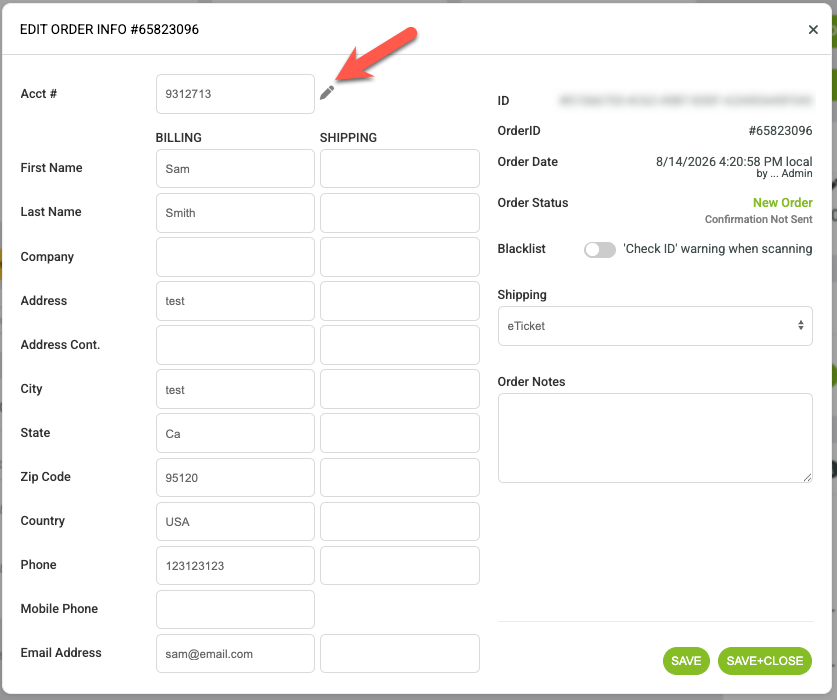
Replace the order's Acct # with the CRM account ID of the patron who should own the order.
Important: Changing the Acct # moves the order to that CRM account. Double-check the destination account number before saving.
Verify the accounts after separation
Open each separated patron record.
Review the Orders tab and account totals to make sure the correct transactions moved with the patron.
Return to the original account and confirm that only the appropriate patron's activity remains.
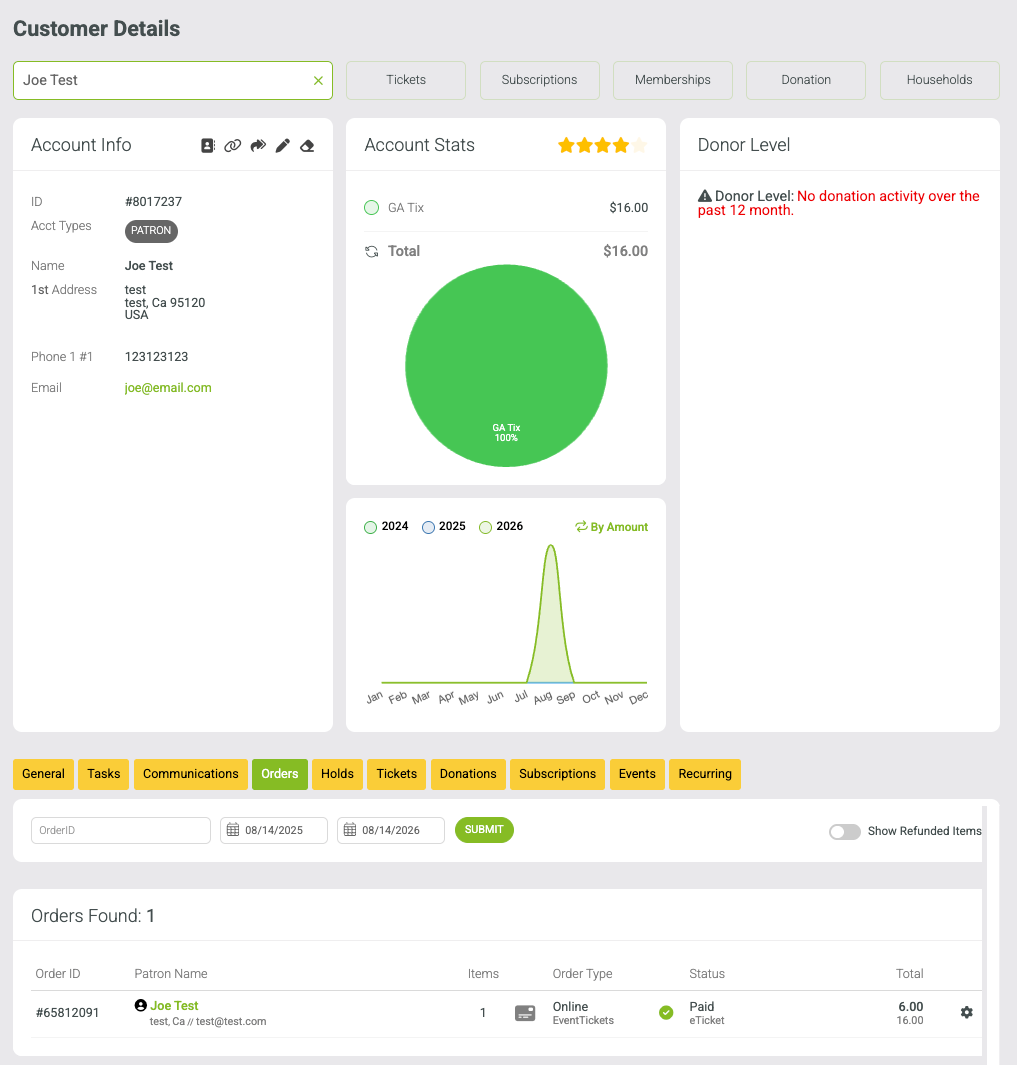
Verify that the original account now contains only the activity that should remain with that patron.
Tip: If several patrons were merged together, work through one patron at a time and verify the results before moving on to the next person.