Star Rating / VIP Feature in CRM
Using CRM Star Ratings
Assign patron ratings, identify rated patrons on the Will Call Report, and configure VIP scan alerts.
Overview: CRM star ratings let staff assign a 1- to 5-star rating to a patron. The rating can then be used as a quick visual indicator in the CRM and on the Will Call Report, and it can also be tied to VIP scan alerts.
Assign a Star Rating to a Patron
Use the CRM to assign or update a patron’s star rating.
1. Go to CRM > Customer Management > Customer Details and search for the patron record you want to rate.
2. In the patron record, locate the row of stars near the top-right of the Account Stats area.
3. Select the number of stars you want to assign to the patron.
4. The selected rating appears directly on the patron record and remains associated with that CRM account.
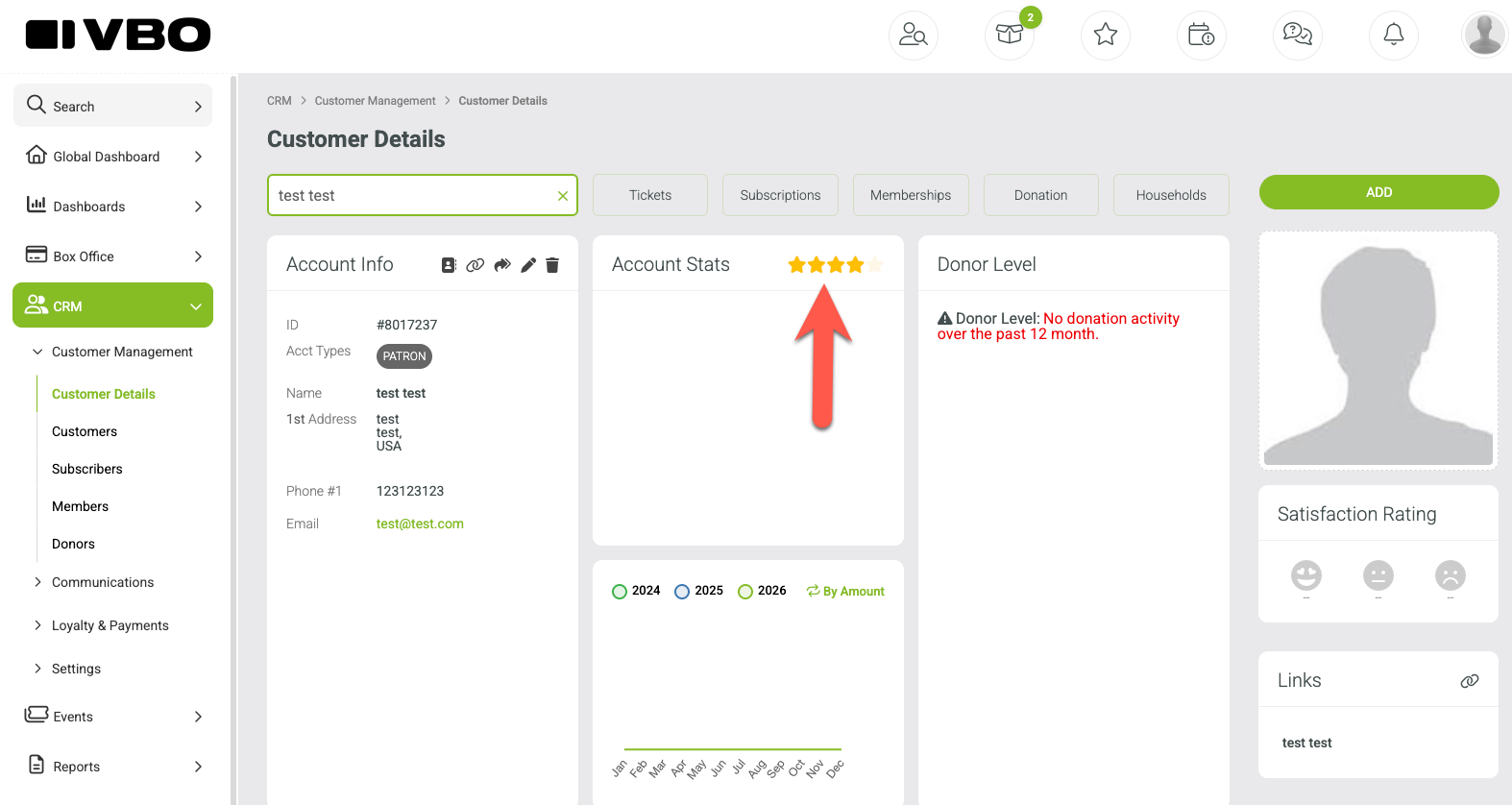
Example: A patron record with a star rating displayed in the Account Stats area.
View Star Ratings on the Will Call Report
Star ratings can also appear on the Will Call Report, giving box office or front-of-house staff a quick way to recognize rated patrons.
1. Go to Reports > Event Reports > Will Call Report.
2. Choose the event and event date you want to review.
3. Select Run Report.
4. Rated patrons are identified by a star badge next to their name. The number inside the star reflects the patron’s CRM rating.
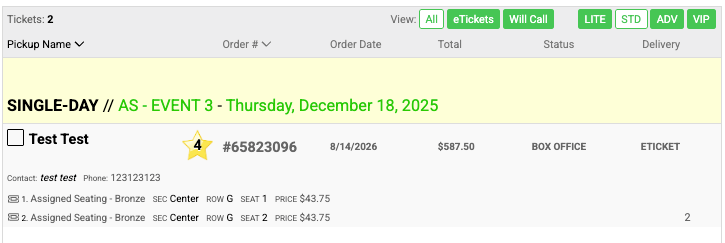
Example: 5-star and 4-star patrons identified on the Will Call Report.
Tip: Use the rating as an internal visual cue for your team. The meaning of each star level can be based on your organization’s own patron-service or VIP practices.
Configure VIP Scan Alerts
VBO can notify designated staff when rated patrons are scanned into an event.
1. Go to Setup > > Organization > Alerts & Notifications.
2. Scroll to the VIP Scan Alert section.
3. Enter the mobile number or numbers that should receive alerts for the applicable star level. The screen provides fields for 3-star, 4-star, and 5-star patrons.
4. If you enter more than one phone number, separate the numbers with commas.
5. Select Save.
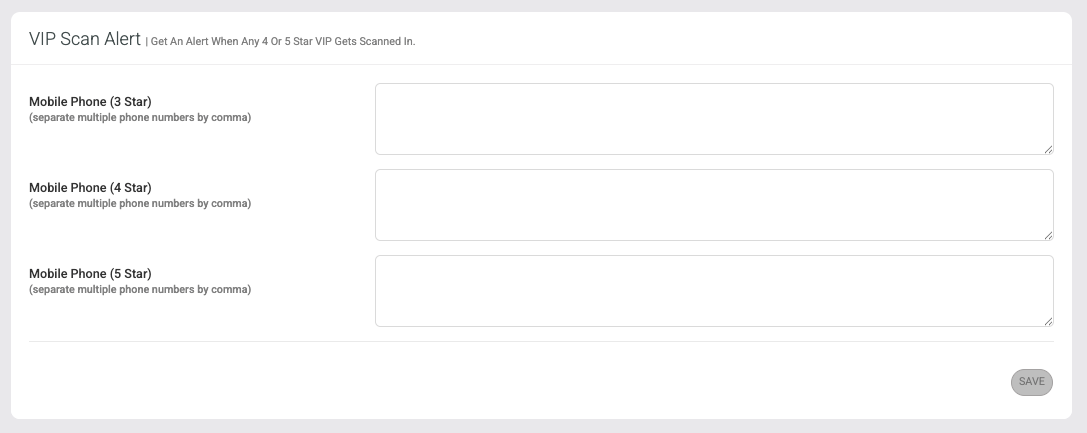
VIP Scan Alert settings for 3-star, 4-star, and 5-star patrons.
What happens next: When a patron who matches the configured VIP rating is scanned in, the designated recipient can receive an alert based on these settings.
At a Glance
Task | Where to Go |
Assign a rating | CRM > Patron record |
See ratings at will call | Reports > Event Reports > Will Call Report |
Set scan alerts | Setup > More > Alerts & Notifications > VIP Scan Alert |