Single Sign On (SSO)
Overview
VBO Tickets supports Single Sign-On (SSO) for both:
Ticket Purchasers (via the plugin)
Event Managers (admin users managing events)
SSO eliminates the need for users to maintain separate login credentials, offering a smoother, more secure authentication experience.
Step 1: Access the SSO Setup
Go to SET UP > ADD‑ONS > SINGLE SIGN‑ON
Download the appropriate metadata files for your IdP (plugin and/or event manager)
Upload the metadata file in your IdP platform
Note: If you plan to use both SSO types, set each one up separately
Step 2: Add and Configure SSO
Click ADD SSO
Select the appropriate SSO Type
Fill in the required fields
Redirect URL: From your IdP
XML Assertion Attributes: Your IdP must return these attributes in the SAML response
(Optional) Plugin Only
Signin Label: Text display for signin button in the plugin
Tag Field Attribute Name: Used to unlock tag-specific ticket types (Student, Faculty, etc)
If your IdP uses encrypted assertions, click ENCRYPTED toggle.
Click SAVE SSO
Step 3: Test Your SSO Connection
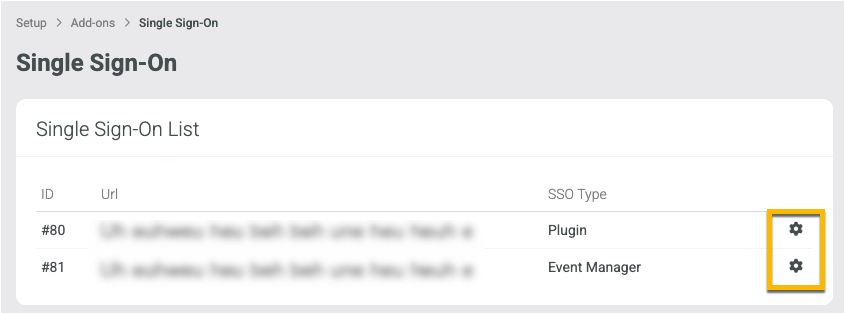
Click the gear icon on the setup you'd like to test
Log in with valid credentials
Review the returned XML attributes and account data to confirm the setup is working as expected
Step 4: Set Up Event Manager Users for SSO
Before an administrative user can sign in with SSO, they must be added to your VBO account
Go to: SETUP > ORGANIZATION > USERS
Click ADD USER
Enter user information and select the user type
Check FORCE USER TO LOGIN VIA SSO
Enter the login username that matches the IDP credential (typically their email address or institutional username)
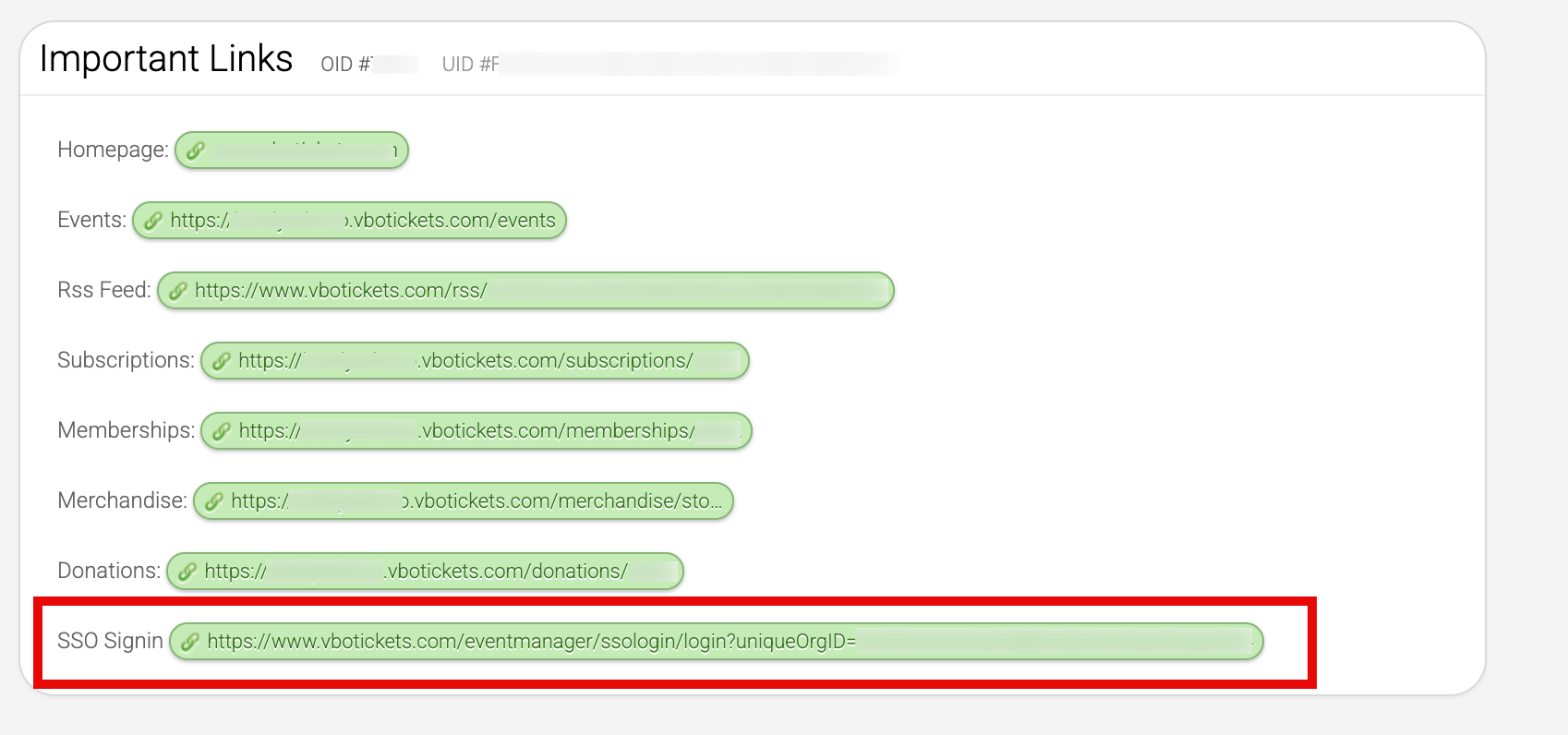
Event Manager Login URL
Your login URL for the VBO platform can be found under EVENTS > MANAGE EVENTS then scroll to the bottom of the page and view the - IMPORTANT LINKS area. Use the SSO Signin link to direct your administrative users to log in to VBO.