Setting Up Sales Tax
This guide explains how to set up and use sales tax in VBO. VBO uses a tax-inclusive amount: tax is included in the item price, then shown as a breakdown in checkout and reports. VBO does not add tax on top of the price or determine which tax rate your organization should use. Confirm your rates and reporting needs with your tax advisor.
How the settings work
Set one standard rate for your account. Events, merchandise, and subscriptions can use that rate, use a different rate, or be set to no tax. Rates are not selected from a customer address or venue.
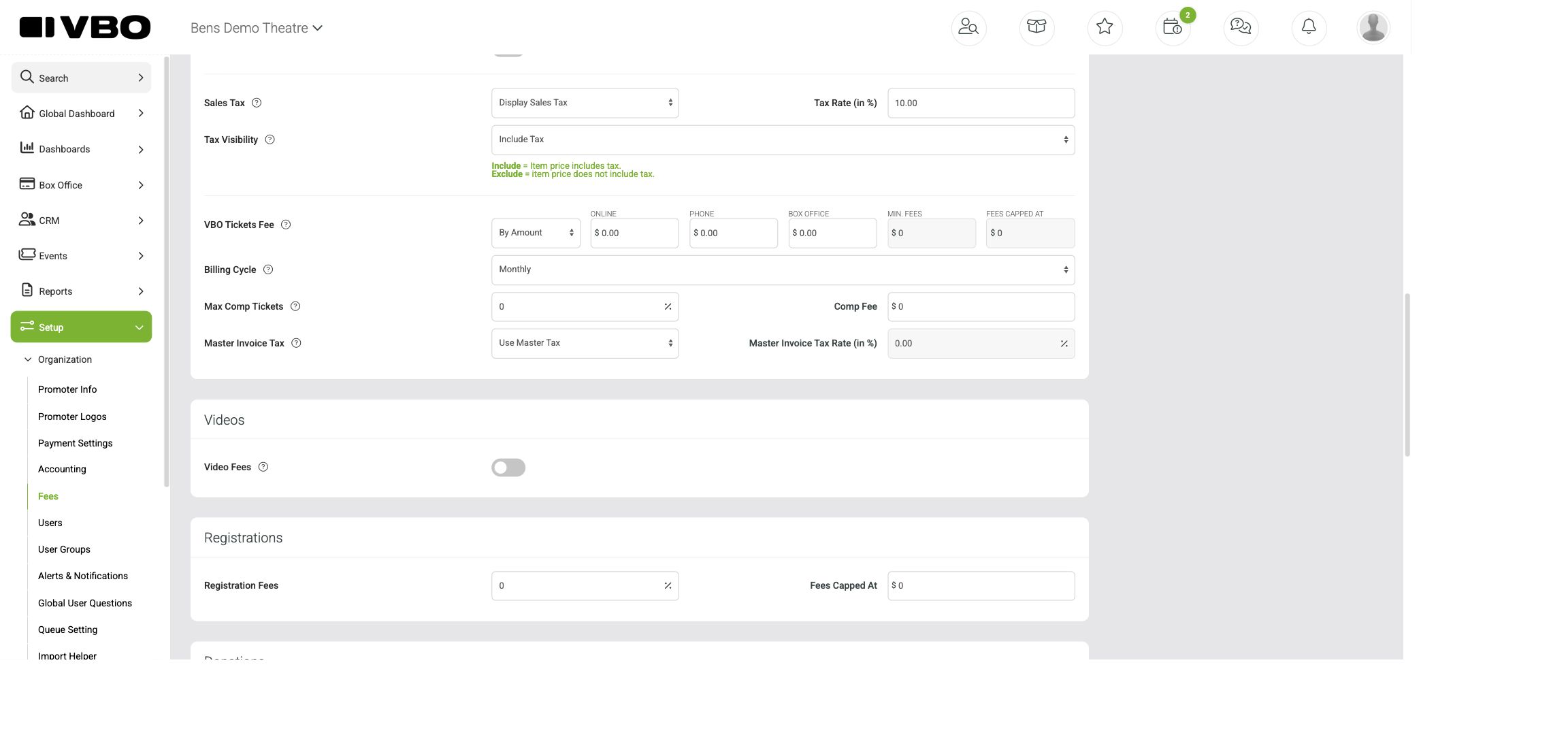
Sales Tax: Display Sales Tax turns on the sales tax feature and enables tax-rate controls. When set to No Tax, the merchandise tax control is disabled.
Tax Rate (in %) is the account’s standard rate. A rate of 10% is used in the examples below only as an illustration.
Tax Visibility: Include Tax or Exclude Tax changes how prices are displayed. It does not add tax on top of the customer’s total.
Set up account sales tax
Go to Setup → Organization → Fees.
Set Sales Tax to Display Sales Tax.
Enter the standard percentage in Tax Rate (in %).
Choose Include Tax or Exclude Tax under Tax Visibility.
Save. You need Is Admin or global administrator access to change these settings.
Set a rate for an event
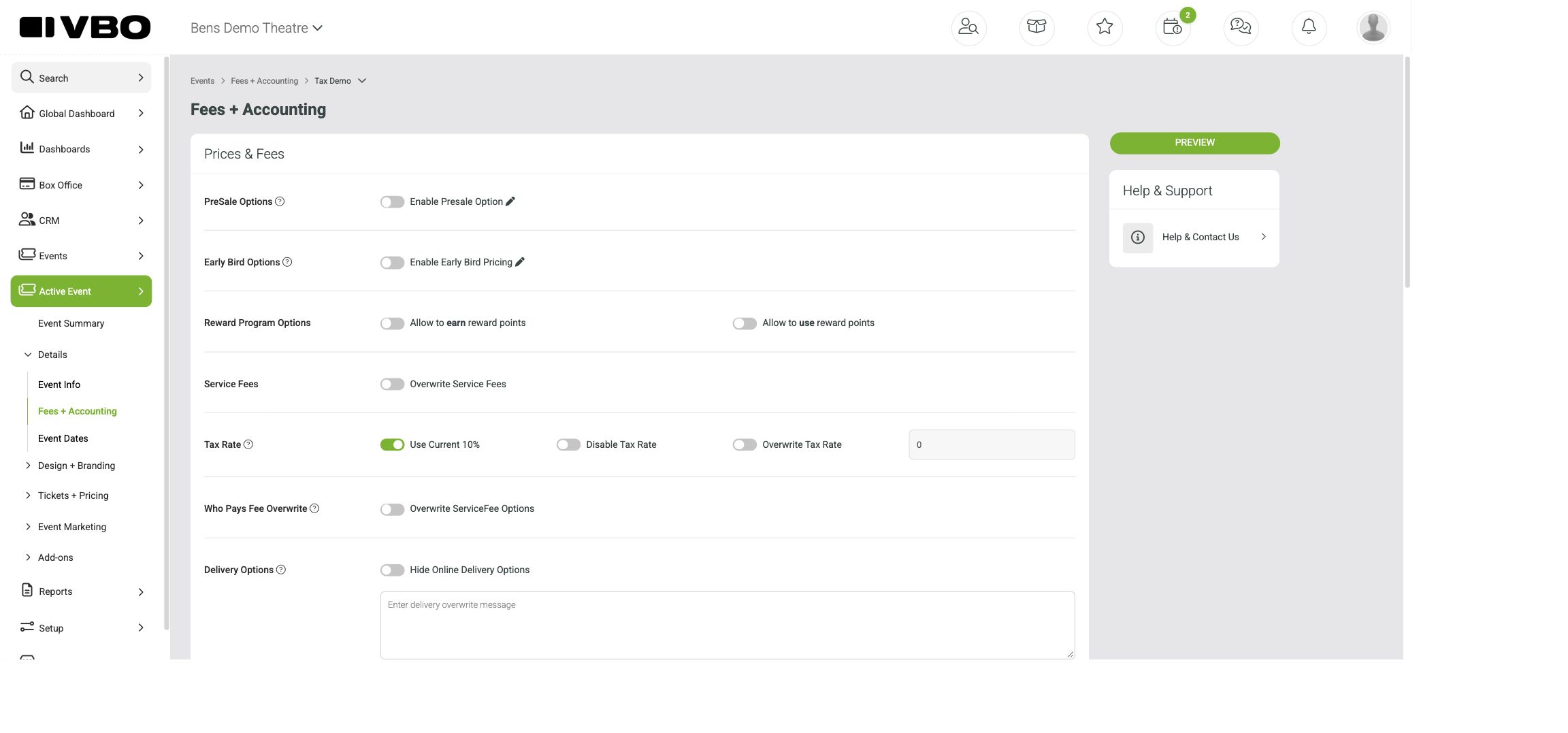
Go to Events → Manage Events and open the event’s Fees + Accounting settings.
Under Tax Rate, choose Use Current [rate]% to use the account rate, Disable Tax Rate to make the event’s tickets non-taxable, or Overwrite Tax Rate to enter another rate.
Save the event.
The event override applies to its tickets; it does not change merchandise or subscriptions.
Set a rate for merchandise
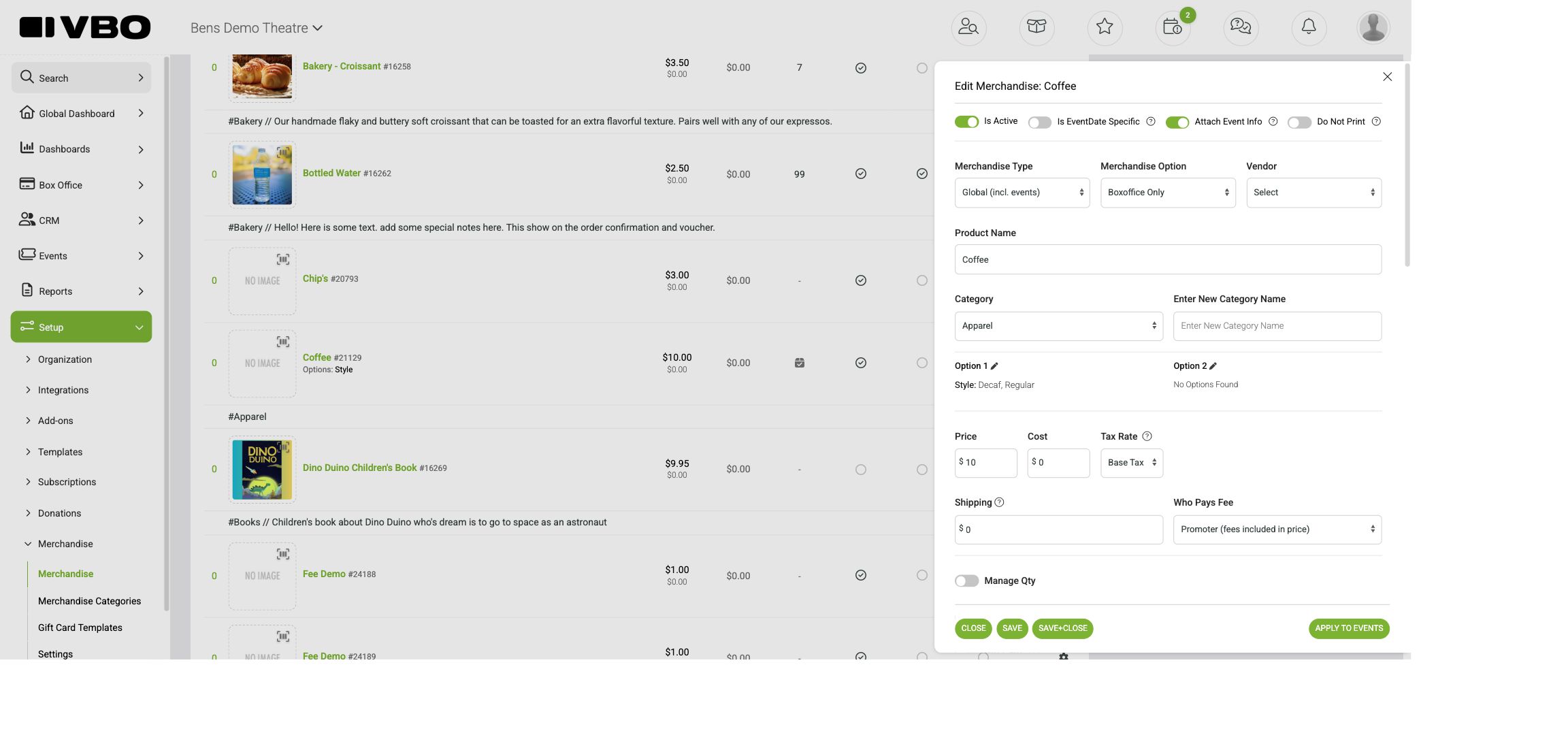
Go to Setup → Merchandise → Merchandise and open the item.
With account sales tax enabled, use the item’s Tax Rate menu: Base Tax uses the account rate, No Tax makes that item non-taxable, and Other Tax lets you enter a different rate.
Save the item.
When Exclude Tax is selected, the editor may show Price (Net), Tax, and Price (Gross). The gross price is saved and charged. The item’s online availability is controlled separately by its Merchandise Option.
Set a rate for a subscription or membership
Open the subscription or membership in setup.
Under Tax Rate, select Use Base Tax, No Tax, or Other Tax and enter the rate if needed.
Save.
What customers see online
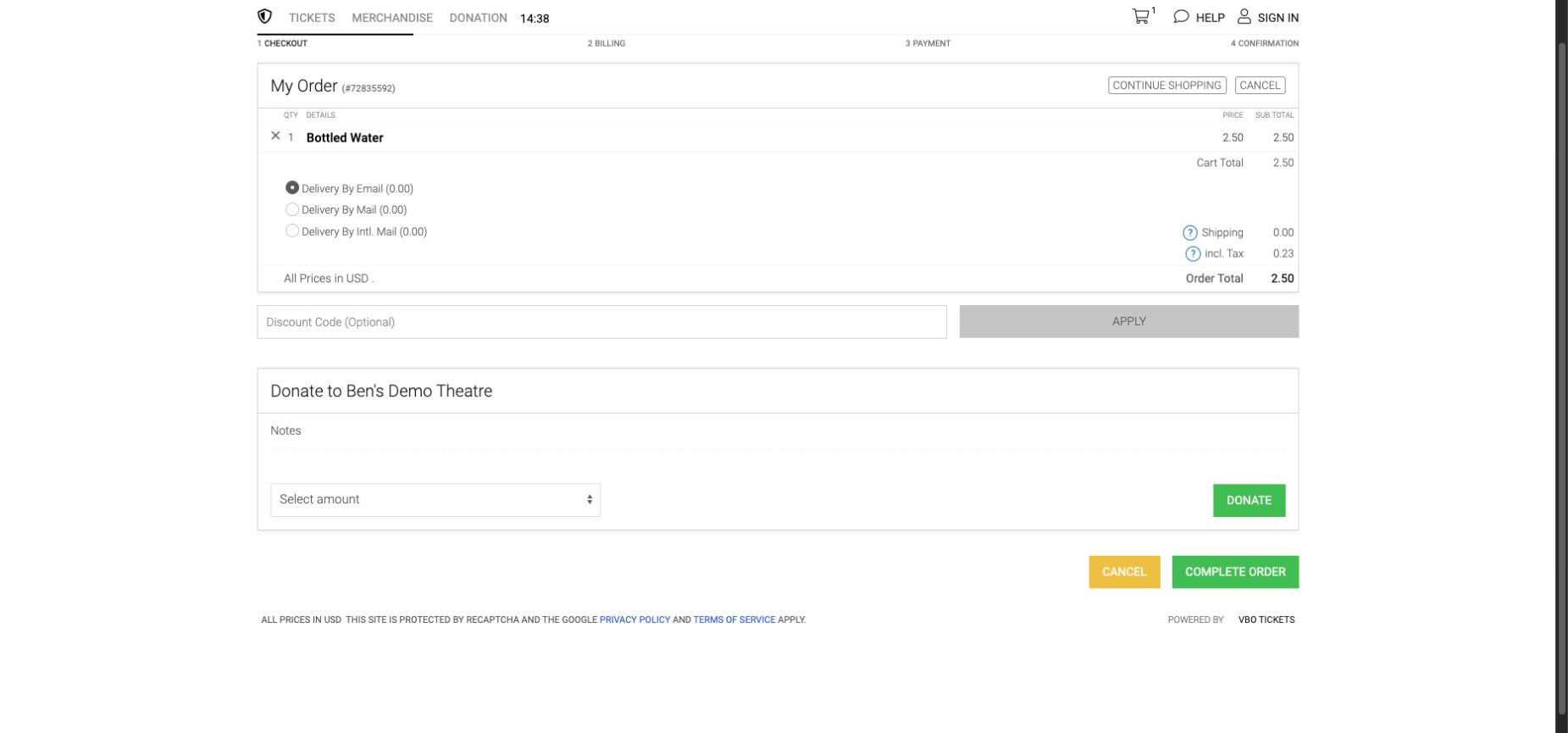
In the online merchandise checkout, the example order showed incl. Tax with a separate tax amount. A $2.50 Bottled Water item at the 10% test rate showed $0.23 tax, while the order total remained $2.50. The tax is included in the price, not added again. In other checkout views, the tax label may appear as Sales Tax or Sales Tax (incl.), depending on tax visibility and the checkout surface.
To see the tax in context, add a taxable item to the online cart and continue to checkout; you can review the tax line without completing payment. In the test account, we did not complete the order.
Find sales tax in reports
Go to Reports → Custom Sales Report.
Create or edit a report and choose Standard Report, not GL Report.
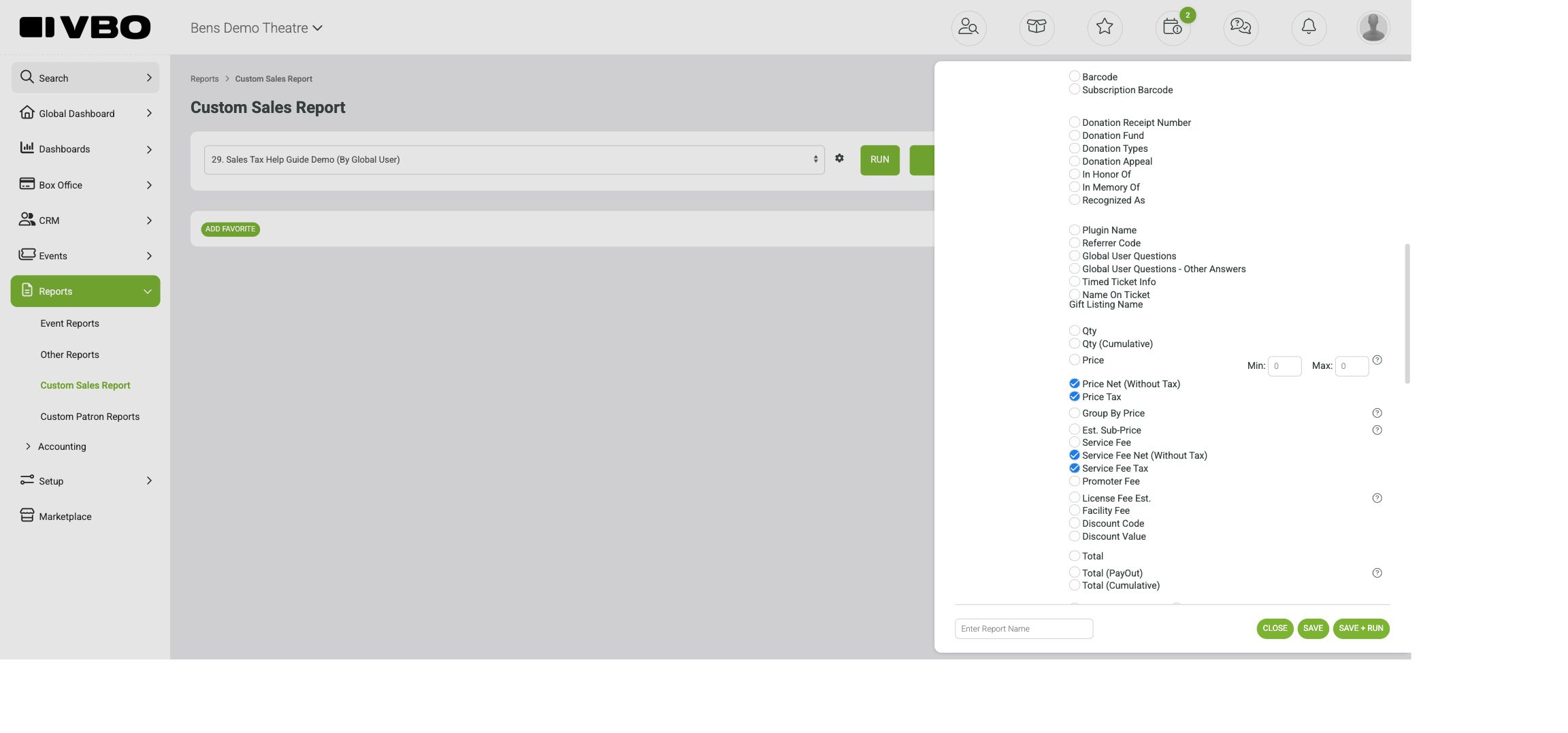
For a tax-focused view, include Tax, Tax Rate, Tax Rate As Columns, Price Net (Without Tax), Price Tax, Service Fee Net (Without Tax), and Service Fee Tax. Add Order Fees Tax and Shipping Tax only if you need to inspect those calculated components.
Choose a transaction date range and include both sales and refunds for a net view. Refunds appear as negative rows.
Save the report and select Run.
In the report builder, the selected Tax output displayed as Total Tax in the generated Standard Report. That column is the stored tax amount. Price Tax, Service Fee Tax, Order Fees Tax, and Shipping Tax are recalculated from the gross amounts and stored rates; they may not sum to Total Tax. Demo orders are excluded. The Cashier Report also recalculates tax rather than simply printing the saved amount. Confirm with your finance or tax advisor which figures to use for
reconciliation and filing.
The screenshots below show where to select tax-related output columns in a Standard Report.
Important behavior
The tax portion is extracted from the price: tax = amount × rate ÷ (100 + rate). For example, $11 at 10% includes $1 tax.
Discounts reduce the amount used to calculate tax. A free-ticket discount skips tax.
Service and facility fees use the account’s standard rate rather than the event override.
Donations are not taxed in the current cart calculation.
Changing a rate affects carts when they are repriced. Completed orders keep the tax information saved at checkout.
The internal value 99 means no tax; it is not a 99% rate.
Master Invoice Tax and affiliate invoice taxes are separate from sales tax on customer orders.
This article describes VBO behavior only; it is not tax advice.