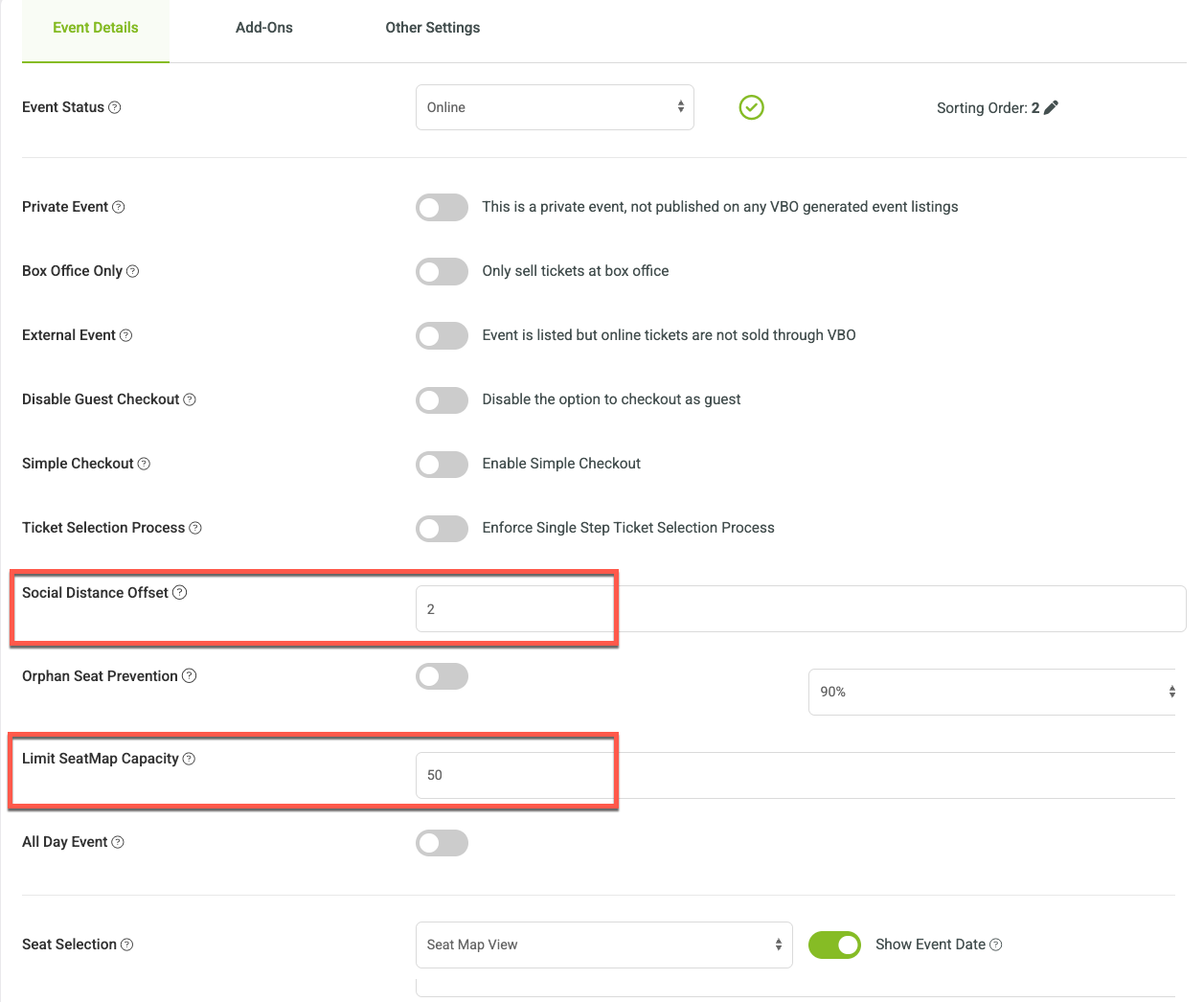
Social Distance Setting for Assigned Seating
Social Distancing Offset and Max Capacity settings can be enabled under Event Info for the event.
When enabled, these setting leaves adjacent seats empty to the left and right of selected seats during online purchases.
Applies to assigned seating events only
Affects online sales only
Box office users can still view all all seats and manually assign seats without restrictions
When a customer selects seats online, adjacent seats are removed from availability to maintain spacing.
Feature Limitations
Social distancing is applied within each section and row only
If your venue uses multiple sections (e.g., Left, Center, Right), spacing will be applied independently within each section
If your seating chart uses a single section (e.g., “Main”), spacing will apply across the entire row
*Consider splitting large sections into smaller ones for better controlRows are not spaced from each other
*Seats in front of or behind are not automatically blockedTo create spacing between rows, consider making alternate rows unavailable on your seating chart
How to Enable
Go to Event Info on your event and set a Social Distance Offset and Max Capacity.
Settings Explained
Social Distance Offset
The number of seats to leave empty between groupsLimit Seat Map Capacity
Sets the maximum number of seats that can be sold for the event
Example: Limit sales to 50% of total capacity