Cross Promotion
Overview:
Cross-promotion offers allow you to promote another event during checkout. For example, when a customer buys tickets to one event, you can offer them a discount on another event. This is a great way to boost sales and increase visibility for other shows.
Before You Begin:
To create a cross-promotion, you’ll need:
Two events already created in your account.
A valid discount code for the event you’re promoting
Step 1: Set Up a Discount Code:
Go to the Discounts area for the event you want to offer the discount on, and add a new discount code. If you haven’t created a discount code before, review this doc first: Discount Codes
Step 2: Set Up the Cross-Promotion on the Other Event
Go to the other event that will be "promoting" the event you want to discount.
On that event, open the MARKETING tab.
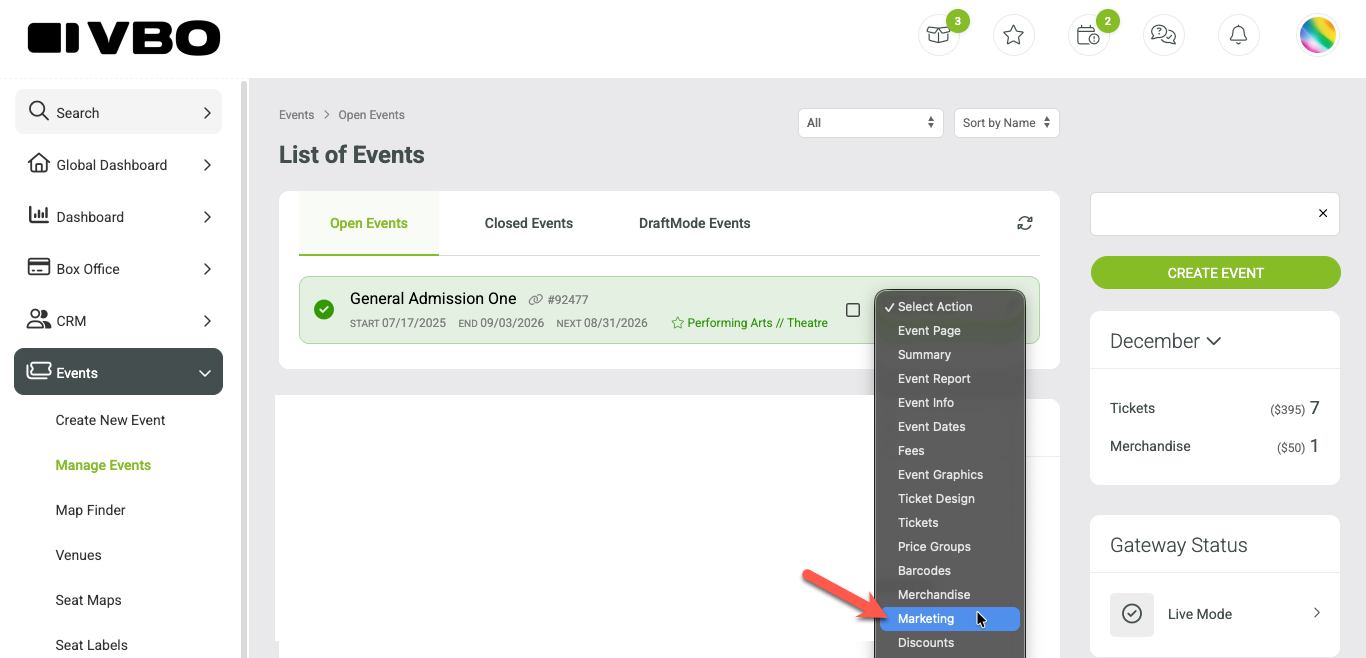
Select Cross Promotion
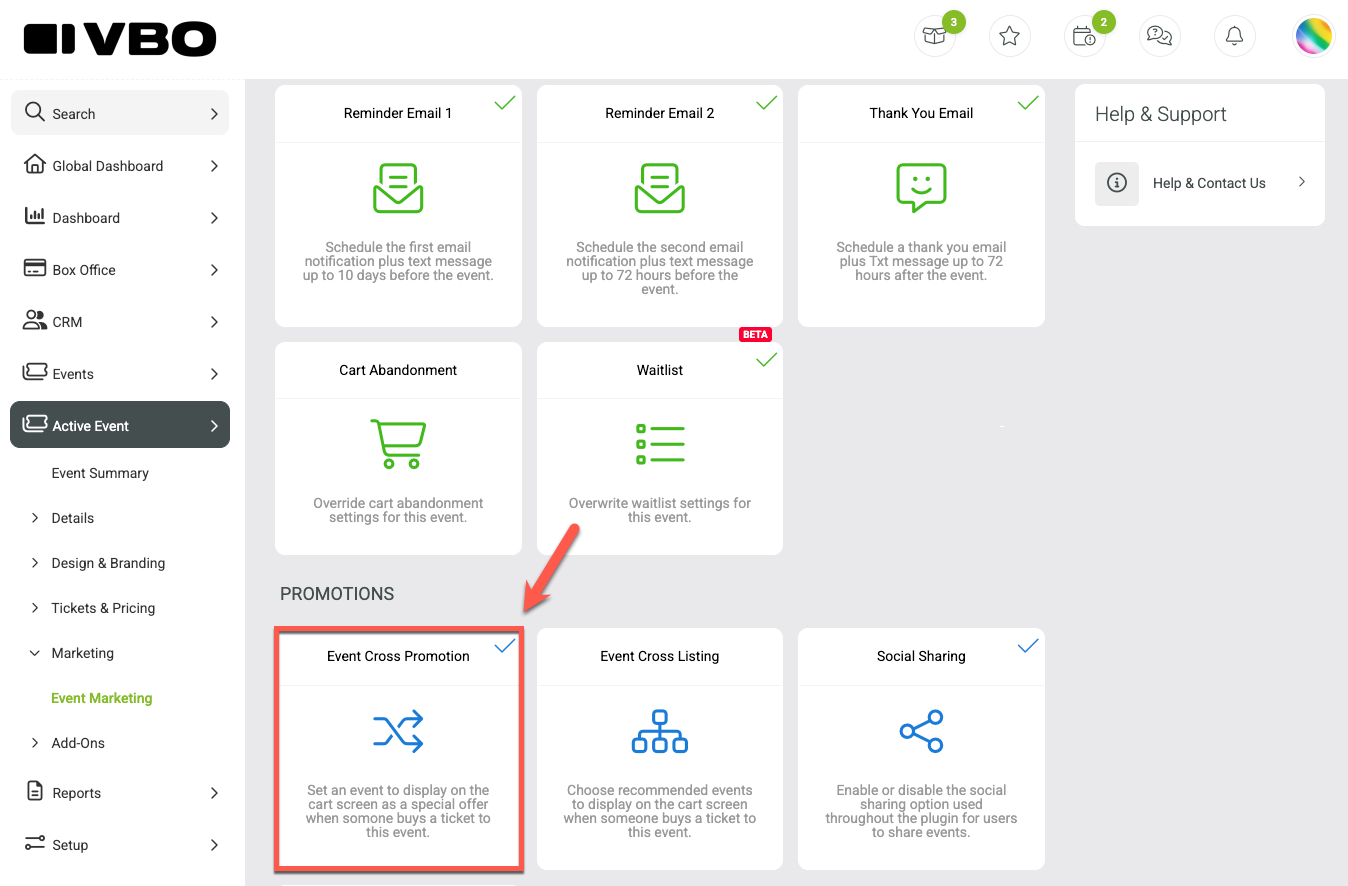
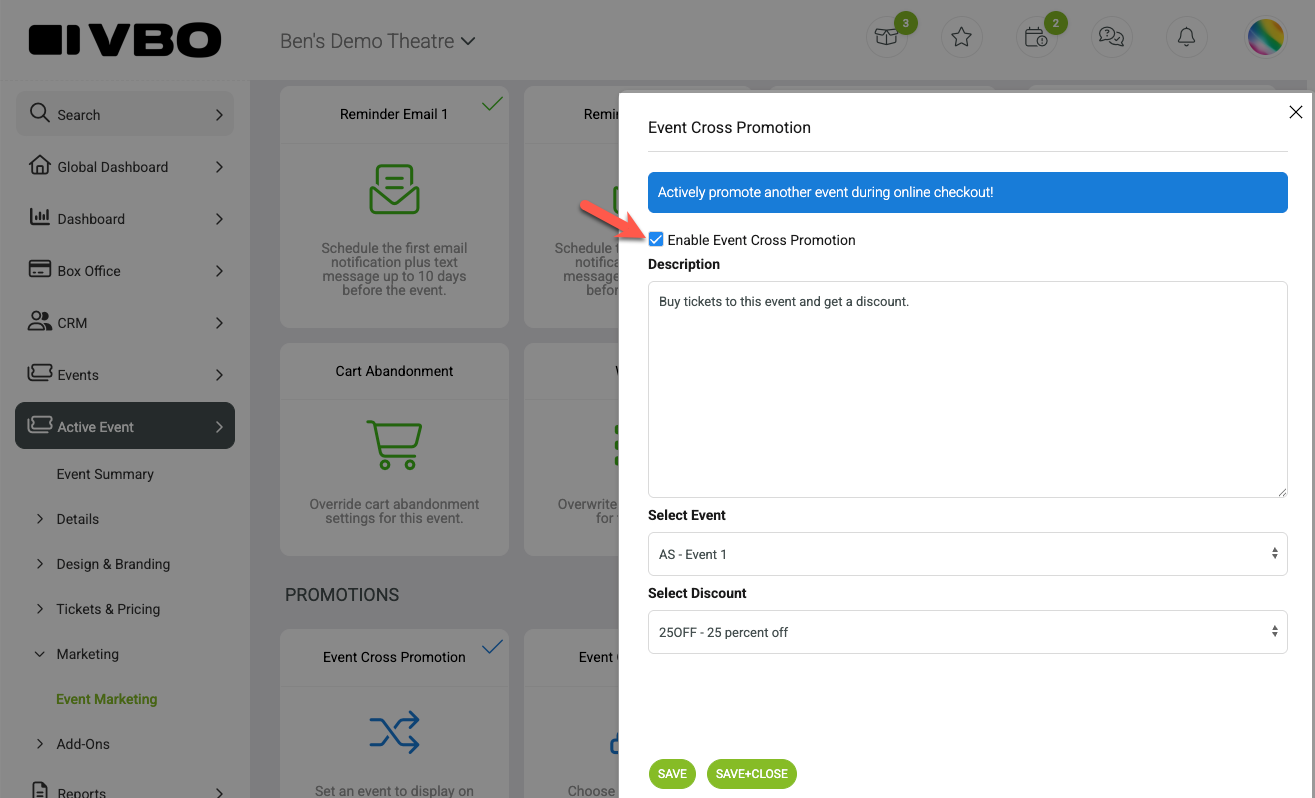
In the slide out menu, enable the cross-promotion, write a description, select the event you want to promote, and select the discount code.
Click Save to apply your changes.
Step 3: Preview the Offer
Click Preview on the event you just edited.
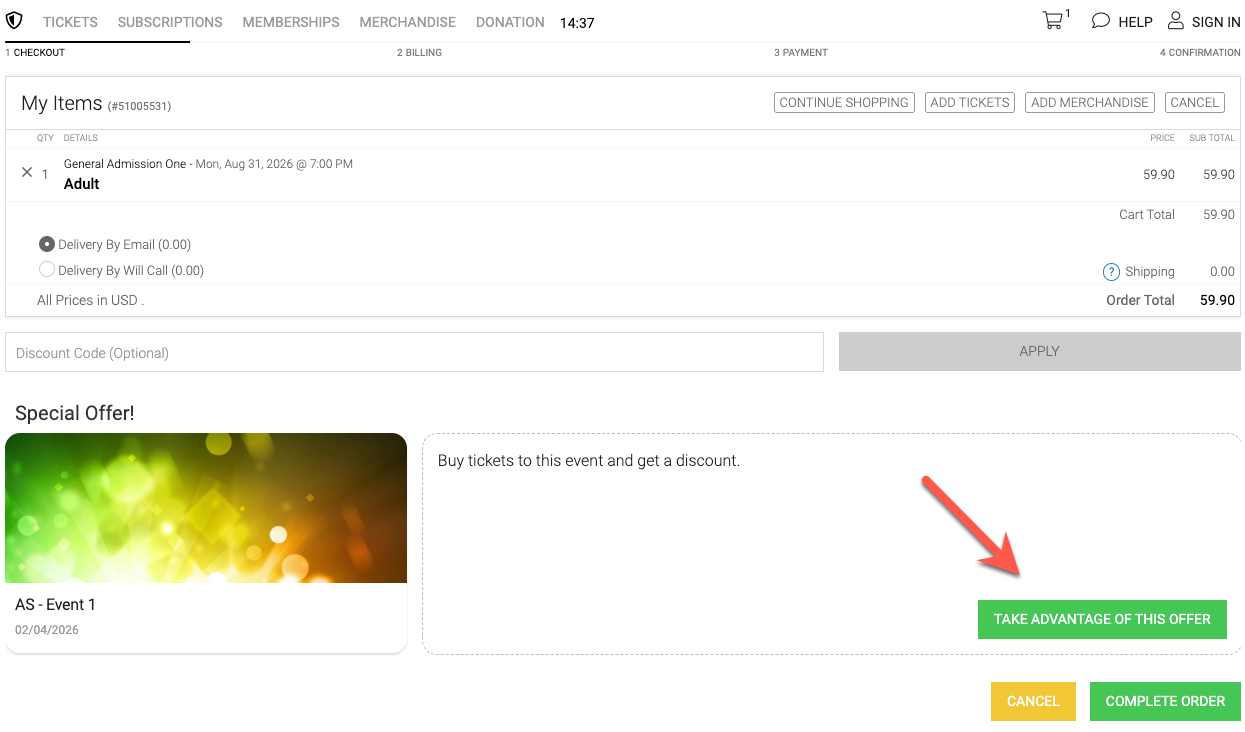
Go through the checkout process as if you were purchasing tickets.
You should see the cross-promotion offer appear during checkout
Add tickets for the promoted event, and the discount will automatically apply.
Troubleshooting:
Don’t see your offer? Make sure you saved both the discount code and the cross-promotion setup.
Discount not applying? Verify that the code is active and linked to the correct event.
Offer text not showing? Double-check that the cross-promotion feature is enabled and the event was saved after editing.