Insert Images into Emails and Event Descriptions
How to Insert Images into Emails and Event Descriptions
Overview
To include an image in event descriptions, reminder emails, or thank-you emails, the image must be hosted online so you can use its URL in the editor.
Recommended Hosting Options
Host the image on your own website (preferred).
Use a third-party image host (e.g., Postimages.org) if needed, but be aware some services may remove images.
Step-by-step Instructions
Upload the image to your website or an image hosting service.
Open the image in a new browser tab and copy the image URL (it should end with an image extension like .jpg, .png, .gif).
Open the email or event editor where you want to add the image.
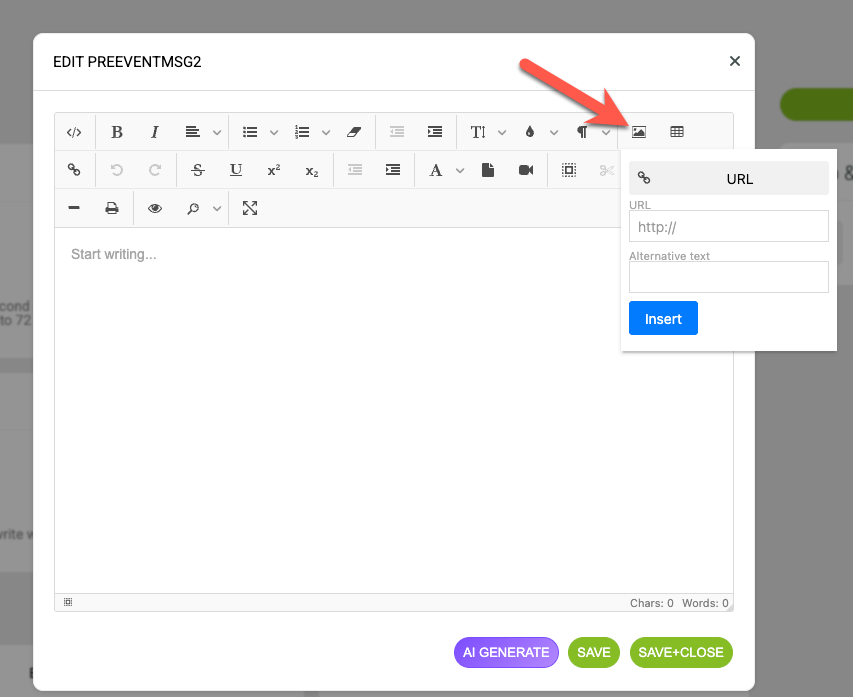
Choose the "Add Picture" option in the editor.
Paste the image URL into the field provided and confirm. The image will be inserted into your content.
Tips
Prefer hosting images on your own site to avoid unexpected removals by third-party hosts.
Check that the image URL is publicly accessible (not a private link).
Use appropriately sized images for email to reduce load times..