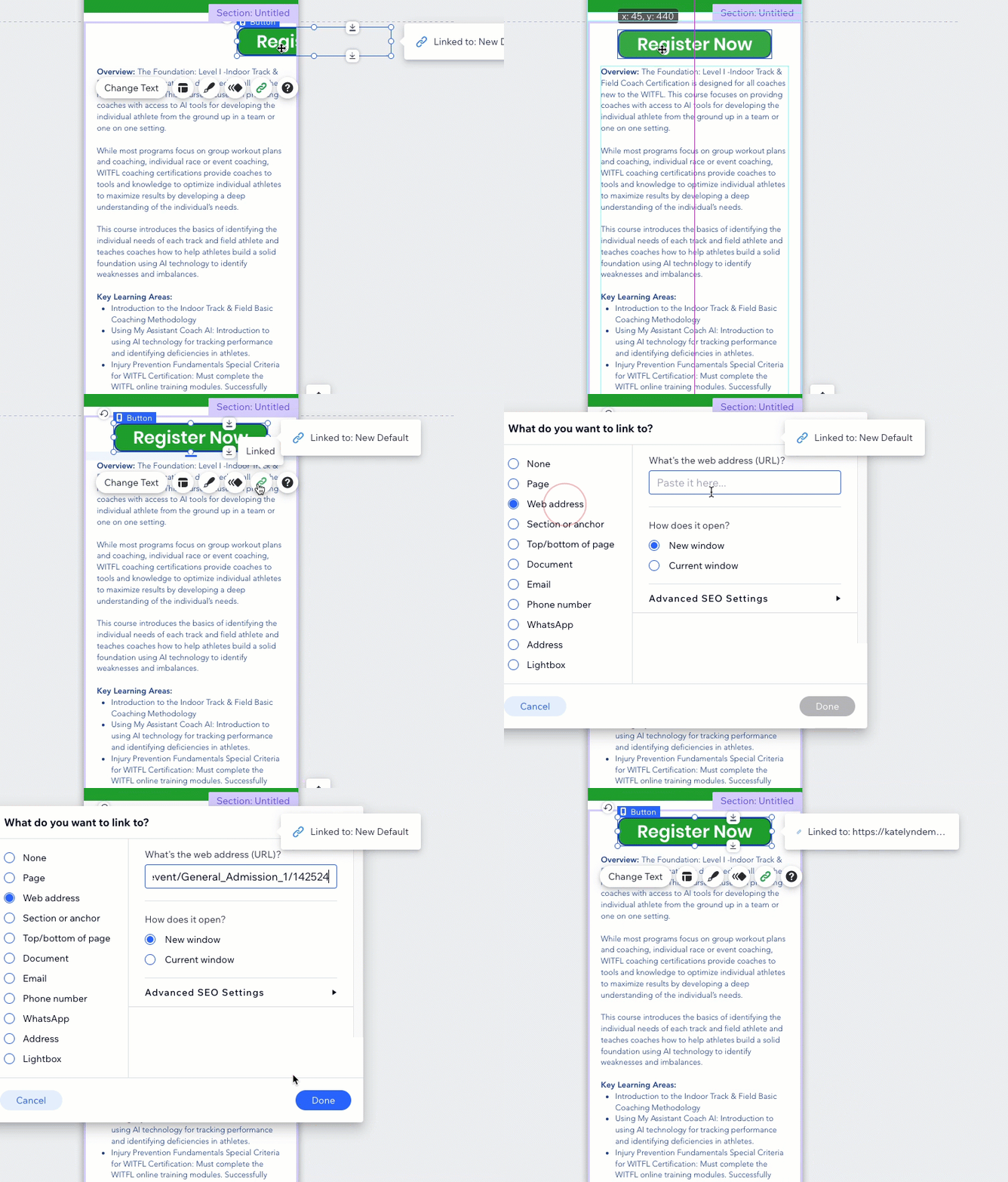
Embedding on Wix Websites
For the best purchase experience, we recommend using the Lightbox feature for desktop displays and redirecting users to the VBO-hosted page for mobile displays.
Below are the steps to integrate VBO with your Wix site for an optimal desktop and mobile experience
Creating a Lightbox for Desktop View
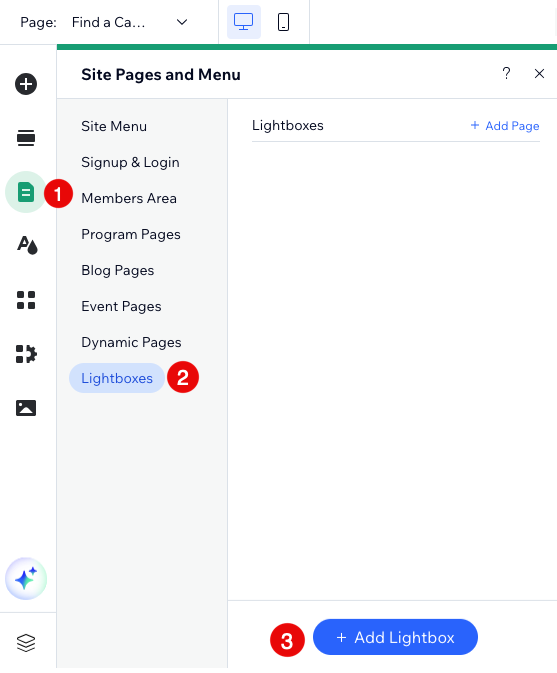
Click Pages & Menu > Lightboxes > Add Lightbox
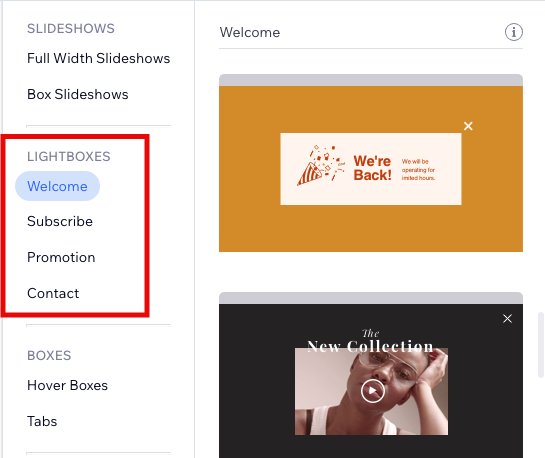
Choose a Lightbox design from the available options
Remove default elements from within the Lightbox
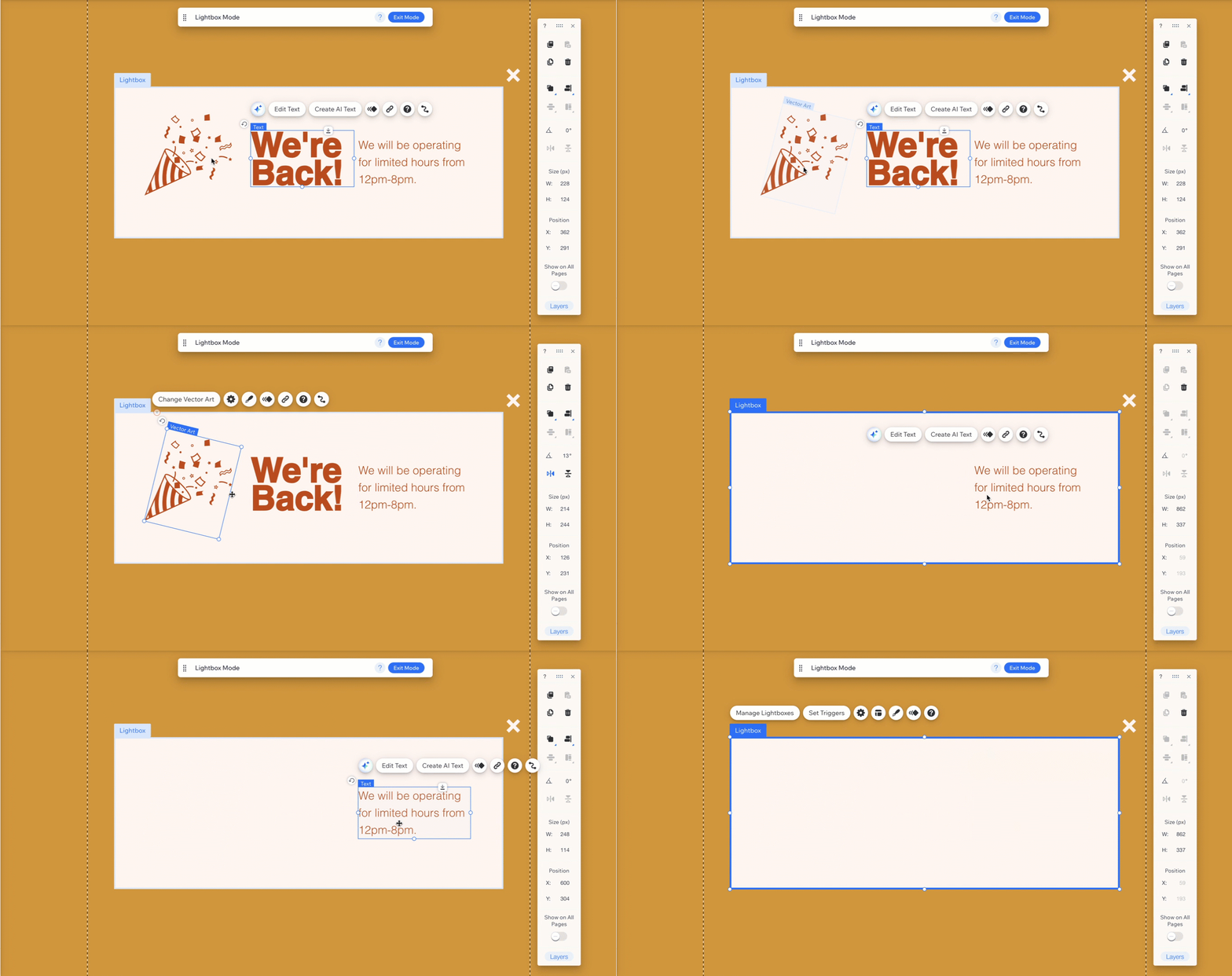
Change the overlay background to black from the color menu and 75% opacity from the settings menu
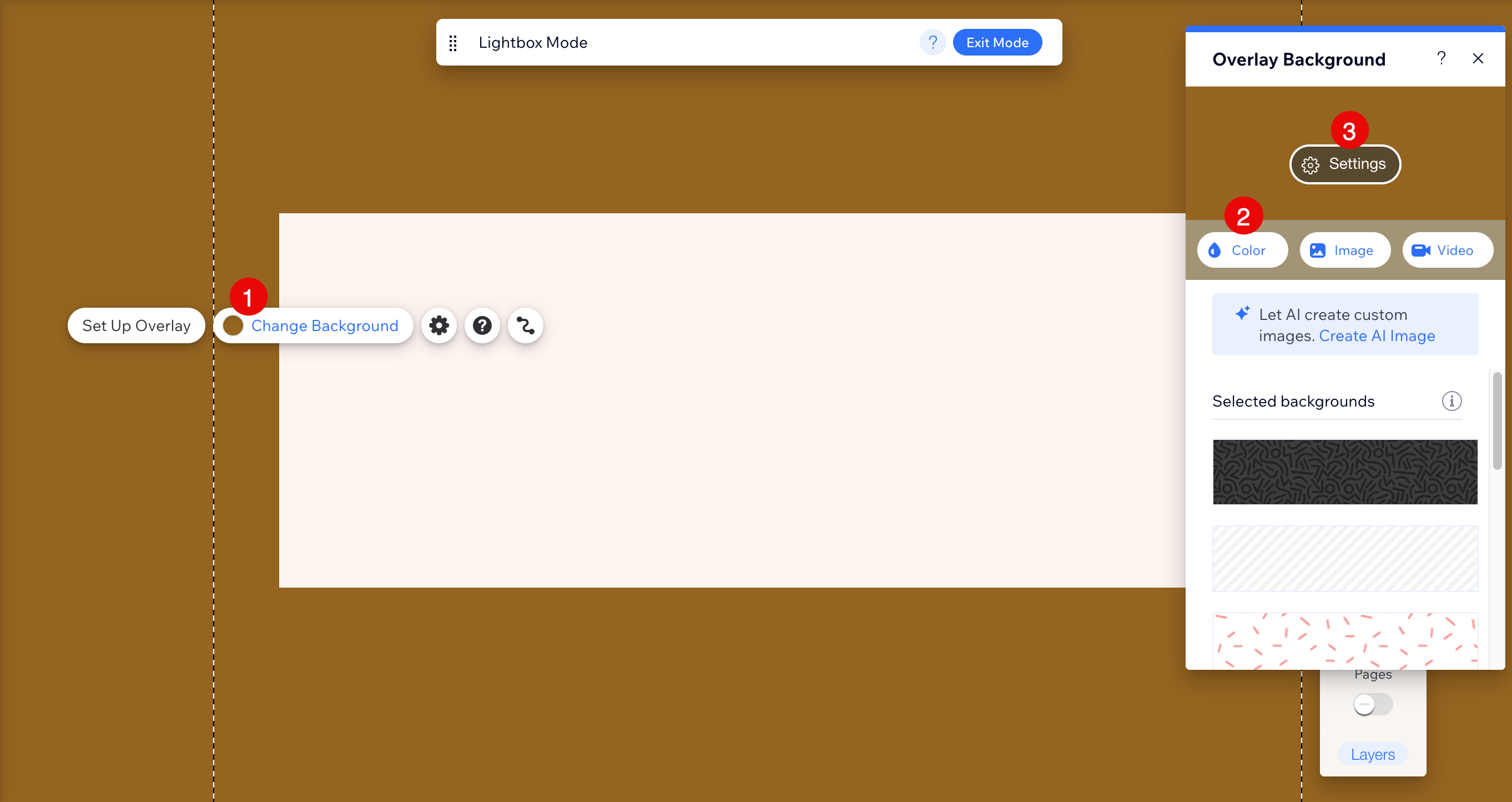
Click the design option from the Lightbox editor and change the opacity to 0% from the settings menu
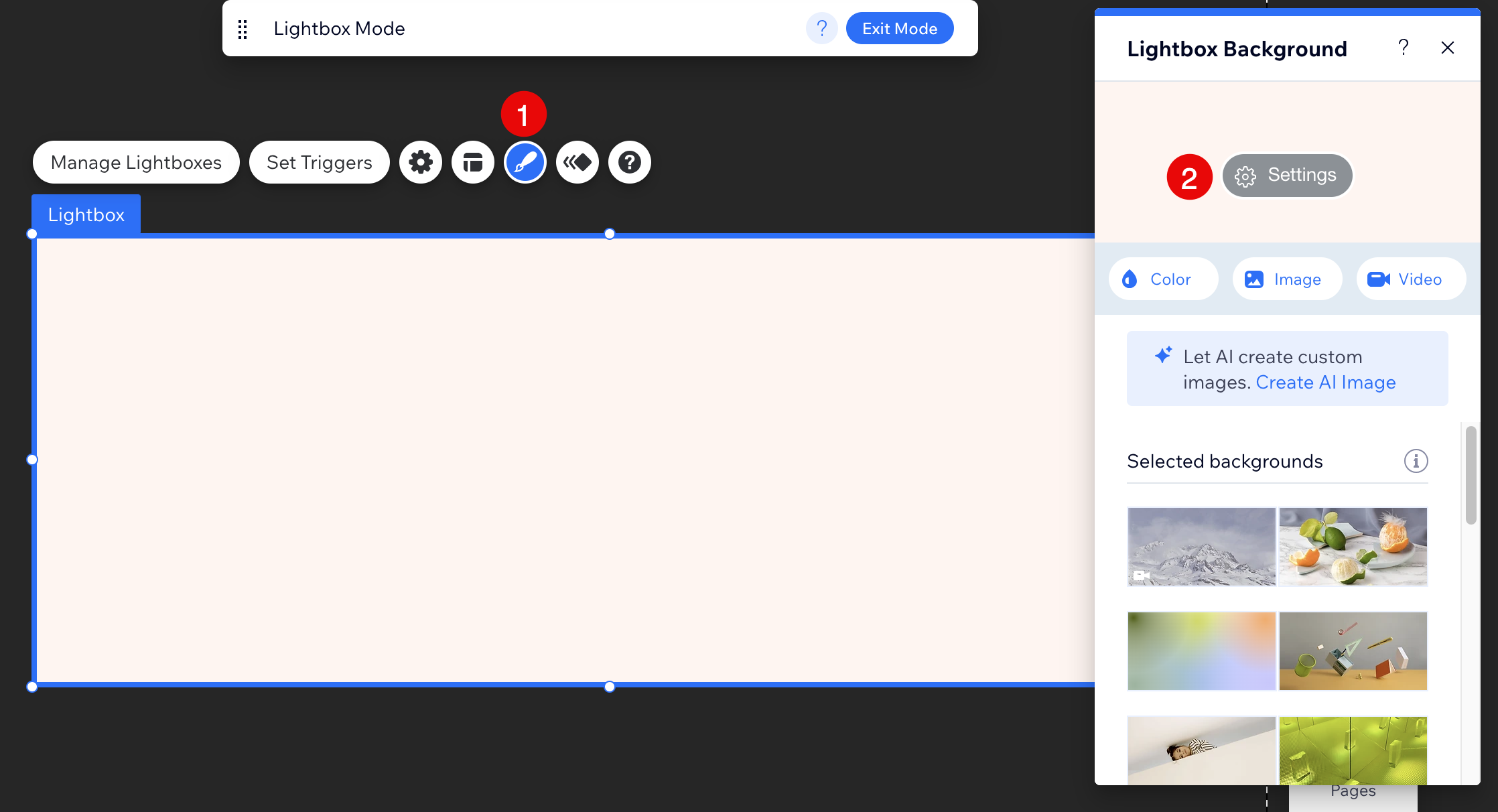
Embed URL or Plugin into Your Lightbox
Click Add Elements > Embed Code > Embed a Site
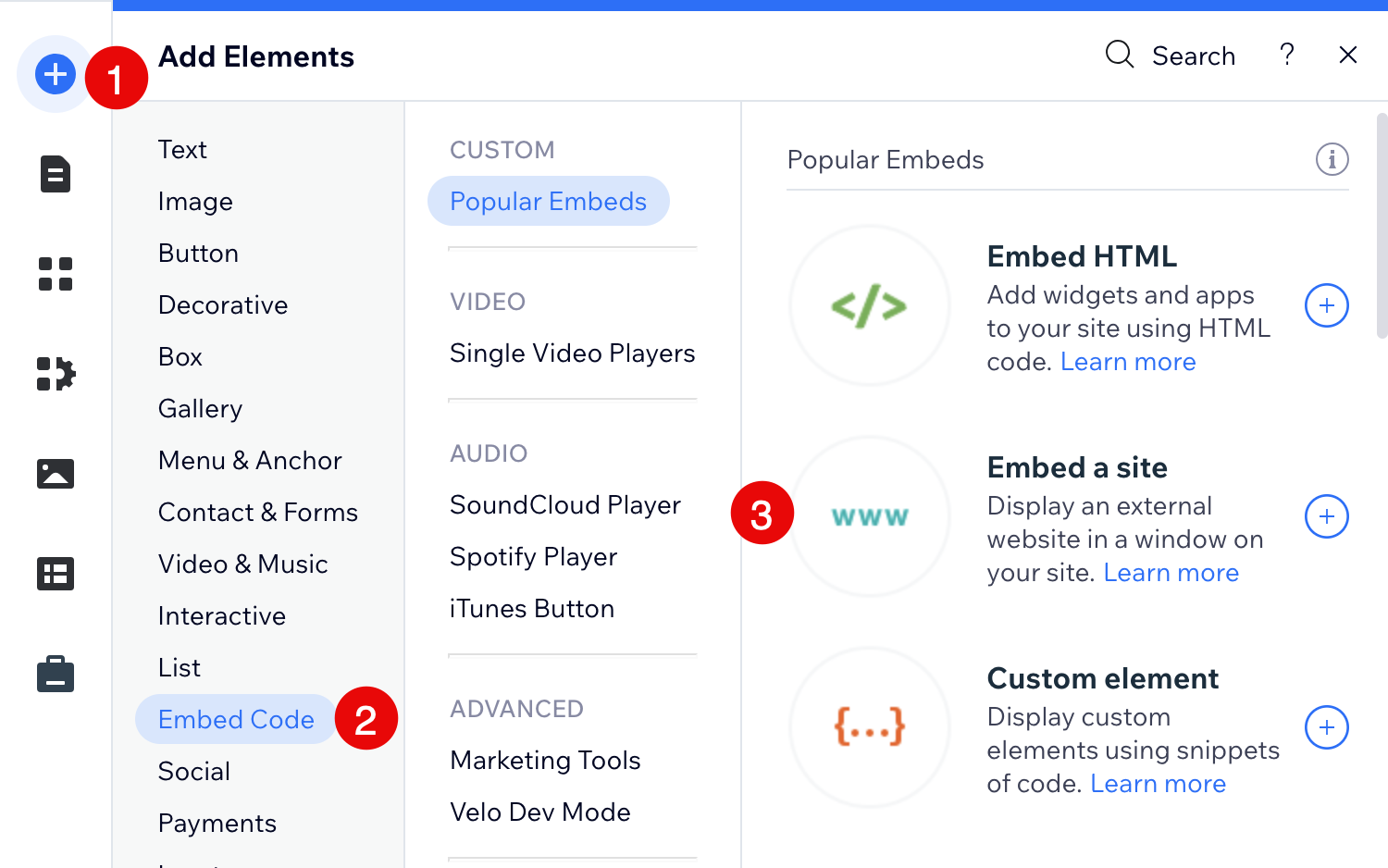
If embedding a link to a specific event, paste the URL into the website option and click Apply. If embedding a plugin, paste the embed code into the available box and click Apply.
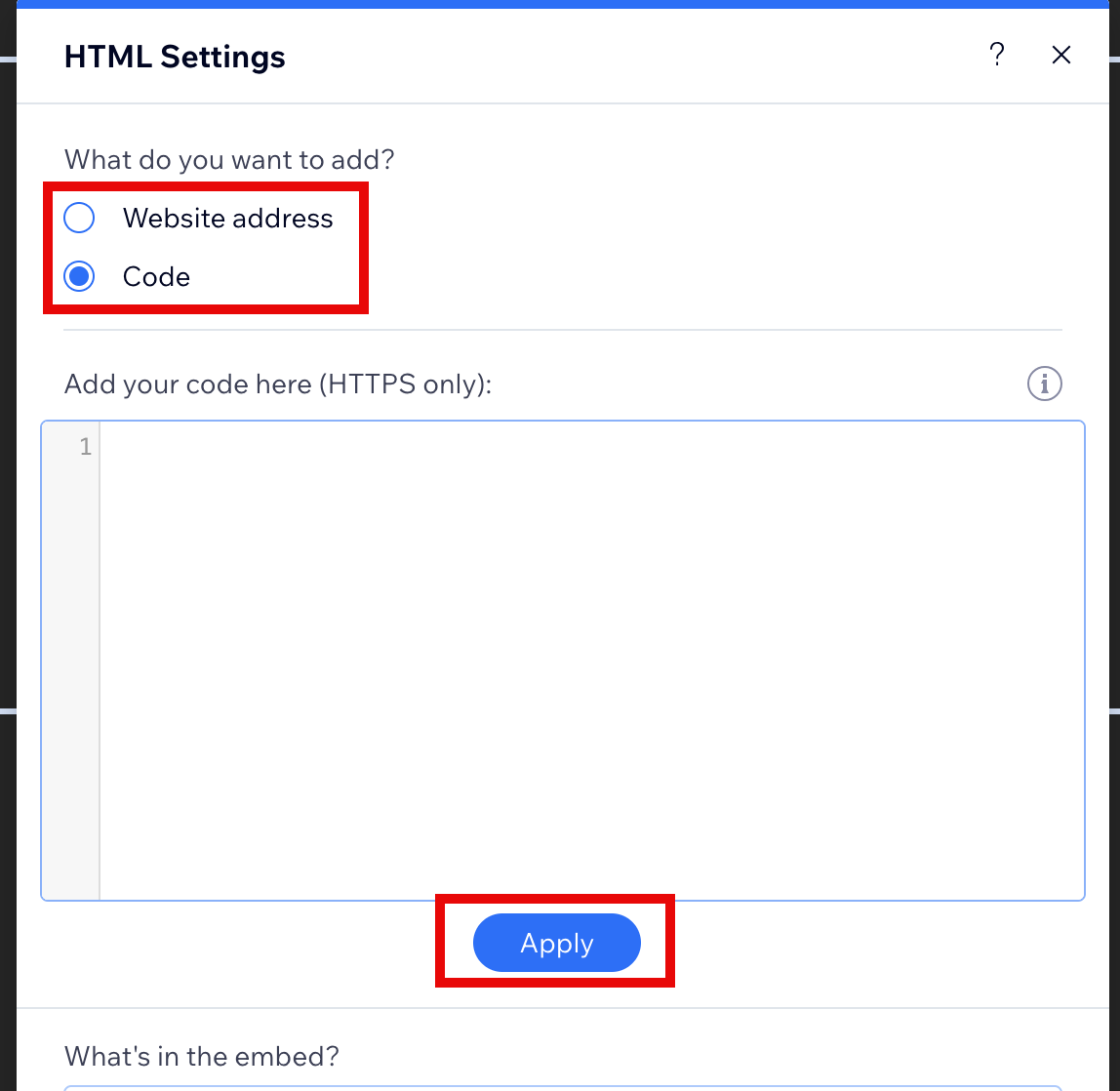
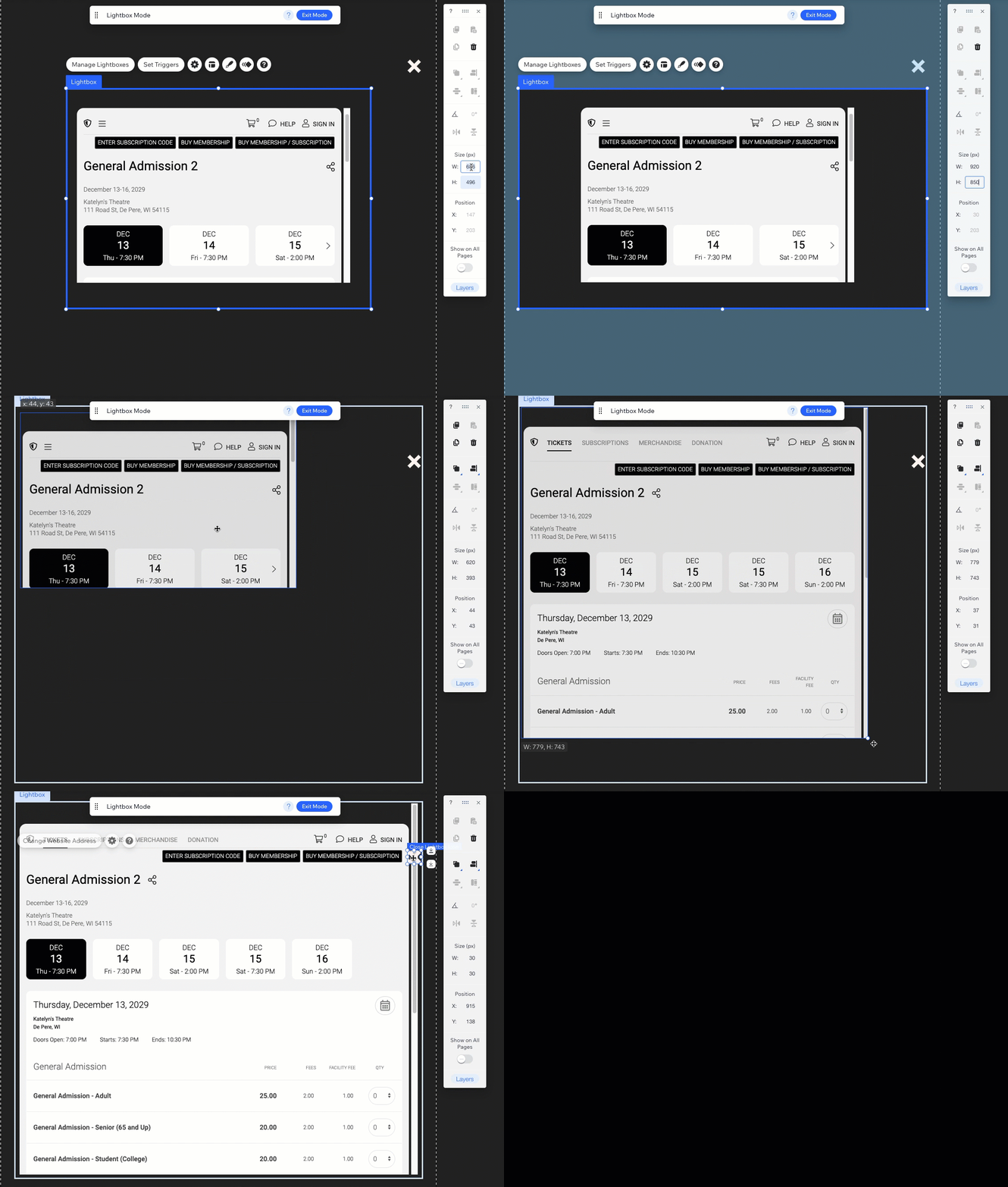
Use the design tools to set the Lightbox size to 920 x 850. Then you'll be able to resize the VBO event or plugin to fit within the Lightbox. You'll also be able to move the X that will close the window.
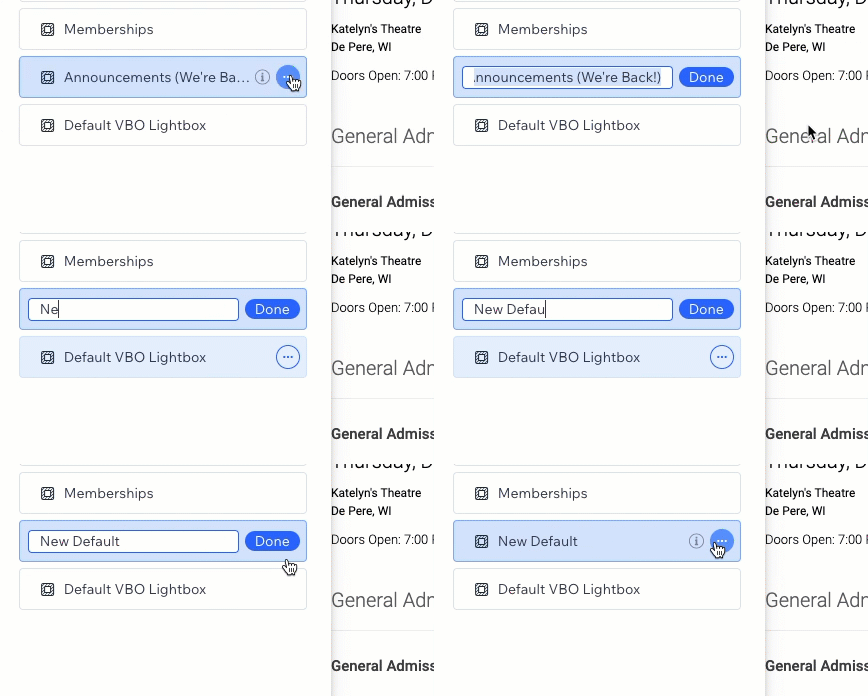
Rename your Lightbox from the menu for easy identification. We recommend creating a default Lightbox template that you can duplicate whenever you need to set up a new one.
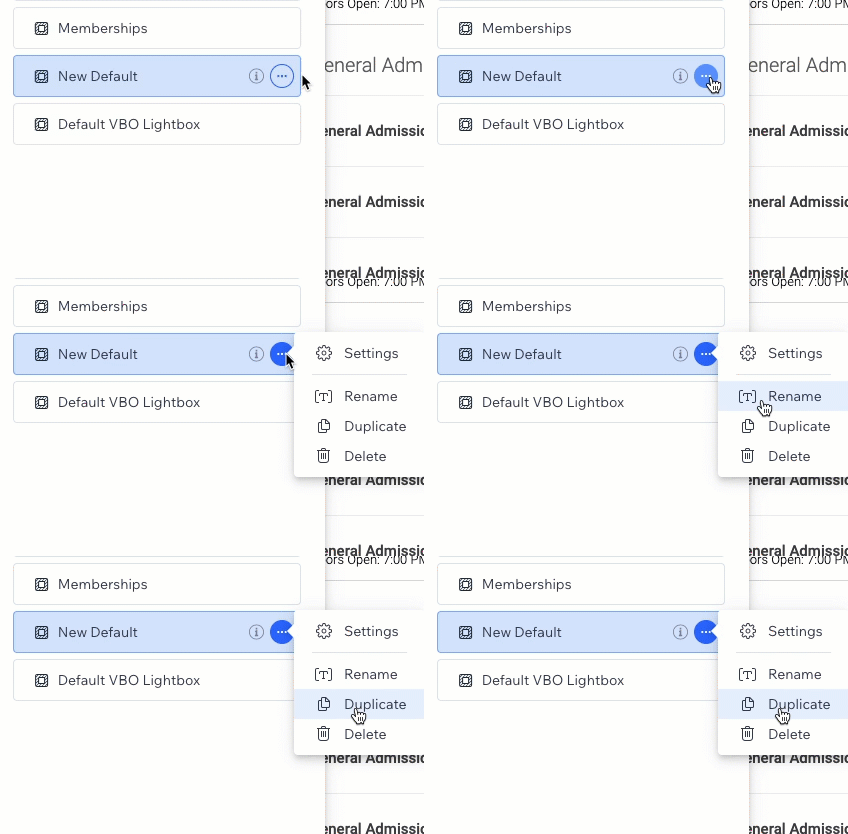
Use the same menu option to create duplicate Lightboxes when you need them.
Attach Lightbox to a Button
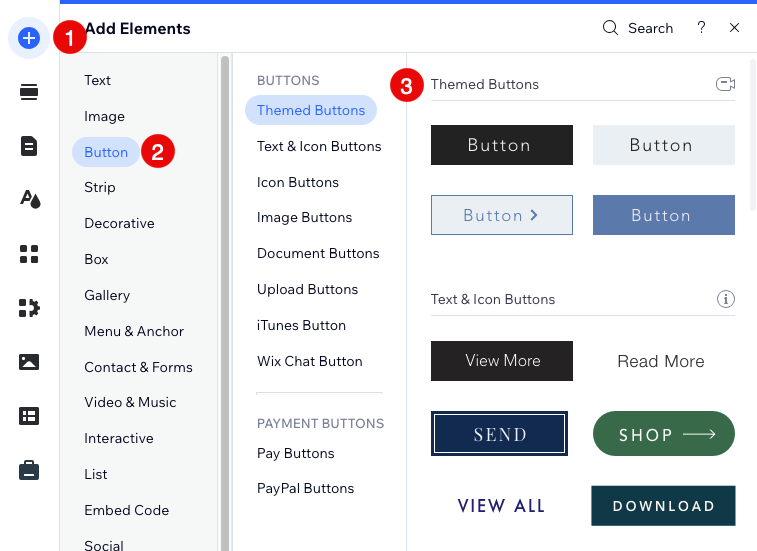
Navigate to the page where the customer will complete their purchase and click "Add Element" > Click Button > Choose your desired Button Theme
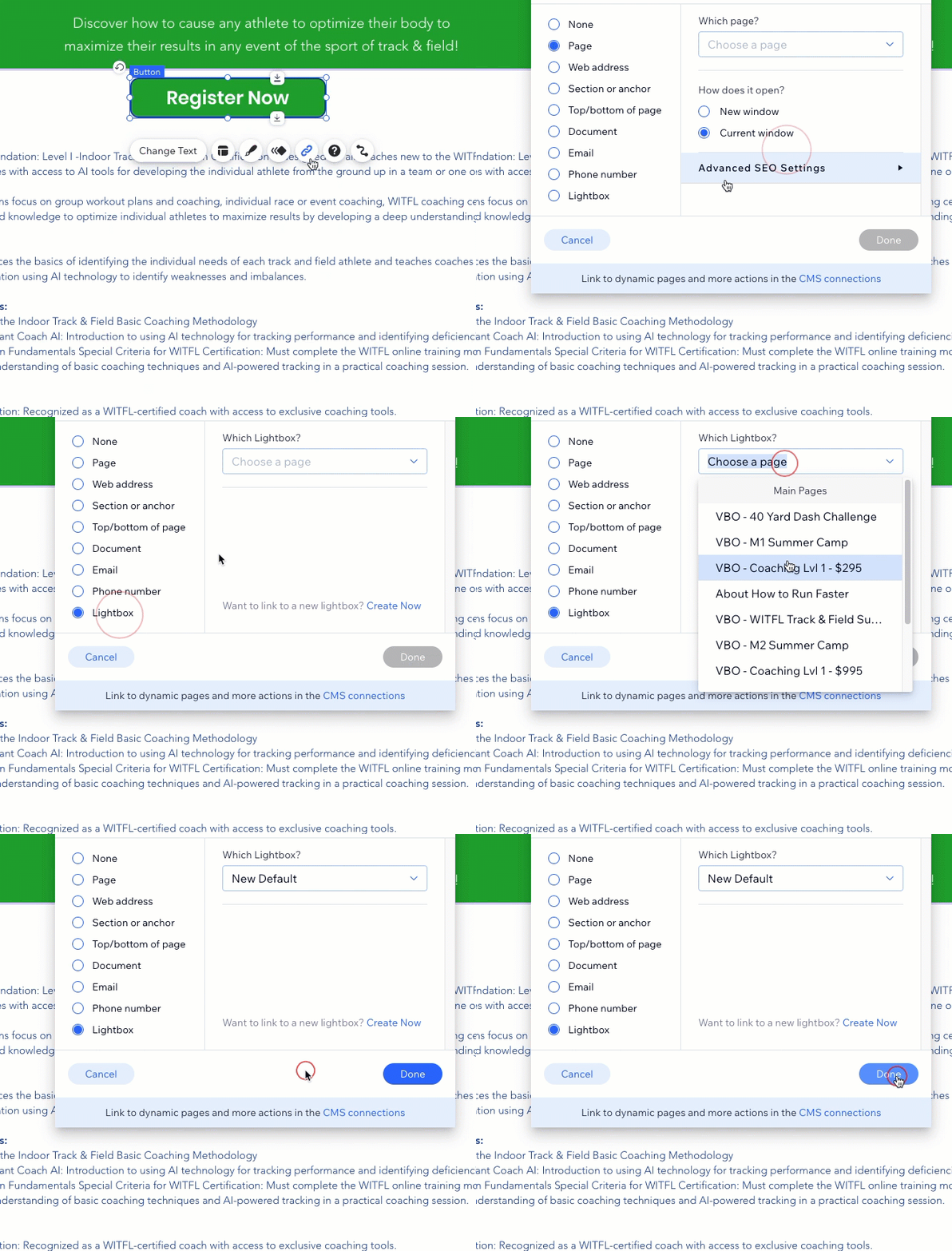
Place the button where you want users to access the Lightbox. Click the link option on the button and choose the Lightbox you want to attach
Create a Redirect for Mobile View
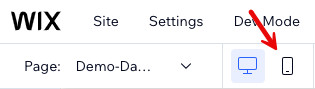
Toggle to mobile view via the options in the top left corner of your screen
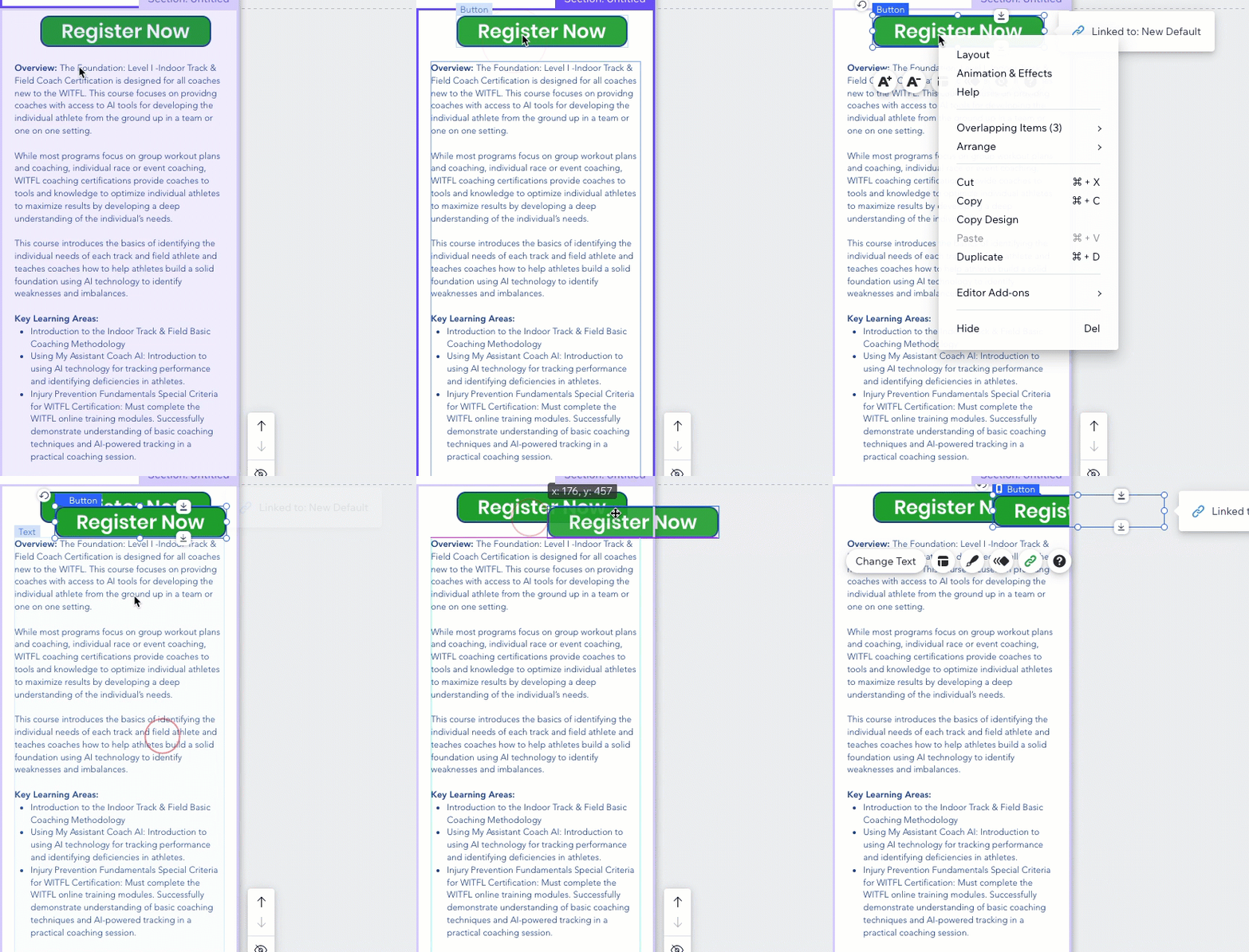
Select the button that is linked to the Lighbox > Right Click > Choose Duplicate
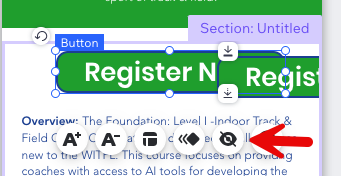
Click the hide option on the original button. This will hide the button in mobile view, but display it in desktop view.
Position duplicated button and link it to the web address of your event