Discount Codes
Discount codes can either be global (all events), event-specific, event category-specific, event date/ticket or section-specific. This help doc covers various discount code set ups.
Here are types of the discount options available:
Buy X tickets get X tickets free
Free Ticket
% or $ off per ticket
% or $ off per order
Fixed Ticket Price
The system only supports ONE code per transaction. If you have an event specific discount code or a ticket specific discount code set up on multiple events and multiple events are in the cart, only one event will be discounted.
Part 1 will cover how to set up a global or event-specific discount code.
Part 2 will cover how to set up an event category-specific discount code.
Part 3 will cover how to set up a date-specific or ticket-specific discount code.
When setting up discount codes, only use letters and numbers, and do not add spaces or special characters.
Example: FUNDAY2567
Discount Code Settings:
Limit Per Order: the number of tickets that can be discounted per order (per transaction).
Example: 2 tickets per transaction.
Limit Total: the total number of tickets that can be discounted using the code - EVER
Example: limit 100. This would mean 100 total tickets can be discounted using the code. Once someone tries to buy ticket 101 the code would no longer work.
How to do FREE Items:
Do not do 100% OFF
Instead, select FREE TICKET
Part 1: how to set up a global or event-specific discount code.
Part 2: how to set up an event category-specific discount code.
Step 1 - create the discount code as specified in part 1
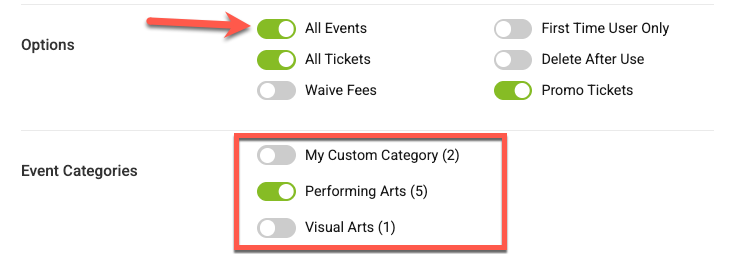
Step 2 - check the 'All Events' box in the options ares
Step 3 - choose the event categories that the discount should apply to
Part 3: how to set up a date-specific, ticket-specific discount code, or section specific discount code
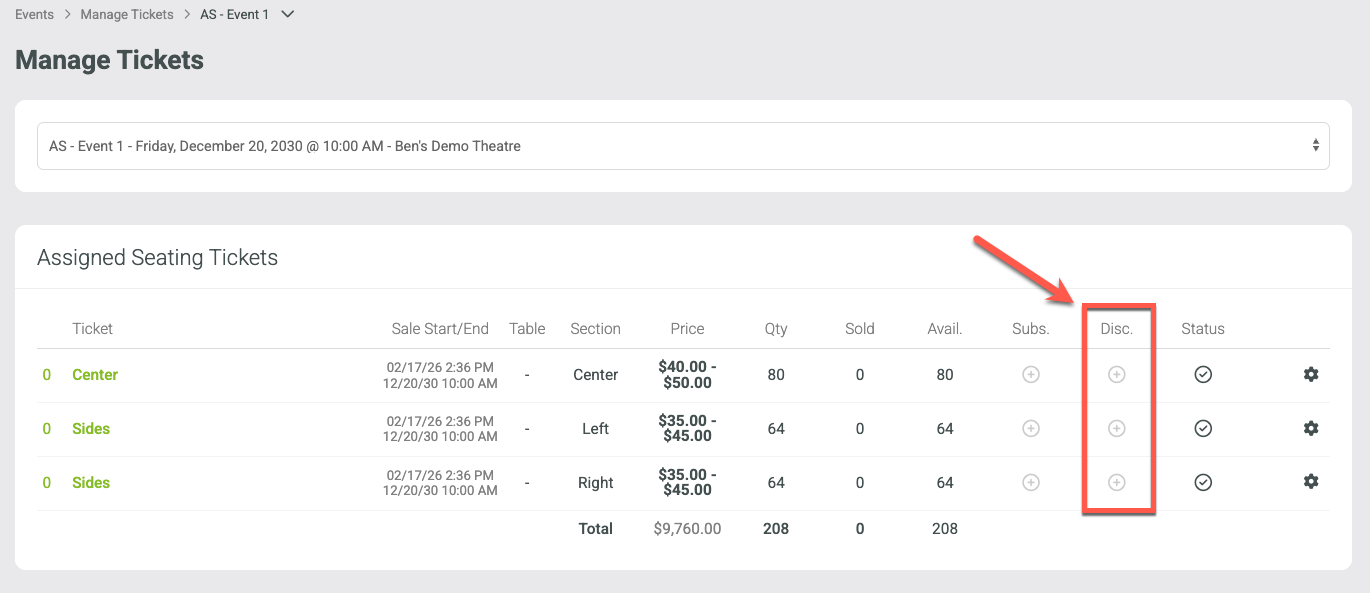
Creating an event date or ticket-specific discount codes is a multi-step process.
Step 1 - Create the discount code
Step 2 - In the discount options area on the code, Uncheck "All events" and "All tickets" to make the code be a ticket specific code (TS)

Step 3 - Activate the discount code on the ticket level for ticket or section where the code should be valid. This is on TICKETS page for the event. The code must be set up before this step.
General Admission events can have ticket-specific discount codes.
Assigned seating events will discount the section only.